This week,
Raiser's Edge NXT updates with some exciting new features and enhancements, including a new action record — your one-stop shop for everything you need to prep for or review a task or interaction — and full fundraising analysis with
Nonprofit Intelligence!
Analyze your fundraising efforts! With
Nonprofit Intelligence, you — and others at your organization, such as directors and fundraisers — can track and analyze the overall fundraising performance with insightful dashboards and metrics. With this easy-to-consume analysis, you can quickly discover fundraising gaps, act on insights to drive results, and share knowledge across your organization. (Not new to you? To help minimize impact,
Nonprofit Intelligence released in waves following an
Early Adopter Program, so you may've received it earlier than others. And if you don't see it yet, expect it very soon!)
- From Fundraising, Analyze, you can gauge and visualize your organization's fundraising efforts, actions, and — with Prospect Research Management — opportunities with several dashboards of metrics. For more information, check out the Analyze Help. (BTW, to review metrics in Analyze offline, you can download them as a PDF or automatically receive one as an email on a regular basis. For details, see the PDFs of Analyze Metrics Help.)
- To track the performance of specific fundraising efforts, you can select the name of a campaign, fund, or appeal to view its record. On the record, you can view details about the fundraising effort and quickly review metrics to gauge and compare their effectiveness. For more information, see the Campaign Records Help, Fund Records Help, and Appeal Records Help.
To view a list of records included in the
number-crunching, select the total or metric. To fine-tune the analysis, you can apply filters to the list. For further analysis, you can select
Create list to open the list in
Lists (with any filters applied), where you can apply additional filters, choose columns, and save for future reuse.
Admins! For each security group, choose which metrics its members should access in
Fundraising,
Analyze. For information, see the
Analyze Rights Help.
 Manage actions from their records (and their opportunities)!
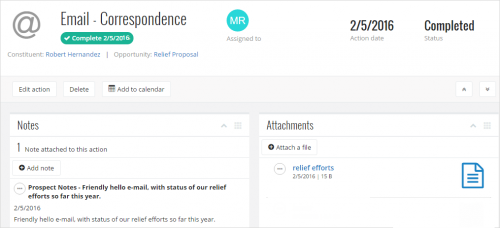
Actions track your tasks and interactions required to cultivate relationships with — and secure gifts from — constituents. To help track information about an action and its status, you can now view and manage its details directly from its record. To open an action's record, select its category and type under
Notes and actions on its constituent's record or under
Actions on its opportunity's record. From an action's record, you can:
- Review pertinent details about the task or interaction, including its priority, constituent, and associated opportunity.
- Quickly scan and manage who the action's assigned to as well as its date and status.
- Add the action as an appointment to your calendar as a reminder of when it takes place. (By default, appointments download as ICS files. To add actions to Google Calendar, or to set how you want to always add appointments, you can select a preference when you add an appointment! For more information, see the Calendar Appointments Help.)
- Work with notes and attachments to track important details and related collateral, such as correspondence and presentation files.
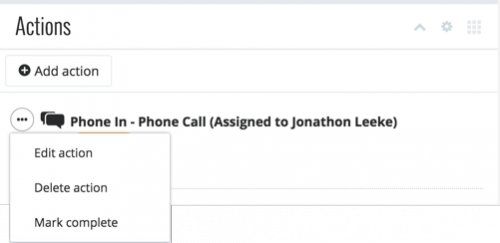
You can also now delete an action or mark it as complete from the record of its opportunity. Under
Actions, select
Delete action or
Mark completed from the action's menu. For more information, check out the
Action Records Help.
Select anywhere on search results to open a record. To help easily open records (especially on mobile devices!), you can now select anywhere in the results — instead of just the name — when you use the
Search for a constituent field.
 Replace attachment files.
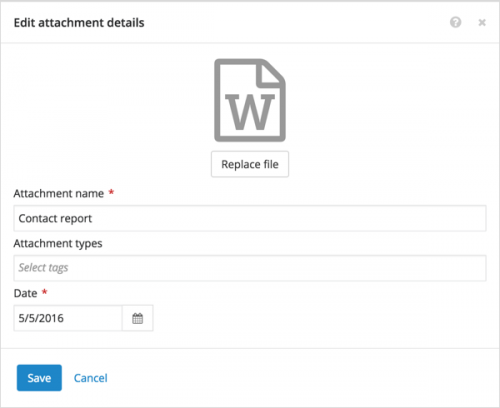
To keep information you attach to constituents — or actions! — up-to-date, such as to replace the rough draft of a letter to propose a gift with the final ask, you can now edit an attachment and select
Replace file to easily upload a new version. For more information, see the
Attachments Help.
For more details about these features, or to catch up on previous releases, check out the
What's New Help and
What's Recent Help. Enjoy!