My Community
YourCause®
Impact Edge™
All-Star Lounge
Member Lounge (Just for Fun)
Community News
Community Manager
Groups
Browse Products
Members
Community All-Stars
Monthly Challenges
Member Search
Jobs Board
Help
Using the Blackbaud Community
Blackbaud Support
Knowledgebase
Blackbaud University
Discussions
Categories
Groups
Home
ResearchPoint™
ResearchPoint™ Blog
ResearchPoint™ Tips: Adding Grateful Patient Solution Encrypted Fields To Queries And Research Lists
Shelley Weifenbach
Queries and Research Lists are at the heart of identifying patient prospects. Once your organization is using the Grateful Patient Solution encrypted attributes to store sensitive patient data, you will want to update your prospect lists. This blog will review how to navigate to and to use these attributes in Query and Research Lists.
Introduction
In February 2021, Blackbaud announced the launch of six encrypted attributes to provide an extra layer of security around select sensitive patient data for organizations with the Grateful Patient Solution (GPS). These attributes are:
Insurance
: health insurance status (Yes/No)
Department
: general department of service information
Service Start Date
: start date of service
Service End Date
: end date of service
Physician
: treating physician name
Outcome
: outcome information
To learn more about the field encrypted attributes and how to make these fields available in your ResearchPoint™ database, I recommend reading the “
ResearchPoint™: Get to Know Your Grateful Patient Solution Encrypted Fields
” blog.
Now that you have these fields, you and your team will need to update your existing queries and research lists. The list below summarizes the key features of queries vs. research lists:
Query
Complex criteria including all GPS scores and attributes
Display all GPS scores and attributes in the results
Output is the same for all users based on the query settings
Possible duplicates in the results depending on the fields in output
Download results or use in Export
Research Lists
Built-in filters including encrypted attributes or use a query selection
Limited fields to display, but includes all Grateful Patient Solution scores and attributes
Output customized by user
Add and remove specific prospects from the list
Suppresses duplicate prospects in the results
Use to run WealthPoint screening a group of prospects
Sync the list to Raiser’s Edge NXT
Download results into CSV or XLSX file
Queries are very versatile when it comes to selecting complex criteria and output. The catch is that when you have multiple values in a field (e.g. Constituency or a custom patient data attribute) then the prospect may be duplicated on multiple lines in the results. By using a query in a Research List, can have the best of both worlds: complex criteria and prospect duplicate suppression. For complex data exports with more customizable output, I recommend an Export Definition but we will cover that in another blog post.
Your daily/weekly process reviewing your Grateful Patient Solution results may include queries, research lists, and/or exports. Start by doing a quick inventory of your process and determine what criteria and output you may need to update. Once, you have your to do list ready, it’s time to make the updates!
Updating Queries
We will start by updating the existing Grateful Patient Solution queries with the encrypted attributes in both the criteria and the output.
Navigate to Analysis > Information Library and edit one of your grateful patient prospecting queries.
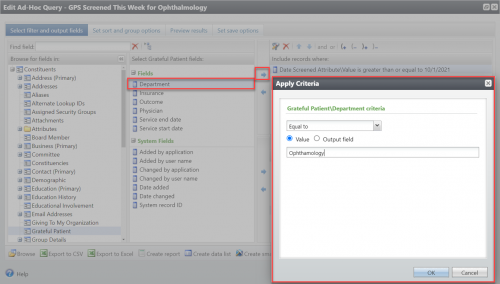
Find the encrypted attribute fields under the Constituents header and the Grateful Patient section.
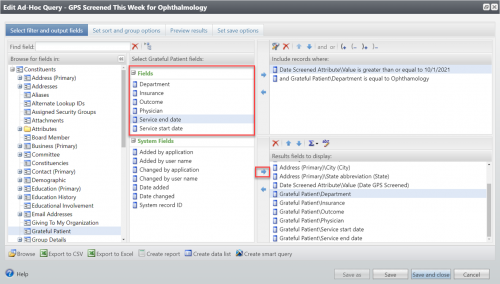
Add field(s) to the criteria.
Add field(s) to the output.
Set sort options and preview results.
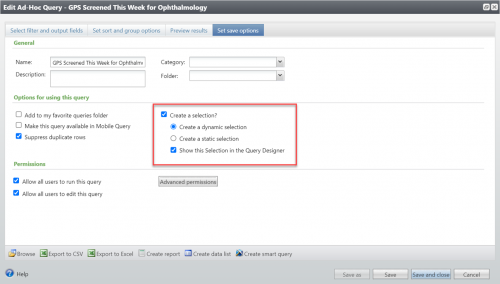
Save the query with the checkbox marked for “Create a selection?” so it could be used in a research list if needed.
Updating Research Lists
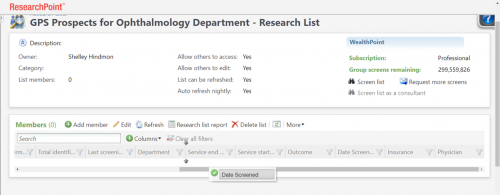
Research Lists are often a go-to tool for grateful patient prospecting because of their ease of use and duplicate prospect suppression. You can view the encrypted fields in the output of a research list as well as include them using the built-in filters or a query selection.
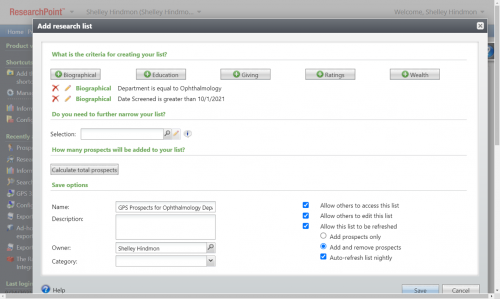
Navigate to the Prospects tab, then to the Research Lists section. Select “Add” for a new list or “View all lists” to edit an existing list.
Select the Biographical button and select the field, operator, and value, then OK. Add additional filters as needed. Tip: All attributes including the Grateful Patient Solution scores will be under Biographical.
Hit the Save button to view the results.
To adjust the columns, click on the Columns button and check each field you want to display and select Apply.
You may want to rearrange the columns by dragging and dropping and/or sort the columns by clicking on the column header.
Tip: Remember that if others will be using this research list too, each user will need to complete the last two steps of adding and rearranging the columns in the research list
Conclusion
I hope this walkthrough of updating your queries and research lists with the Grateful Patient Solution encrypted attributes helps you to get up and running with your revised lists quickly! We will continue this discussion in the blog “ResearchPoint™ Export Tips: Adding Grateful Patient Solution Encrypted Fields to Export Definitions” coming soon!
Find more posts tagged with
Comments
There are no comments yet
Quick Links
All Categories
Recent Posts
Activity
Unanswered
Groups
Help
Best Of