Today’s
Financial Edge NXT release includes many new features and enhancements that we are very excited about, starting with our continued work around credit cards.
Last release we introduced new credit card functionality, including the Credit card account list and Credit card register. This release we added the ability to make credit card adjustments. For more information about adjustments, see the
Credit Card Adjustments help file. You can also now run the Bank register report to view your organization's credit card account activity. Simply select the credit card account and filter on credit card charges, payments/credits, transaction types, and post status. For more information, see the
Bank Register Report help file.
Export Excel dataWe also added another export option for reports with columns. Select
Export Excel data to export the report data with only one set of headers, footers, and column headers.
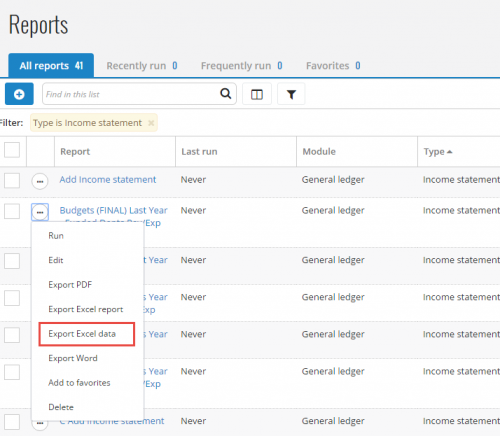
This option is helpful when you don't want repeated headers, footers, and column headers to appear in your
Excel spreadsheet. Keep in mind, this option is available only for reports with columns, such as the Balance sheet and Income statement. For more information about the report options available, see the
Report Options help file.
Approve multiple batchesFrom the Journal entry batches list in
General ledger, you can now approve multiple open or pending batches at once. Previously, you could only approve batches individually by editing the batch record. This time-saver allows you to complete an important task in your workflow from one central location! For more information, see the
Approve Multiple Batches help file.
Extend features with applicationsTo extend the functionality of
Financial Edge NXT, your organization can now use additional applications created by Blackbaud providers in the Blackbaud Partner Marketplace, someone at your organization, or other approved external developers. These applications securely access your
Financial Edge NXT data via the
SKY API, so you can do more with your constituent, fundraising, and accounting efforts. For more information, see the
Applications help file.
Quick view of recordWe also introduced the quick view of records (some of you may have already seen this feature in our Early Adopter Program). To open a quick view of the record, simply select the record name directly from any record list, instead of using the context menu. The record opens on the right side of the screen.
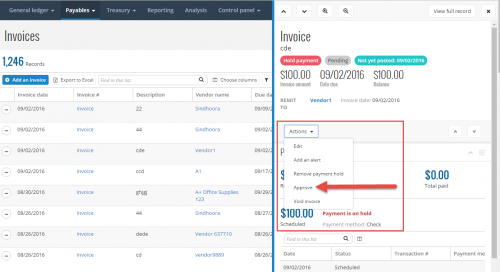
You can view the record or perform a task, without ever leaving the list! For example, you could approve a list of pending invoices one by one from the quick view, instead of opening each invoice to edit individually.
Also, if you need more workspace, you can drag the screen to increase the size. You can scroll up and down the list of records using the Next record arrows at the top of the page. You can close the quick view when you are done, or select View full record to open the full record. For more information, see the
Record Quick View help file.