We have a gentle reminder here for schools that use the older Manage enrollment page. We'll be turning this off at the end of October, replacing it with an all new section. Come have a look at the new normal.
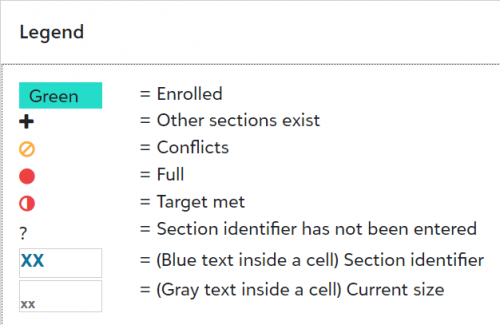
This week we want to give everyone a gentle reminder: We will be turning off access to the old Manage enrollment page at the end of October. If you have not already, make sure to check out the full range of features available via Edit student enrollment. If you are a schedule manager and you haven’t made the switch already, this will be your new home for adjusting student schedules.The Edit student enrollment page has been available for a while now, and we’ve had the chance to listen to your feedback and make some tweaks (please let us know in the comments if you have more feedback, though!). As a reminder, administrators can edit student enrollment by going to Scheduling, selecting Course selection and schedules, and then opening the Student enrollment tab. Select the pencil icon next to any student name to edit that student’s enrollment.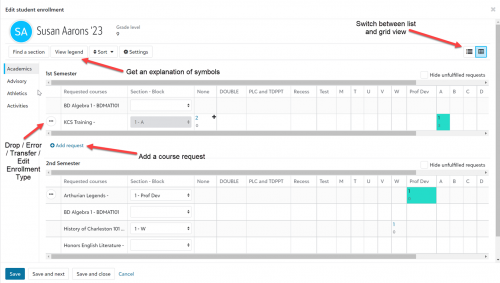 The Edit student enrollment modal displays all of the requests a student has made, what class/section fulfills each request, and all other possibilities that could fulfill the request. A schedule manager can enroll a student in a class, add a request, view section information, find sections to fill empty times in the student’s schedule, and drop and transfer student enrollment in a course.If a student already has requests or enrollments in the system, you will see them laid out in a grid according to scheduling blocks. Select the context menu (…) beside a course to see a list of actions you can take. Depending on the student’s enrollment status, you may see the options Drop, Error, Transfer, or Edit Enrollment Type.A green filled-in block means that a student is enrolled in a course during that block. A list of other symbols and their meanings is always available if you select View legend near the top of the screen.
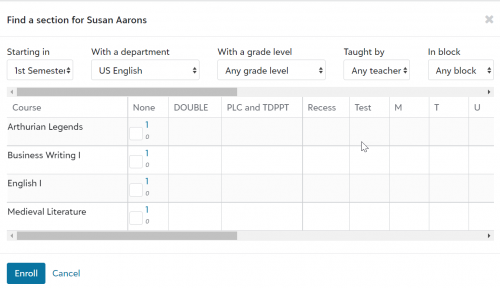
 To add a course request to a student’s schedule, select + Add request. A search bar will appear. Search for the course name and select it. If sections have been created for that course, you can choose them from the dropdown menu that appears in the second column, Section - Block. For example, if English I Honors has Section 1 scheduled during C block and Section 2 scheduled during E block, you will see the options “1 - C” and “2 - E.” Select an option from the Section - Block column to enroll the student in that section.Another way to find open sections for a student is to select Find a section near the top left of the page. Use the filters to find a course and section, select the check mark box beside it, and then select Enroll.
 That's all for this week, but if you'd like more information, please see the help topic Edit student enrollment. Other relevant help can be found under the Schedule Management heading. Thanks for stopping by and see you all next week!
