My Community
YourCause®
Impact Edge™
All-Star Lounge
Member Lounge (Just for Fun)
Community News
Community Manager
Groups
Browse Products
Members
Community All-Stars
Monthly Challenges
Member Search
Jobs Board
Help
Using the Blackbaud Community
Blackbaud Support
Knowledgebase
Blackbaud University
Discussions
Categories
Groups
Home
SKY Developer
SKY Developer General Discussions
Filtering a Retrieved NXT List
Jana Littleton
Since the retrieval options via the API and NXT lists builds are limited I am wondering how to filter the dataset retrieved within Power Platform. For example, I created an NXT list for a fundraiser for all of his open opportunities. I only want to send him a list of the subset of opportunities where the expected date is in the next week - I want this to be a daily email with a rolling week definition.
How can I best filter say the 20 items brought back by the list call to the few with that date scope?
I have tried a filter array step on the Blackbaud list retrieve step directly, I have tried initializing an empty array the then populating and then filtering the array, I have tried a for each append to an array based on a conditional control but nothing seems to work. In particular while the flow might run the filtering condition where ever applied does not actually seem to catch anything.
Thanks!!
Jana
Find more posts tagged with
Microsoft Power Platform
Comments
Ben Regier
Hi Jana,
This should be possible using the Filter Array action. You can either accomplish this using two Filter Array actions, or you can do it in one Filter Array action if you use advanced mode.
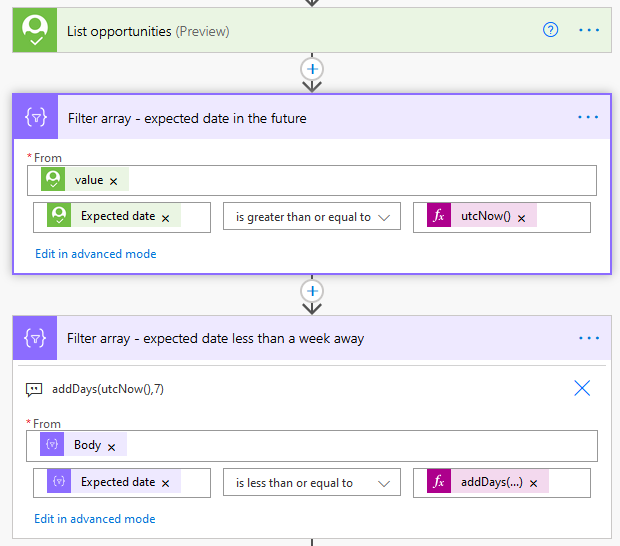
Here's how it would look with two Filters:
The first filter looks at the Value from your List opportunities as the source. Then it looks for any items where the Expected date is greater or equal to utcNow().
The second filter looks at the Body from the output of the first Filter. Since we've already filtered out any items where the expected date is in the past, now we need to filter out items where the expected date is more than a week in the future. We do this by using an expression to get the date 7 days in the future. The expression looks like this: addDays(utcNow(),7)
When you want to use this data, make sure your using the output from the second filter, not the original List Opportunities action or the first Filter action.
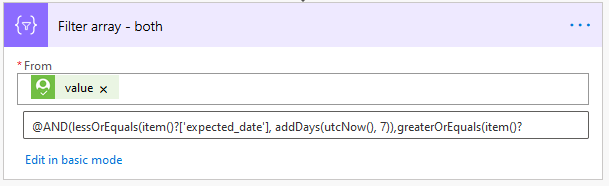
Now, if you want to be a bit more efficient, you can apply both filters in a single action. You do this by using advanced mode. This is what it looks like:
The full expression is this:
@AND(lessOrEquals(item()
?['expected_date'], addDays(utcNow(), 7)),greaterOrEquals(item()?['expected_date'], utcNow()))
That looks confusing for sure, but it's a little easier to make sense of if we use indentation:
@AND(
lessOrEquals(
item()?['expected_date'],
addDays(utcNow(), 7)
),
greaterOrEquals(
item()?['expected_date'],
utcNow()
)
)
Quick Links
All Categories
Recent Posts
Activity
Unanswered
Groups
Help
Best Of