I am sharing our 3-part NXT workflow that links NXT Actions to MS Planner Tasks. We use this in the context of grant management (research/application/writing/reporting), and this updates a flow that I shared a while back as our process has refined.
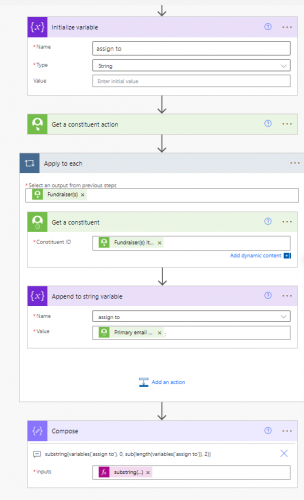
A general overview of automation (NXT Actions, Planner Tasks):
- Adding task:
- Changing task details
- User updates task details (due date, description) in NXT
- Completing task
- User marks task complete in Planner
Required connections: RENXT, Microsoft Planner, Microsoft Lists, Microsoft Power Automate
Skill level: Intermediate
Things you'll need to configure:
- SharePoint List: You'll need to create a SharePoint list. The columns you absolutely need in this list are NXT Action ID and Planner Task ID. Depending on how you format your Planner Tasks--or if you also want to use this list as a quick tabular reference--you might want more columns.
The columns for my list are: Constituent, ActionID, Action Link, Action Type, Status Description, Assigned To, Action Date, Opportunity Name, OpportunityID, Opportunity Status PlannerID, Planner Task Status, ConsSysID, Date Created, Date Last Modified
- Workflow 1 (NXT Actions → Planner Tasks):
- Review the ‘Convert Time Zone’ to make sure this flow is right for your time zone.
- The flow uses a condition based on the NXT Action Type--ours start with “Grant”). You should configure this to collect the actions you want to include in Planner.
- Because our team uses monthly Planner boards, we pull the Month of an action's due date and use a switch function to funnel these actions into the correct Planner board. You may not need this, or you may want to sort your actions into planner boards based on some other field, like maybe action type or a custom field.
- This flow stores Planner Task ID as an action custom field (text field)--you'll need to add that attribute
- Workflow 2 (NXT Action updates → SharePoint List → Planner Task):
- This flow builds off the earlier flows. It pulls actions modified on or after yesterday, and uses the action's existence on the SharePoint list to update Planner tasks (due date, description). It also updates the SharePoint list details in case you are using that list as a reference.
- Workflow 3 (Mark NXT Action completed when Planner Task completed):
- This flow builds off the earlier flows.
- Trigger: When planner task is completed--you'll need to build one of these flows for each planner board you use (I have 12, because we use monthly boards).
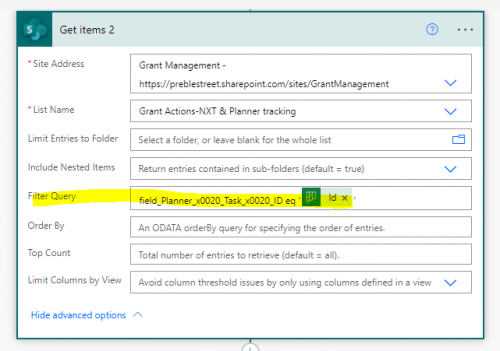
- The ID of the completed task is used to get the NXT Action ID from SharePoint list. You'll need to update the Sharepoint “Get Item” action through the Filter Query to make sure that it is pulling the correct column for you list. To make sure you're getting the correct column name, click the gear icon on the upper right corner of your list & select “List settings”
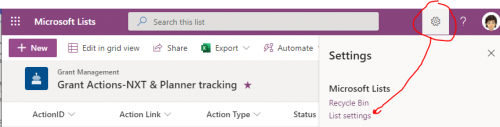
Click the appropriate column header for your PlannerID column
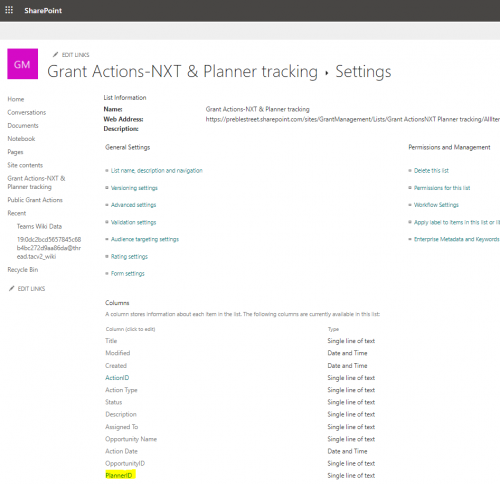
Look at the URL on the resulting page.

That is the field name you'll need in the Get Items filter query: