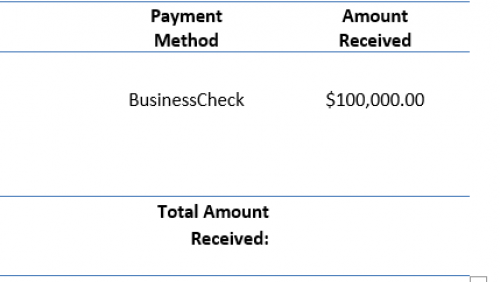
Description: automated conditional Word mail merge letters and envelopes saved to SharePoint folder which include pledge information and primary contacts for organizations. An email notification goes out when files are ready for review and printing.
- Required connections: Blackbaud Raiser's Edge NXT, Microsoft Power Automate, Word, SharePoint, and Outlook.
- Suggested skill level required to use this template: Intermediate
- Configuration details:
- Category: Acknowledgement
- Instructions:
Set up the letter templates
- Step 1: Download the templates
- Step 2: Open the templates in the desktop version of Word and "Save as" the Letter Code you use on the gift record. (The file's name must match exactly the letter code you use on your gift record).
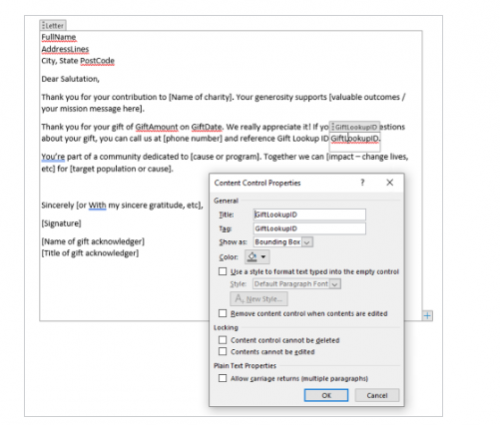
- Step 3: update the letter's header, body, and footer. Reference THIS article if you have questions about adding or removing fields.
- Step 4: save the file to the SharePoint location you plan to use in your process. (Tip: It may be helpful for you to create your templates with your organization information so that you don't have to update that each time you create a new letter type.)
Download the flow:
Set up the Flow
- Update the schedule to suit your organization's needs
- This flow is set to run every weekday at 4 pm.
- Update the Operations Team emails with the email address for who reviews/prints acknowledgements at your organization.
- List gifts
- Link the list to the dynamic gift list you created in RENXT.
- Note: I do not account for recurring gifts or payments in this flow. Our organization doesn't print acknowledgments for recurring gift payments.
- Compose Letter Variable
- update the formula in the "Compose Letter Variable" action to direct the flow to the file path where your templates are saved. My folder is called "Automated Acknowledgements."
- concat('/Automated Acknowledgements/', outputs('Get_a_Gift')?['body']?['acknowledgements'][0]?['letter'],'.docx')
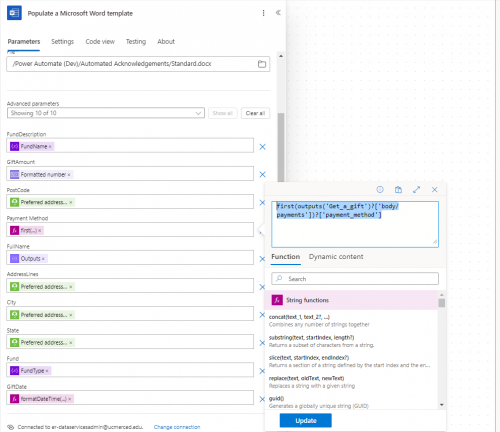
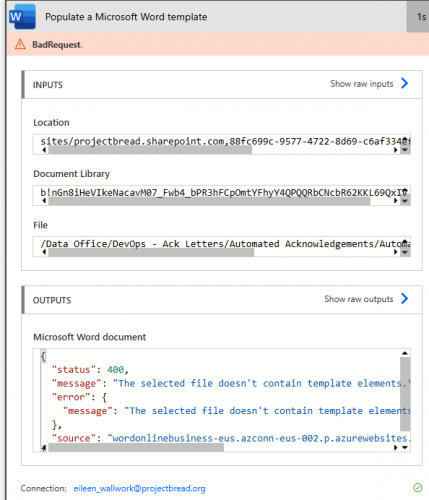
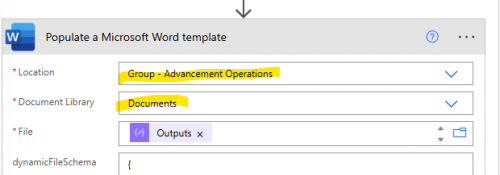
- Populate a Microsoft Word template
- Update the location and document library paths
- Create Letter Files
- Update the ShareSite Address and Folder Path where you want the files saved.
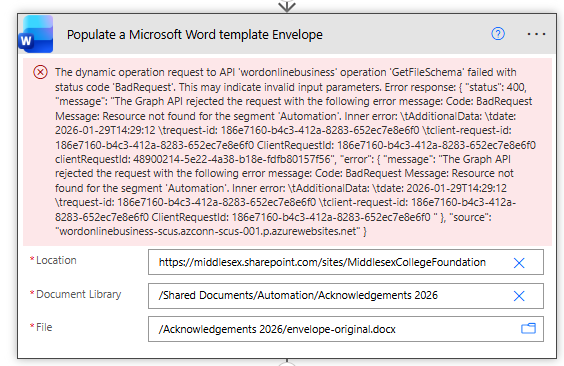
- Populate a Microsoft Word template Envelope
- Update the location and document library paths
- Create envelopes file
- Update the ShareSite Address and Folder Path where you want the files saved
- Notify Ops team
- Update email copy and file path link in both notifications
- Disable static results for both email actions.
Note about the "If there is a Linked Gift" action: I do not account for recurring gifts or payments in this flow. Our organization doesn't print acknowledgments for recurring gift payments. If you need to account for recurring gift payments, you can add a control step here to look at gift type and output information related to recurring gifts.
Note about the "Encode Constituent Name to replace invalid characters" action: This allows the file to save if you have non-alphanumeric characters in your constituent names, such as Jr. or Ben & Jerry's. If the flow fails at this action step, you may have a character I have not accounted for.