Description:
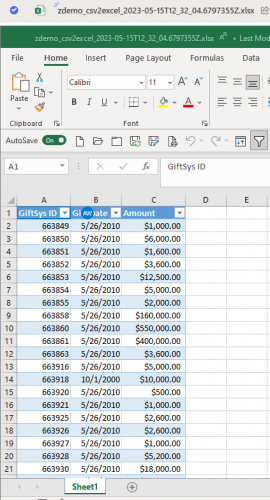
This flow shows how to take a csv file generated by RE:Queue and convert and save into SharePoint as Excel file with the data in the excel being formatted as table for easily consumption by other flow.
Required connections:
- Excel Online (Business)
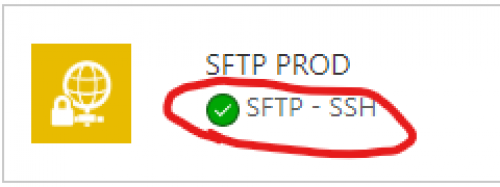
- SFTP - SSH
- SharePoint
- Microsoft Teams
- this is optional, the flow include the use of MS Teams chatbot to send a chat message if the flow processing has error
Suggested skill level required to use this template: Intermediate
Configuration details:
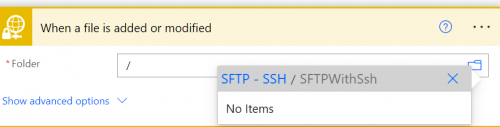
- ONE TIME SETUP: Setup sFTP connector (our RE NXT is hosted on Azure, so instruction is Azure hosting based)
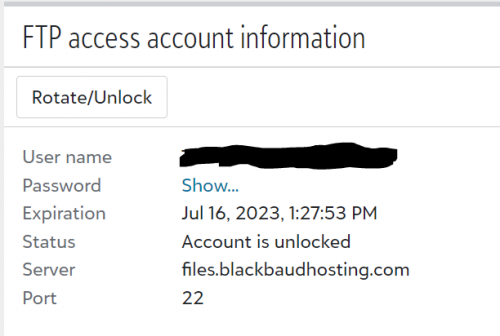
- Go to your RE NXT > Database options, here under FTP access account information you will find: User name, Password, Server, and Port info to use on the setup of the SFTP - SSH connector in Power Automate.
- You can leave SSH private key, SSH private key passphrase, SSH host key finger-print, and Root folder path blank.
- Check the checkbox for Disable SSH host key validation
- ONE TIME SETUP: Need a blank excel file setup at a SharePoint location first
- Open excel, and delete any other worksheet your excel setting may automatically create and leave ONLY Sheet1
- Save the excel file at a SharePoint location accessible by you
- ONE TIME SETUP: Need the Excel Script saved to your MS user account
- While you have the excel file open from above step, click on the Automate menu at the top and then click on New Script (see image 1 below)
- A Code Editor would appear on the right-panel of Excel, which you can highlight to delete the default code that's there, give it a name (I just name it CSV2Excel) and copy and paste below code into the code editor body area and click Save script (see image 2 below)
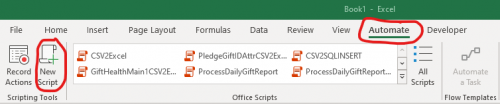 image 1
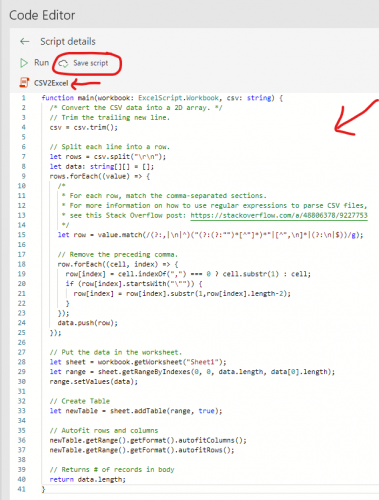 image 2
function main(workbook: ExcelScript.Workbook, csv: string) {
/* Convert the CSV data into a 2D array. */
// Trim the trailing new line.
csv = csv.trim();
// Split each line into a row.
let rows = csv.split("\\r\\n");
let data: string[][] = [];
rows.forEach((value) => {
/*
* For each row, match the comma-separated sections.
* For more information on how to use regular expressions to parse CSV files,
* see this Stack Overflow post: https://stackoverflow.com/a/48806378/9227753
*/
let row = value.match(/(?:,|\\n|^)("(?:(?:"")*[^"]*)*"|[^",\\n]*|(?:\\n|$))/g);
// Remove the preceding comma.
row.forEach((cell, index) => {
row[index] = cell.indexOf(",") === 0 ? cell.substr(1) : cell;
if (row[index].startsWith("\\"")) {
row[index] = row[index].substr(1,row[index].length-2);
}
});
data.push(row);
});
// Put the data in the worksheet.
let sheet = workbook.getWorksheet("Sheet1");
let range = sheet.getRangeByIndexes(0, 0, data.length, data[0].length);
range.setValues(data);
// Create Table
let newTable = sheet.addTable(range, true);
// Autofit rows and columns
newTable.getRange().getFormat().autofitColumns();
newTable.getRange().getFormat().autofitRows();
// Returns # of records in body
return data.length;
}
Category: Automation, Data Management
Instructions:
- After import the flow attached, and link the connector correctly, do the following to the flow:
- Update the Hosted File location where you export RE:Queue files are
- Update the blank excel file on SharePoint in action Get Excel Template
- Update the Create Excel File action to where you want to save the new excel with the csv data
- Update Run Script to Copy CSV to Excel pointing to the file Id of the Create Excel file action step and select the CSV2Excel Script
CommunityDemo-REQueueCSVtoSharePointExcel_20230515124231.zip