DataUpdateCard_20240702170743.zip - Constituent Update Data Card
ConstituentUpdateTemplateCard_20241025121856.zip - Constituent Update Template Card
ProcessConstituentUpdatesfromAdaptiveCard-SharePoint_20240604135053.zip - Updates sent to SharePoint
ProcessConstituentUpdatesfromAdaptiveCard-RENXT_20240604134625.zip - Updates on SharePoint changed in NXT
SharePoint List Template.xlsx
This was created with the help of @Ashley Moose and @Hollie McKain as part of my 2023 Innovation Award project. Thank you Ashley and Hollie for all the help!
- Description: This adaptive card allows non-permissioned users to make updates to constituent records in RE, but with some guiderails to ensure the information is captured according to our business rules.
- Required connections: SKY Add-ins, RENXT Constituents, RENXT , SharePoint, Gmail
- Suggested skill level required to use this template: Intermediate/Advanced
- Configuration details: Before importing the flows, you will need to create your SharePoint list. The easiest way to do this to match the headers, etc. in the flow is to use the attached Excel file and the instructions for exporting from an Excel Table to a SharePoint List.
- Open the file in your desktop application.
- Go to the Table Design tab
- Click Export > Export Table to SharePoint List
- Then enter your SharePoint site address and a Name for the List
- Click Next.
- Then click Finish on the next screen.
- Category: Data Management
- Instructions: Once you have imported the flows, you will need to do a few things:
Both of the adaptive card flows will need a couple of updates to work with your SKY Add-in. I would recommend creating the SKY Application before importing the flows, but don’t create the Add-in within the application yet.
Constituent Update Template Card
- Validate a User Identity Token - Need to add the Application ID from your SKY Add-in Application
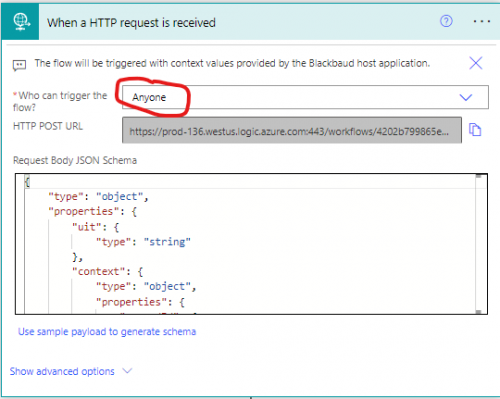
- When a HTTP request is received – The URL here will be unique to your environment so you need to copy and encode the URL before adding this value to the SKY add-in.
- Copy the HTTP Post URL.

- Go to a site like https://www.urlencoder.io/ and encode the URL.
- Note down the encoded URL for use in a later step.
Constituent Update Data Card
- Copy and encode the URL. Take note of the encoded URL.
SKY Add-in
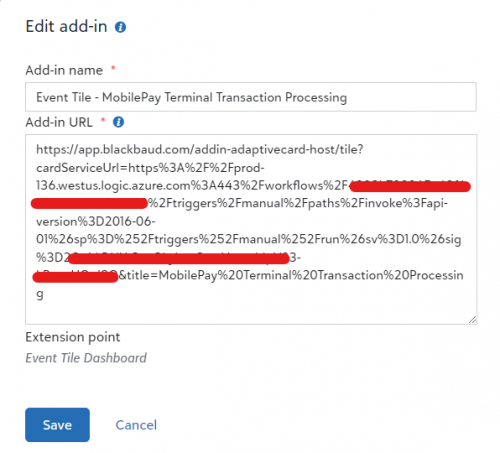
- Build your SKY Add-in URL:
- Create your SKY Add-in like:

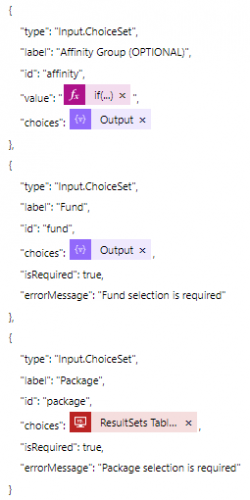
There are a few areas that will need to be updated in the Constituent Update Template Card flow to reference the table values from your environment. This would be in the Compose Adaptive Card JSON step. Once those are updated, everything else should flow through without error in these two flows.
Updates needed:
| Table | Source | Action needed |
| Address Type | Defined in the Constituent Update (Template) Card flow. - Set up to use HTTP request to get the table values
| Update to match available address type values from your environment. |
| Country | Defined in the Constituent Update (Template) Card flow. | Update to match available address type values from your environment. |
| State | Defined in the Constituent Update (Template) Card flow. | Add additional state values. |
| Phone Type | Defined in the Constituent Update (Template) Card flow. - Home
- Cell
- Second Cell
- Second Home
- Business
| Update to match available phone type values from your environment. |
| Email Type | Defined in the Constituent Update (Template) Card flow. | Update to match available email type values from your environment. |
| Contact Type | Defined in the Constituent Update (Template) Card flow. - Set up to use HTTP request to get the table values
| Update to match available contact type values from your environment. |
| Relationship/ Reciprocal | Defaulted in flow to: | Either: - Update in flow to reflect what you want
- Ensure values are in the relationship table
|
Updates sent to SharePoint:
Import this flow, add the app id, and save the flow. Then open the first step in the flow "When an HTTP request is received" and copy the HTTP Post URL (see screen shot above). You DO NOT need to encode this URL, but you will need to paste it four (4) times in the Constituent Update Template Card flow in the Compose Adaptive Card JSON step, specifically in the Action.Webrequest steps. It will look like this (note this is not my actual URL):
"type": "Action.Webrequest",
"title": "Submit",
"url": "https://prod-99.westus.logic.azure.com:412/workflows/fe40230!397c4f0bba1bda1c97305cb7/triggers/manual/paths/invoke?api-version=2016-06-01&sp=/triggers/manual/run&sv=1.0&sig=y1U8GxC7VFplvMHGHqlto2e83Qtg9ll7EF8PsF6W8vY"
Updates on SharePoint changed in NXT:
Import this flow and change any update steps within the switch to follow your business rules for “Add”, “Update”, and “Remove”.