Description - This flow will take the results of a query and save them to OneDrive (or Google Drive). There are four versions of the flow included - one each for RENXT/FENXT for both OneDrive and Google Drive.
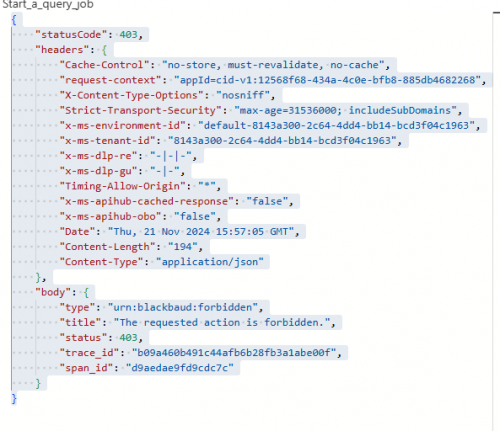
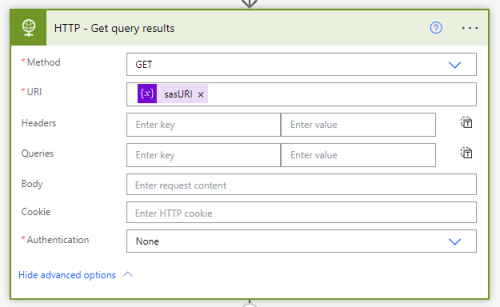
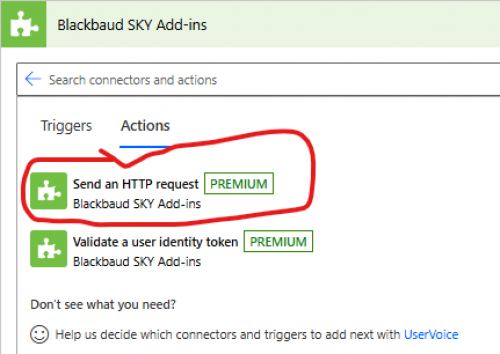
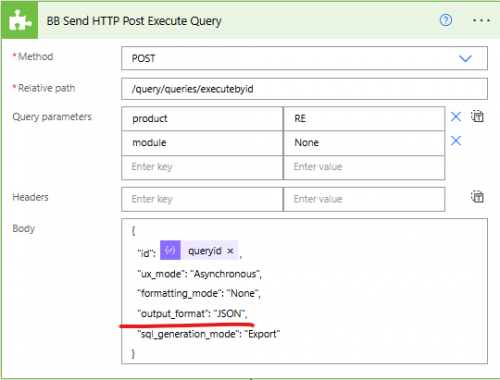
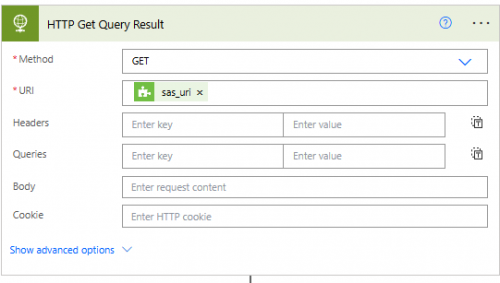
This simplifies and replaces my previous template as the old template used the Send an HTTP action, and this uses the official query connectors. This template also introduces an additional step to stop the flow if the query is Failed or Cancelled, and will notify you via email of the failure.
Required connections
- Blackbaud RENXT or FENXT Query
- OneDrive for Business (or Google Drive)
- Office 365 Outlook (or Gmail)
Skill level - Beginner
Instructions
- Import the attached .zip file into Power Automate (import as Package/Legacy file)
- Modify the Recurrence trigger for whenever you want the query results to be pulled
- Update the Initialize variable fileName action with the name of the file you want saved to OneDrive. The file name should include the .csv extension.
- Update the Initialize variable emailToNotify action with your email address. This is the email address that will be notified if the query fails or is cancelled.
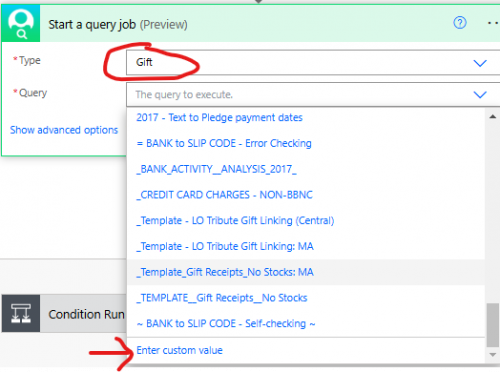
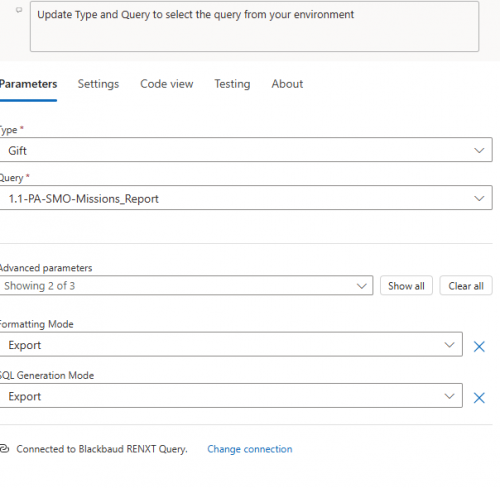
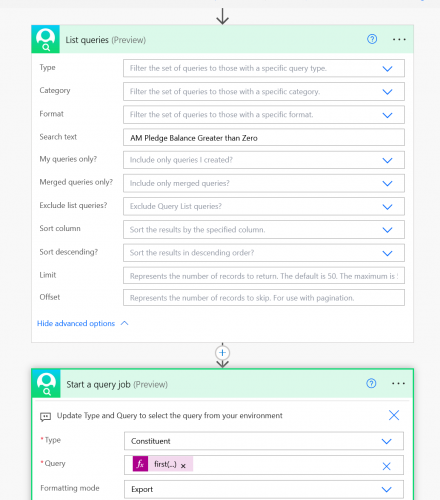
- Update the Start a query job action to select the query you want to run.
- Update the Create file action to point to where you want the file saved (the Create file action is inside the Condition action at the end of the flow).
Note: If using Google Drive please take a look at this information about the different features that are or are not allowed when connecting different types of Google accounts to Power Automate.
OneDrive/Outlook Flows
SaveRENXTqueryresultstoCSVfile.zip
SaveFENXTqueryresultstoCSVfile.zip
Google Drive/Gmail Flows
SaveFENXTqueryresultstoCSVfileonGoogleDrive_20250204171256.zip
SaveRENXTqueryresultstoCSVfileonGoogleDrive_20250204170937.zip