With
Raiser's Edge NXT, you can view important information about your constituents from anywhere, on any device. While your organization can edit this information in the database view, there are several details you can also manage directly in the web view.
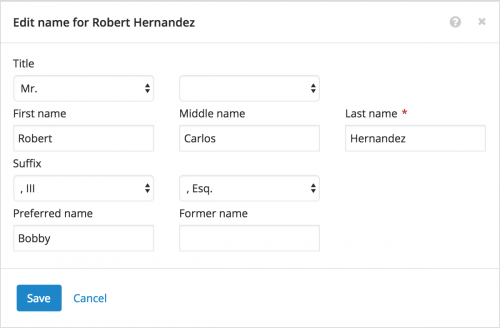 Name.
On a constituent's record, you can track how you refer to them throughout
Raiser's Edge NXT and during personal interactions. For an individual, this includes any preferred and former name in addition to their full name. (In the database view, the preferred name appears as a
nickname.) To edit this information in the web view, select
Edit,
Name on the constituent's record. For more information, see the
Names Help.
Profile picture. To help further identify and personify a constituent, you can attach a photo or image — such as a headshot or company logo — to their record, in place of their initials. You can use any image file — PNG, BMP, or JPG — saved locally or on your network as a profile picture. To update a constituent's profile picture, simply drag the file to their initials or existing image, or select their initials or image to browse to the file. For more information, see the
Profile Pictures Help.
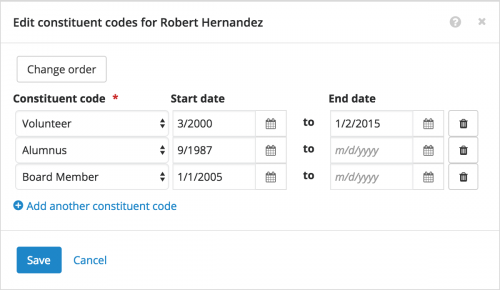 Constituent codes.
Constituent codes define the high-level affiliations constituents have with your organization — such as Board member, Vendor, or Volunteer — and help you understand why they're in your database. To manage this information for a constituent, select
Edit,
Constituent codes on their record. You can track multiple constituent codes for a record, with the one listed first recognized as the primary affiliation. For more information, see the
Constituent Codes Help.
Status. On a constituent's record, you can indicate when they're someone who:
- Is Inactive, or no longer an active relationship, retained for later reference. For more information, see Inactive Constituents Help.
- Is Deceased, or passed away. For more information, see Deceased Constituents Help.
- Is a Fundraiser, or someone manages relationships or works to acquire gifts on behalf of your organization. For more information, see the Fundraisers Help.
- Gives anonymously, or requests anonymity for their giving. For more information, see the Anonymous Giving Help.
To set the status of a constituent's record, select
Mark as, and choose their standing.
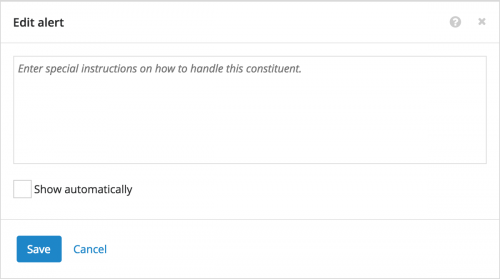 Alert.
To give a reminder or special instructions about a constituent record, you can set an alert to appear in its profile information. Each record can have only one alert. (In the database view, alerts appear as
annotations.) For more information, see the
Alerts Help.
Notes. To help track helpful or important details about a constituent, such as a special interest in your mission, you can save notes about them under
Notes and actions on the their record. For more information, see the
Notes Help.
Actions. Under
Notes and actions on a constituent's record, you can also track the tasks and interactions required to cultivate the relationship. For example, you can record a conversation with the constituent and plan another interaction to further their interest. You can also save actions to track tasks around the relationship, such as to analyze their wealth or identify someone to help with introductions. For more information, see the
Actions Help.
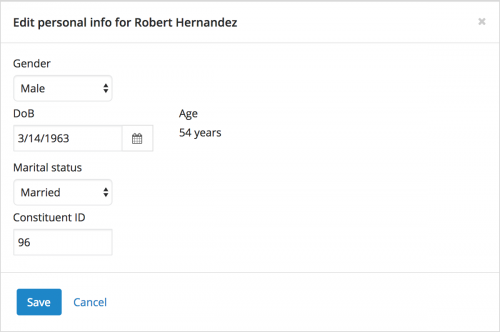 Personal info.
For an individual, you can view their gender, date of birth, and marital status under
Constituent summary on their record. To manage this demographic information, select
Edit,
Personal info under
Constituent summary on their record. For more information, see the
Personal or Organization Information Help.
Constituent ID. Each constituent record has a unique identification number. To quickly find a frequently used constituent, you can search for them by this ID. To manage a constituent's ID, select
Edit,
Personal info or
Organization info under
Constituent summary on their record. For more information, see the
Personal or Organization Information Help.
Assigned fundraisers. On a constituent's record, you can manage who's assigned to manage their relationship with your organization. When you assign a fundraiser to a constituent, you can track details such as when and why they manage the relationship, their fundraising goal, and the campaign or fund they support. To edit the details of an assignment, select
Edit relationship from the fundraiser's menu under
Assigned fundraisers on the constituent's record. (In the database view, fundraisers appear as
solicitors.) For more information, see the
Fundraiser Assignments Help.
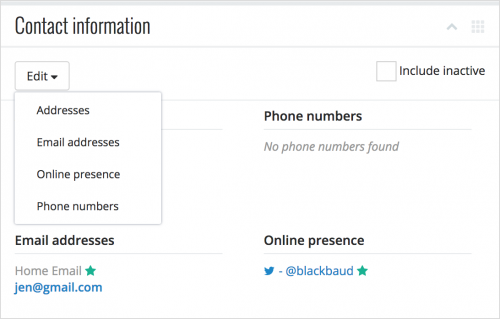 Contact info.
To help improve your reach and wealth analysis, we recommend you track where and how to contact a constituent. On a constituent's record, you can manage information about their mailing and email addresses, phone numbers, and online presence — such as websites and social media profile — under
Contact information. For more information, see the
Contact Information Help.
Custom ratings. Under
Ratings, you can manage details your organization tracks about a constituent's wealth, gathered from your own research or sources like Marts & Lundy or
ResearchPoint. You may also rate someone according to their engagement with your organization, affinity for your cause, or activity on social networks. To add a custom rating, select
Add rating under
Ratings. To edit the details of a custom rating, select
Edit from its menu. For more information, see the
Custom Ratings Help.
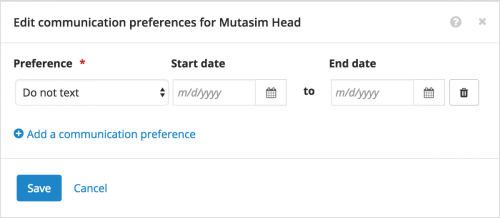 Communication preferences.
On a constituent's record, you can track their specific rules of contact — such as to not call after 8:00 p.m. or on weekends — under
Communication preferences. When you add a communication preference, you can specify if it's valid only during a specific date range. (In the database view, this information appears as
solicit codes.) For more information, see the
Communication Preferences Help.
Attachments. As you cultivate a relationship, you may collect collateral — such as correspondence or pictures from fundraising events — that help create a complete picture of the constituent. On a constituent's record, you can upload or link to — and then manage — these artifacts under
Attachments. For more information, see the
Attachments Help.
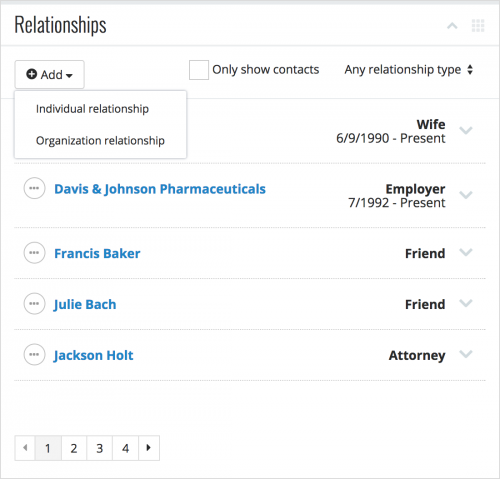 Relationships.
To help enhance fundraising efforts and interactions, you can add and manage a constituent's relationships — such as family, friends, employers, and so on — under
Relationships on their record. To save information about a constituent's relationship with another person or business, select
Add under
Relationships and then choose to add an
Individual relationship or an
Organization relationship. For more information, see the
Relationships Help.
Opportunities. With
Prospect Research Management, you can track and manage your efforts to build a relationship with a prospect or secure a major gift from a donor under
Opportunities on the constituent's record. (In the database view, these efforts appear as
proposals.) For more information, see the
Opportunities Help.
Prospect status and classification. With
Prospect Research Management, you can also track details about a constituent as a prospective donor — such as their giving preferences and financial information — under
Prospect management on their record. You can also manage how your organization views the prospect.
- Prospect status — Where the constituent is in your moves management process (such as Identification or Active), and for how long. To update this information as the constituent progresses through your moves management process, select Change status under Prospect management.
- Classification — The type of prospect you identify the constituent as, such as Individual, Corporate, or Major donor. To change the classification, select Edit details under Prospect management.
For more information, see the
Prospect Management Help.
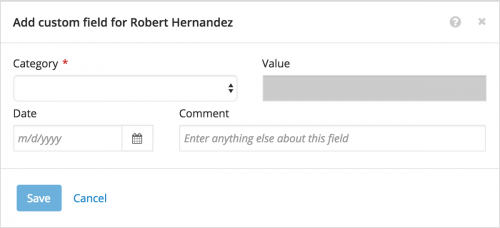 Custom fields.
While you can track many details about a constituent on their record, your organization may want to store other information, such as dietary preferences, key interests, or
Klout scores. On a constituent's record, you can track and manage this specialized information under
Custom fields. (In the database view, these details appear as
attributes.) For more information, see the
Custom Fields Help.
All edits made in the web view — except to the profile picture and
attachments — also appear in the database view. For more details about the constituent information available in the web view (editable or not), see the
Constituent Records Help.