This week,
Raiser's Edge NXT introduces several features such as new filters for constituent lists, an update to the
Outlook add-in, and (for some) the ability to export an insight's data.
Filter constituent lists by marital status and date added. To help focus on only the constituents you want, you can now select
Filters,
Constituent basics in a constituent list to include constituents based on their marital status and date added.
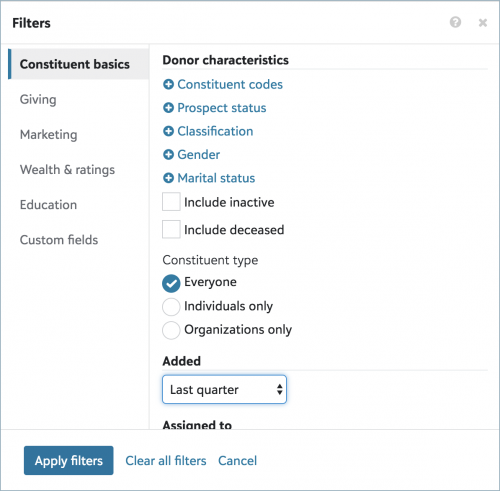 To include individuals based on their relationship status with a spouse or partner, such or Married, Divorced, or Widowed, under Characteristics, select Marital status, choose which statuses to include, and select Select.
Tip: To view the relationship statuses of constituents in a list, select Choose columns, Marital status, and Apply changes.
- To include constituents based on when their records are added to your database, under Added, choose the time frame of the records to include, such as This week, Last month, or Specific range.
Tip: To view when constituent records in a list were added to your database, select Choose columns, Date added, and Apply changes.
For more information, see
Constituent Basics Filters.
Open records directly from an exported list. In
Lists, you can export a list as a comma-separated values (CSV) file, such as for a spreadsheet in Microsoft
Excel or Google
Sheets. For clarity, to view a record in the exported list in
Raiser's Edge NXT, you now select
Open record for its row in the spreadsheet. Previously, you selected
Open in NXT. For more information, see
Export Lists.
Note: Admins! To help protect and control your constituents' personal data, we recommend you enable only appropriate people to export lists. In
Control Panel, you can choose who can export lists from
Lists or
Fundraising,
Work. For more information, see
List Rights or
Fundraising Work Center Rights.
Assign fundraisers to actions created in Microsoft Outlook. With the
Raiser's Edge NXT for Outlook add-in, you can view constituent details about email senders and recipients and create actions from their messages in your Microsoft
Outlook inbox. When you add an action with the add-in, you can now select
Assign fundraisers to choose who to assign it to. For more information, see
Raiser's Edge NXT for Outlook.
Note: To ease fundraiser assignment, actions created in
Outlook are automatically assigned to the same fundraisers assigned the previous action. To assign actions to yourself, your constituent record must be marked as a fundraiser.
For
some of you:
Export an insight's data. To enable you to view and manipulate your data outside
Raiser's Edge NXT, you can now export an insight's data when you use
Insight Designer.
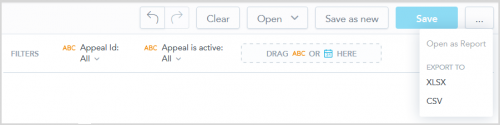
To export an insight, from
Insight Designer, select the ellipsis and then select
Export to XLSX for Microsoft
Excel format or
Export to CSV for a comma-separated values file.
When you export to Microsoft
Excel, you can choose whether you want to keep attribute cells merged. This option affects the way table, column, bar, line, stacked area, and treemap insights are exported when they have more than one attribute. By default, the cells for any attributes with more than one row are merged for ease of reading.
To keep the cells separate in your export, clear the
Keep attribute cells merged field when you complete the export. For more information, see
Export an Insight.
Note: Admins! In
Control Panel,
Security, you can choose which roles can access
Analysis,
Report builder. For more information, see
Report Builder Rights.
Build your own measures in Insight Designer. 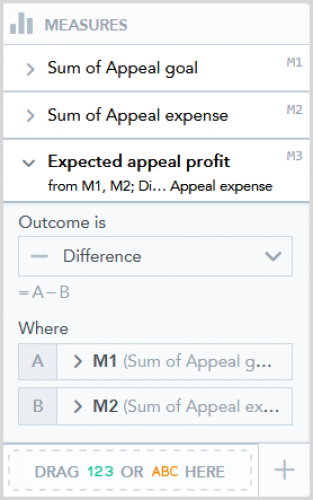
To help you build more customized insights, you can now create your own measures when you use
Insight Designer. Calculated measures use data from two existing measures to create new calculations. For example, you can create a new measure that displays the expected profit of an appeal by calculating the difference between the appeal's goal and the appeal's expenses.
To create a calculated measure, add two measures to your insight and select
Create Calculated Measure under
Measures. Choose the existing measures you want to use and then choose the operation to compute the new value.
Note: You can create a calculated measure based on another within the same insight. However, you can't save calculated measures for use in other insights and any calculated measures you create will be displayed on the insight.
Note: Admins! In
Control Panel,
Security, you can choose which roles can access
Analysis,
Report builder. For more information, see
Report Builder Rights.
For more information, see
Calculated Measures.
Tip: With calculated measures, you can analyze giving progress toward fundraising goals, the difference between the current and previous years' giving, or the percentage of pledges that are past due. For more information, see
Gift Insight Recipes.
For more information, or to catch up on previous releases, check out the
What's New Help and
What's Recent Help.
Enjoy!