This week,
Raiser's Edge NXT announces that the ability to manage required fields for constituents and actions is now generally available. For some, the waved roll outs of limited availability features begin. To see whether your organization is included in one of the waves, log in and review the
What's New Help. If you don't see all these features in your list, don't worry. You'll see them soon!
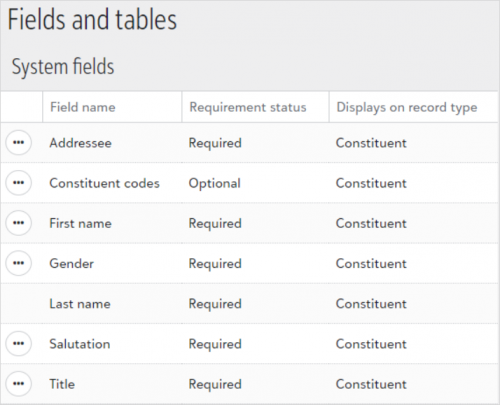 Manage required fields for constituents and actions (now generally available).
To help ensure consistent data entry for new constituent and action records in web view, admins can now manage required fields from
Control panel,
Fields and tables. Admins can also view the list of fields available to require in web view and the type of records where they appear. To make a field required, select
Edit from the menu and select
Required?.
The fields you can currently require correspond to fields that appear when you add constituent and action records.
Constituent records:
-
First name
-
Title
-
Addressee
-
Salutation
-
Gender
-
Constituent codes
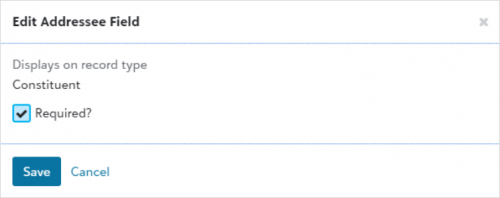
Note: The Last name field was already required by default in web view.
Action records:
Note: This release focuses on fields you use to add new records to the database. In future releases, you'll be able to require additional fields and record types.
Supported fields currently marked as required in database view are now also required in web view. For example, if the First name field was previously required in database view, it's now required in web view. After this initial release, updates to required fields in database view are not reflected in web view.
For more information, see Fields and Tables.
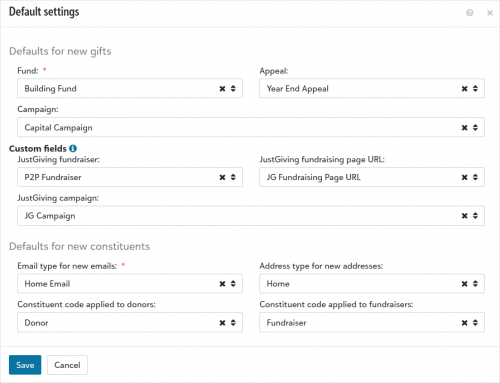 Add JustGiving gift and donor data into Raiser's Edge NXT (for some). JustGiving
fundraisers spread your organization's mission and raise funds on your behalf. Now you can add
JustGiving fundraising page owner, donor, and gift data into
Raiser's Edge NXT. From
Control Panel, Settings, select
JustGiving Integration and set up defaults for new gift records and new constituents from
JustGiving. For more information, see
JustGiving Integration.
Accept online registrations for events (for some). Now you can let people register for your one-time events online through
Online Registration Forms. These forms let your constituents sign themselves and others up for an event, enter their contact information, choose to make an additional donation, and pay their registration fees (for paid events). From an event record, under
Online registration forms, you can add a new form, edit an existing form, or review stats of the effectiveness of your existing forms. In the
Form Designer, you can style your form to mimic the branding of your organization's website. For more information, see
Online Registration Forms.
Track custom information about event participants (for those with Online Registration Forms). To help track custom information about participants, such as t-shirt sizes, meal preferences, and seating requests, you can now add fields — known as
participant options — to collect details that are specific to each event. Participant options provide flexibility because you can gather different information for the same option in various events. For example, create meal preference fields with different food choices in each dinner event you host.
For each event, under Participant options, add the fields and their values. After you set the options, add them to the online registration form and then manage responses from participant records under Participant options. For more information, see Participant Options.
Note: Participant options are like custom fields, but they’re not the same. With custom fields, you use the same field and the same options for different events. With participant options, you add new fields and values for each event. In a future release, you’ll be able to copy an event and reuse options that are the same for the new event. For more information, see Custom Fields.
Merge event participant details for constituents (for those with Duplicate Management). In
Tools,
Data health, you can select the number of
Possible duplicates to review a list of constituents
Raiser's Edge NXT automatically identifies as potential matches. From the list, you can select to compare the details between two records and then merge them if they represent the same constituent.
To help you manage constituents who participate in events, you can now also transfer Event participation details when you merge records. For example, if you inadvertently add a new constituent record when you sign a participant in for an event, you can later merge the new record with their existing record to include their participation details. For more information, see Possible Duplicates.
Note: Merges now include event information by default, but you can exclude it if necessary. From the list of possible duplicates, select Compare records from the name of one of the records to merge, select Select data to merge, and clear Event participation.
Style donation forms (for those with Donation Forms). To help donors recognize your donation forms and trust that their online gifts support your cause, you can style them to match your organization's branding. From Tools, Donation form designer, add or edit a form. Under Form, Form Designer, select the area of the form to customize under Style. For more information, see Donation Forms Style.
Tip: Update the styling for Blackbaud Checkout to match the rest of the form. When payment screens include branding, donors are more likely to complete their transactions.
For more information, or to catch up on previous releases, check out the
What's New Help and
What's Recent Help.
Enjoy!