My Community
YourCause®
Impact Edge™
All-Star Lounge
Member Lounge (Just for Fun)
Community News
Community Manager
Groups
Browse Categories
Members
Community All-Stars
Monthly Challenges
Member Search
Jobs Board
Help
Using the Blackbaud Community
Blackbaud Support
Knowledgebase
Blackbaud University
Discussions
Categories
Groups
Home
Blackbaud Raiser's Edge NXT®
Raiser's Edge NXT Blog
Blackbaud Raiser’s Edge NXT®: Bulk Convert Recurring Gifts In Web View (Global Feature)
Tanya Fitzgerald
As you probably already know, when you add a recurring gift in the web view or a donor donates through a
Blackbaud
Raiser’s Edge NXT®
donation form, its payments automatically process based on its payment schedule and status. However, recurring gifts that were originally created in the database view or another donation form, such as
Blackbaud
Online Express™
or
Blackbaud NetCommunity™
, require manual payment processing.
To help bridge the gap,
Raiser’s Edge NXT
originally offered a way for you to convert manual recurring gifts to process automatically, but you could only convert them one at a time.
With our latest enhancement, you can now convert manual recurring gifts in bulk!
That sounds amazing! How does it work?
You just click a button. Ok, two buttons, but that’s it!
First, navigate to
Control panel
,
Settings
,
Gift management
. Under
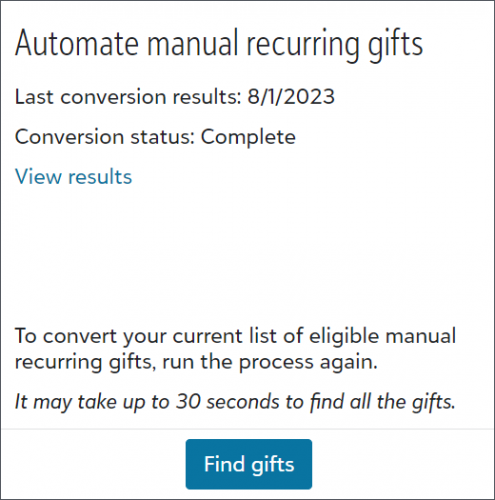
Automate manual recurring gifts
:
The first time you run the process, select
Get started
to identify all the manual recurring gifts in your database.
For subsequent runs, select
Find gifts
to identify new manual recurring gifts and gifts that were previously ineligible for conversion.
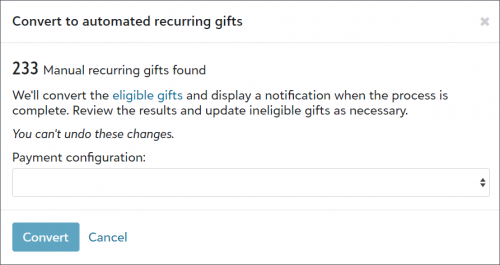
Next, select the payment configuration to process payments and then select
Convert
.
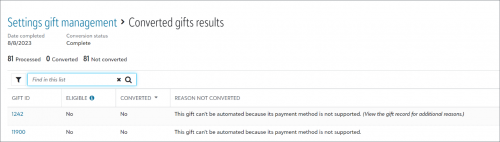
When the process is complete,
Raiser’s Edge NXT
displays a notification in your top-level navigation so you can review the results. Return to
Control panel
,
Settings
,
Gift management
, and select
View results
under
Automate manual recurring gifts
to open a list of the gifts that were identified.
What are the gotchas?
A recurring gift must meet certain
eligibility criteria
for it to convert. From the converted gift results list you can view the eligible and converted gifts. For gifts that weren’t converted, use the
Reason Not Converted
column to identify the problem, then in the database view, edit the gifts as necessary to ensure they meet the conversion requirements. For example, if a gift’s schedule isn’t supported, add an amendment to select a different scheduled frequency.
What else should I know?
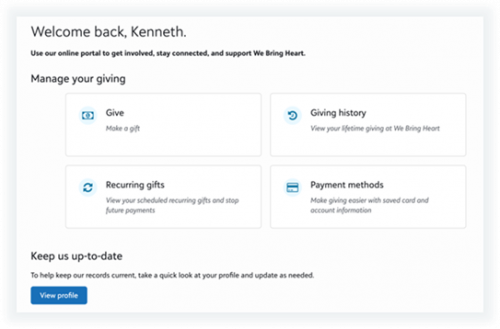
Another added benefit to converting manual recurring gifts is that after they’re automated, donors can manage changes to them if your organization uses the donor portal.
If you’re already using the Portal, you can update your settings to enable users to view and manage their recurring gifts. Navigate to
Tools, Settings, Feature configuration
, then enable the feature and choose a form with recurring gifts turned on.
Note:
The selected form determines the fields and options for giving in the portal and editing.
Where can I learn more?
Check out this
video
for a step-by-step recording about the bulk conversion process.
You can also read more in our help documentation:
Automate Manual Recurring Gifts
Get Started with Donation Forms
Get Started with the Portal
Find more posts tagged with
Comments
There are no comments yet
Quick Links
All Categories
Recent Posts
Activity
Unanswered
Groups
Help
Best Of