In our release letter for August 22, 2018, we encouraged administrators to begin using the
Core view of user profiles to edit profile data because we are planning to ‘sunset’ the older
Edit user profile data page.
You listened and responded with your concerns. We heard you and adjusted. Although we didn’t delete
Edit User Profile Data in the fall of 2018, it is still something we’re working towards for 2019. We need to move away from the older code and into newer interfaces (with
User Profiles and
User Lists as better hubs for many of your user management needs) as a step towards greater roadmap goals.
With your feedback, we’ve adjusted our plans to better ensure we address the many ways you previously used
Edit User Profile Data to make the upcoming transition smoother.
Let’s look at some of the recent highlights from this journey.
A Powerful People FinderWhen you enter search criteria,
People Finder now looks for more than just names that exactly match the text you entered. It also searches for matching results in student IDs, host IDs, user IDs, and email addresses. This helps you find the right user when their names aren’t especially unique.
Additionally, the
People Finder now works from your mobile device.
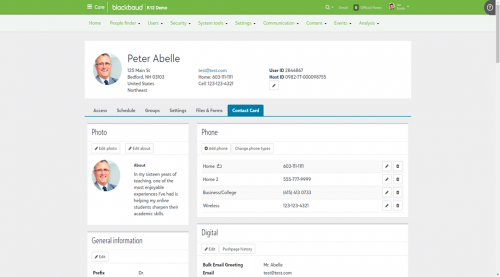
Concentrate on the Core View of User ProfilesWe added bread crumbs and other updates that make it easier to quickly navigate back to a user’s profile—especially after you leave the page to manage something else (such as a related user’s information).
As we've worked through your feedback, we enhanced six of the tabs in the
Core view of each
User Profile (find it via
People Finder or
User Lists) to ensure they now cover everything you did in
Edit User Profile Data.
- Access (including role membership, affinity categories, online registrations, special access, remove the user, lock and unlock user, and more)
- Contact card (including a history of Pushpages, profile changes, edit address type, edit phone type, and automated caller status, remove host ID, delete user photo, multiple addresses with the same address type).
- Groups (including enrollments for students and community groups for all users; remember to use this to find group pages and group leaders whenever you need to remove former employees from their community groups)
- Employment information
- Alum affiliation information
- Files & Forms for a user and the user’s children
Upgrades for User ListsOne of the updates we were most excited about improves all ‘SKY’ lists. Lists now save your filters, columns, and page settings; if you navigate away from a list your settings will remain intact when you return to it.
Another update you’ll enjoy in
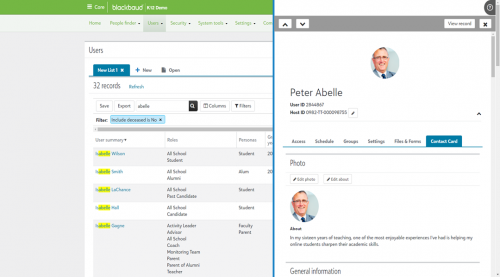
User Lists is the ‘fly out panel.’ When you select a user from the list, you now stay on the user list as a panel appears from the right side of your user interface. The panel shows details about the user you’ve selected. Use it to edit the user’s data and save your changes without ever leaving the user list. Then use the up and down arrows to review details about other users in the list. Select
X to dismiss the panel and go back to the user list you were in.
Alternatively, to go deeper into a specific user’s information, select
View Record from the panel to open the
Core view of the
User’s profile.
If you haven’t used lists in a while, explore them again. These updates make lists much more user friendly.
Additionally,
User Lists now include columns and filters that help you review:
- Default Privacy Settings (by email, preferred address, home phone)
- Latino/Hispanic demographic information (included with Citizenship information)
- Has User Photo (yes, no, blank)
Plus, the columns of results that appear by default when you access
User Lists are now a better match when compared to the results you previously came to expect from
Edit User Profile Data.
Improved Data ImportsWhen you view the detailed file layout for a data import, it now indicates that data for some fields can be removed in bulk. For the applicable data, enter a
^ character in the field whose data should be removed.
We’ve also added four new types of imports:
- General User - This import allows you to add user data for new constituents or update existing constituents’ basic biographical information. When adding a new user, a HostID is required for each user. When updating existing users’ information, you can match on either the HostID or UserID. The general user import will update fields like name, marital status, ethnicity, religion, gender, SSN home address, home phone number, and more!
- Roles - This import allows you to assign constituent roles to users – including student, alumni, candidate, teacher, non-teaching staff, advisor, etc. Some roles are set through relationships – like parent or grandparent. Those roles are established through the relationship import.
- Relationships - This import allows you to tie people together with relationships – these relationships can be peer-to-peer (I.e. spouse, sibling, cousin, etc.) or hierarchical (parent, grandparent, etc.) Tying people together will also share addresses and home phone numbers, if they're identical, between spouses and parents/children.
- User Education - This import allows you to add one or more user education records to a contact card. This import is done on its own rather than in the general user import because constituents may have several education records.
Additionally, you can now import
Phone Numbers, some
Admin View Custom Fields, and other data that will appear on
Contact Cards.
But wait, there’s more!Seriously, there’s more. It’s coming with the February 6, 2019 release and includes improvements to
People Finder,
User Lists, and
Files & Forms.
I’m not going to spill the beans today, but we’ll publish the release letter and video soon--so stay tuned and stay in touch! As always, thank you for reading our release notes and participating in the user community. Your continuing engagement makes our world go ‘round.
By the way, if you’re interested in this discussion, you can read and get involved
right here. You can also visit the
Ideas area to comment/vote on ideas from others or post your own. Leave us a like below if you found this blog helpful and informative. If you have any questions, leave a comment below as well.