Here are the latest changes, updates, and new features for the
Education management products for July 25, 2023.
Academics
Assignment comments in learning progressions
When viewing their learning progressions, students can now hover over the comment icon to view their assignment comments.
Billing management
Failed payments status now appears for payers
Electronic payments that do not successfully process now show a
Status of
Failed to payers in the Payer portal, indicating that the payer should resubmit the payment.
Billing year column added to Payment application export
We’ve added the Billing year column to the
Payment application export for both charges and enrollment deposits, providing Billing clerks with additional information to include in annual tax correspondences.
Core
Profile publish access – prevent users from removing too much directory information
Platform managers use
Core,
Security,
Profile access,
Profile publish access to configure which profile data each role can publish for other roles to view. Now, platform managers can configure these settings to disable the option called
Include my name, but do not include any other information about me. However, when you disable this option, it is disabled for all roles. When enabled, this option appears to users in their
Account settings,
Privacy settings. By disabling this option for all roles, including students, platform managers prevent those users from removing their information from the school’s directory.
Enrollment management
Registration Events
Admissions managers now have the ability to delete an attendee's registration option from the
Attendee options list. For example, if someone mistakenly signed up for the wrong option, admissions managers can now delete that specific instance instead of just marking them as canceled. Keep in mind that this will only delete the selected registration option for the attendee, not their full registration.
API and Integrations
Automate OneRoster file exports using SSH File Transfer Protocol (SFTP)
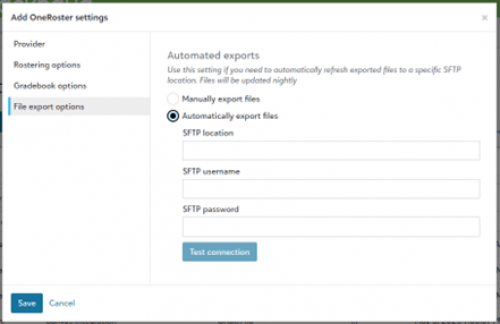
Integration managers can now set up an automated job that exports the OneRoster file export to a self-maintained SFTP location using provided authentication credentials (i.e., SFTP location, SFTP username, SFTP password). The automated job runs daily at 2 am EST and deposits the report to the SFTP location as a .csv file. References to each export are found under the OneRoster export page, with each automated entry containing Blackbaud
System as the
Submitted by entry.
Use the
Test connection button to verify that a connection can be established before saving.
To set up an automated file export job, navigate to
Core >
Settings >
Integrating settings. Add or edit an existing OneRoster setting, and then select the File Export options tab.
To review a log of automated file exports, navigate to
Core >
System tools >
OneRoster export and identify list entries featuring
Submitted by Blackbaud System.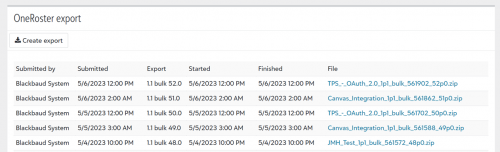
Parent information now optional for OneRoster export
We’ve added a new option to the OneRoster export
Rostering options to include or exclude
Parent information in exports.
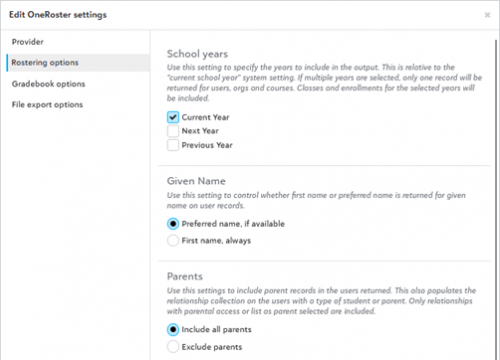
Additionally, the following endpoints now reference and accommodate the selected
Parents Rostering option by including parent data when enabled:
The following endpoints represent parent data as part of the user.agents collection:
School API and OneRoster API
For information about recently added endpoints and other updates,
view the School API and OneRoster API changelog.
Subscribe to “What’s New”
To receive email notifications when the What’s new update appears, make sure to subscribe to the
Higher education community’s blog by logging into the community site and selecting the Subscribe button.
To manage your community subscriptions:
- Log into the community and locate your name and profile picture in the upper right corner.
- Select the drop-down arrow and select My Account.
- From the My Account page, select the Subscriptions tab and scroll down to the Blogs section.
- Locate Blackbaud Higher Education solutions Blog. If you want to be notified as soon as the What’s new content goes live on the community, select the Instant option. You can also opt for Daily and Weekly notifications.
- Scroll to the end of the page and select Save changes.
What’s Recent
Missed any of our weekly releases? You can catch up on everything in our Month in Review blog posts, which cover every feature and update
Education management releases each month.