Work Center appears when you first log in so you can dive right into your relationships and assignments. With
Work Center, you have everything you need to juggle relationships with prospects and donors, with a
Portfolio list of your assigned constituents and lists of related gifts, actions, and — with
Prospect Research Management — proposals. From these lists, you can quickly manage an assignment, such as to add a note to a constituent, mark an action as complete, or update a proposal's status. To help focus on or analyze specific details, you can also select which information or records to include in a list.
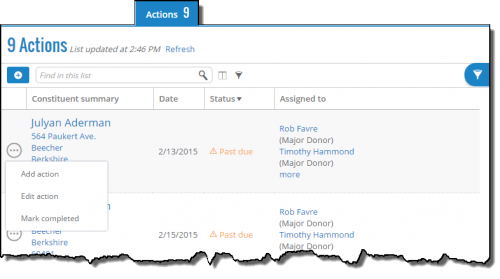 To manage an item in a list,
simply select the applicable action from its menu. For example, to edit an action or mark it as complete, select its menu in the
Actions list and select
Edit action or
Mark completed.
To select the information to view in a list, select
Choose columns and pick which ones to include. This is a good way to focus on only what you care about at the moment and help prevent information overload! To view even more information about a constituent or proposal, you can always click its name to open its record for a deeper dive.
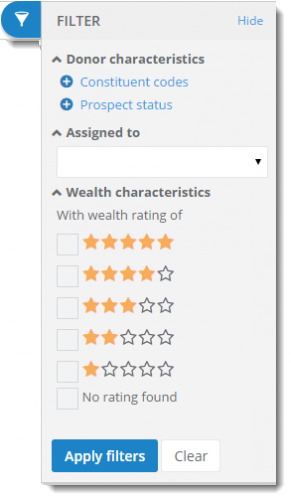 To view and analyze only a subset of records,
you can filter the list to only those that share specific criteria, such as constiuent codes, gift amounts, or status. Simply select
Filters and then choose the characteristics of the records to include in the list. It's sort of like
Query in the database view, but more like shopping online and without all the math.
To search for a specific item in a list, simply enter its name or other identifying information in the
Find in this list search bar, like you would in
Google or another search engine.
To view someone else's Work Center, select
Change fundraiser and choose whose portfolio to view. (This only appears if you have rights to view others'
Work Center, like if you manage a team of fundraisers.)
With
Work Center being the central hub of your fundraising efforts, you may never need to venture into other areas of
Raiser's Edge NXT; but if you do, such as to dive into the record of a constituent or proposal, simply select
Work Center from
Fundraising to come back to it.
If you don't see
Work Center when you log in but think you should (such as if you manage relationships or associated activity), check with your system admin. (
Admins: For details about how to set up
Work Center for your organization, check out the
Set Up Work Center Help!)
For more information about how manage items in
Work Center, see the
Work Center and Lists Help.