With
Raiser's Edge NXT, you have easy access to your organization's fundraising and constituent data through any browser, on any device. Through its web interface, you can manage your relationships, track related actions and proposals, and review giving details from anywhere. With unique features like
Work Center, tags, and lists, you can quickly analyze your fundraising efforts and easily stay on top of your constituent relationships and related activity. That said, the web interface and its features are only part of full
Raiser's Edge NXT experience. To borrow a phrase from those late-nite infomercials, "And that's not all!..."

With
Raiser's Edge NXT, your organization also has full access to the robust database view, where you can configure settings and security and manage detailed information about your fundraising efforts, your constituents, and the resulting gifts. To access these features, select
Open database view in the web interface.
In the database view, you can view and manage all aspects of your fundraising efforts, such as to:
- Add new constituents and track detailed information about each individual and organization.
- Manage gifts and fundraising efforts such as campaigns, funds, appeals, events, and mailings.
- Create detailed queries to group, analyze, and export records.
- Enter and update multiple records at once through Batch; Import; and Globally Add, Delete, and Change.
In the database view, system administrators can configure settings and features so everyone at your organization gets the most out of the web interface.
To ensure everyone sees only the records and information they need to work with (in both the web interface and database view), assign rights to users by security groups in Security under Administration in the database view. For more details, check out the Record Security Help.To enable someone to be assigned relationships, actions, and proposals and manage those assignments in Work Center, mark them as a fundraiser. In the database view, link their user and constituent records and then select
Is a solicitor on the
Bio 1 tab of their constituent record.
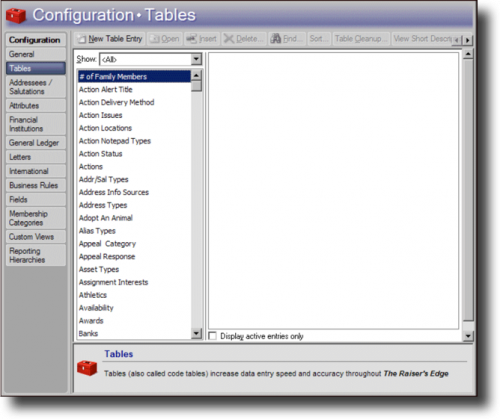 To track the progress of actions rather than just when they're completed,
set up custom status codes to use as action statuses in
Tables under
Configuration. After you set up custom action statuses, you can configure the web interface to use them instead of the default completion statuses. For more information, see the
Action Statuses Help.
To help indicate why constituents are in your database, you can track their affiliations with your organization, such as Board members, Volunteers, and Vendors. In the database view, set up the available affiliations as constituent codes in
Tables under
Configuration and assign them to constituents on the
Bio 2 or
Org 2 tab of their records. In the web interface, you can view a constituent's affiliations in the profile information of their record and use the codes to filter and analyze lists of constituents. For more information, check out the
Constituent Codes Help.
To track specialized information about constituents and proposals as custom fields, set up the available fields and values in
Attributes under
Configuration and assign them to constituents or proposals on the
Attributes tab of their records. In the web interface, you can view this specialized information under
Custom fields on a constituent's record and add and manage them under
Custom fields on a proposal's record. For more information, see the
Custom Fields Help.
With
Prospect Research Management, you can use proposals to plan and track your efforts to cultivate a relationship and major gift opportunity.
To track the progress of your efforts, set up the stages of your proposal management process — such as Initial contact, Pending, and Accepted — in
Tables under
Configuration. In the web interface, you can view a proposal's current stage under
Status on its record and update the status from any list of proposals. For more information, check out the
Proposal Status Help.
Over time (and through frequent updates to
Raiser's Edge NXT), you'll be able to perform many tasks of the database view through the web interface. During this evolution, don't overlook the features and functionality of the database view to help power your web interface. For detailed information about these features, select
Help,
The Raiser's Edge Help Topics from the menu bar in the database view, or download its guides from
The Raiser's Edge 7 How-To.