To help keep next week's focus on BBCON (hope you can make it!),
Raiser's Edge NXT updates this week — again! — with additional new features and enhancements. And if you can't make it to Austin (me neither!), follow all the festivities and knowledge-sharing on
Twitter!
#bbcon 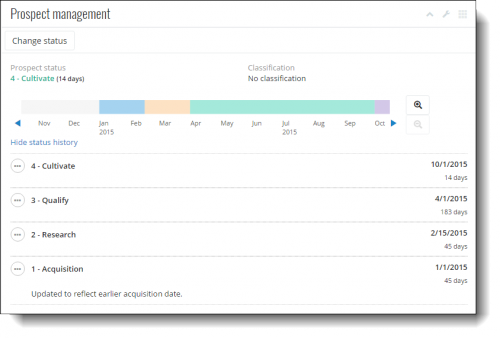 Manage a prospect's status.
With
Prospect Research Management, you can track and update prospects as they flow through your moves management process. To better describe this feature,
Prospect research on a constituent's record now appears as
Prospect management. From here, you can now update a prospect's status in your process, quickly see how long they've been at their current status, and scroll through their moves management history. (
Note: Since this is a brand new feature, only the current prospect status appears initially, as a recent change. For accurate information, edit the moves management history — starting with your primary prospects — or update current status dates as necessary.)
To better track your moves management process, your organization can also now set expected time frames for each status. A constituent's prospect status now appears as an alert at the top of their record when they have a status for too long. Previously, the status always appeared at the top of the record in addition to with the prospect research information. (
Admins! To alert fundraisers when a prospect is past due, select
Settings under
Prospect management to set how long someone should stay in each stage of your moves management process.) For more information, including suggested statuses, check out the
Prospect Status Help.
While you can save a constituent's prospect status on their record in the database view, we recommend you use the web interface instead to track the moves management history. For all the details why, see the
Prospect Status: Web or Database View? Help.
Add profile pictures to constituent records. To help identify a constituent or personalize their relationship, you can now attach a photo or image — such as a selfie or company logo — at the top of their record, in place of the default avatar. To use an image file — PNG, BMP, or JPG — saved locally or on your network as a profile picture, simply move it to the avatar from your file explorer, or select the avatar to browse to the file or upload it from your phone or tablet's camera, pictures, or cloud storage. For more information, see the
Profile Pictures Help.
Save, open, and delete custom lists. In
Lists (introduced earlier this week!), you can build custom lists of records, such as to analyze fundraising efforts or refine recipients of a communication. You can now save a list's filter settings for future use to track the latest information based on records that meet the criteria. When you save a list, you can give it a name and choose who can use it. You can also delete saved lists you no longer need. (In future releases, you'll be able to save tweaks to filter settings as additional lists, edit the names and security settings of saved lists, and easily share them with others at your organization!) For more information, check out the
Lists Help.
For details about these features, or to catch up on previous releases, see the
What's New Help or
What's Recent Help.
Enjoy!