**Giving this blog post a bump up as an excuse to point out
this great discussion thread about how to use the
Schedule emailing of this dashboard feature in tandem with rules set within your email client — like Microsoft
Outlook or Google
Gmail — to automatically forward PDFs of dashboards to others at your organization. Check it out!**
In
Analyze, you can quickly gauge and assess your organization's fundraising efforts across several areas, such as campaigns and funds, donor lifecycle, and actions. To analyze specific data or trends, you can apply filters to include only records that meet the criteria. If you frequently choose the same filters for analysis again and again, you can save their "view" for your own personal use or schedule regular emails to easily analyze the metrics in the future!
 Filter the metrics.
 To fine-tune your analysis, apply filters to narrow the focus of metrics to specific records. For example, to stay on top of giving trends, you can filter the
Giving metrics under
Overview to include only gifts toward specific campaigns or funds, acquired through specific appeals, or received during a specific time period.
The
Gift Date filter — and the similar
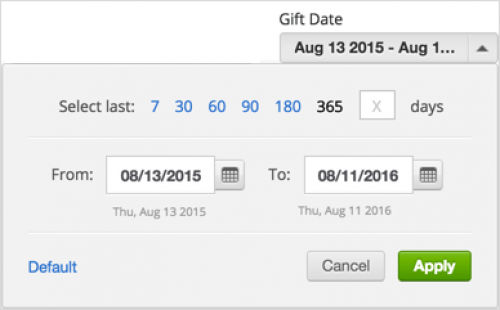
Action Date filter, for actions — can be particularly useful when you save them for later reuse. With these filters, you can then easily include records based on a specific number of days in context of whenever you use the view again in the future.
- For a simple time period such as the last week or month, select its number of days in the Select last field.
- To use a calendar to quickly choose the number of days worth to include, such as three weeks or four months, select the start and end dates in the From and To fields.
 Save the view.
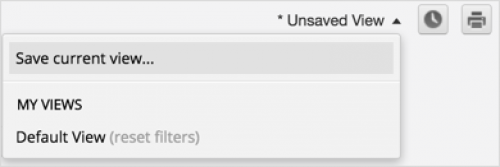
 To save the filters applied to metrics for later reuse, select
Unsaved View,
Save current view and then give the view a name, confirm which of the filters to include, and select
Save. (Note that any filters you don't include in the saved view use their default values, and filters set to "All" or no value aren't included.) The next time you — and
only you, as your saved views won't appear for others — want to apply those same filters to the metrics, simply select their view from the
View menu!
 Schedule an email.
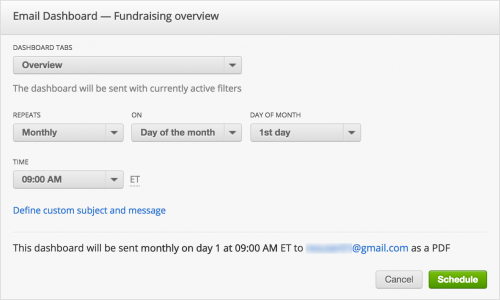
 If you use a view or specific filter selections on a consistent basis, you can also receive a PDF of the metrics as an email on a daily, weekly, or monthly basis. For example, if you apply a saved view with a sliding time frame date filter applied, you can then choose to automatically receive a PDF as a monthly update of giving or actions from the previous 30 days. (And, as pointed out in the aforementioned
discussion thread, you can set rules within your email client to automatically forward the PDF to others at your organization!)
To set up the email, select
Schedule emailing of this dashboard (the clock next to the
View menu), choose when to receive the PDF, and select
Schedule. You can also customize the subject line and message to best identify the metrics included in the email. (To no longer receive the PDF, you can simply select
Unsubscribe in the email.)
For more information, see the
Analyze Help.