This week,
Raiser's Edge NXT updates with a handful of enhancements, including the ability for fundraisers to attach files and collateral to campaigns, funds, and appeals!
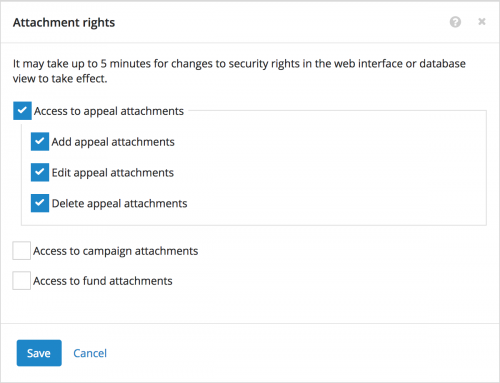 Set a security group's rights to attachments for campaigns, funds, and appeals.
 Admins can now choose who can manage attachments on the records of campaigns, funds, and appeals. With these attachments, you can track the collateral used to support or document your fundraising efforts, such as mailing brochures or pictures from an event.
(
Admins! To enable a security group to access or manage attachments for campaigns, funds, and appeals, open its record from
Control Panel,
Security and select
Edit rights under
Attachment rights.)
For more information, see the
Attachment Rights Help.
View custom fields about a constituent's education. To track specialized information about your constituents' academic activity, such as which clubs or sports they were involved in, your organization may use education custom fields — or
attributes — in the database view. In the web view, you can now view this information under
Education on a constituent's record. To choose which custom fields to view, select
Choose columns, choose the details to include, and select
Apply changes. For more information, see the
Education Help.
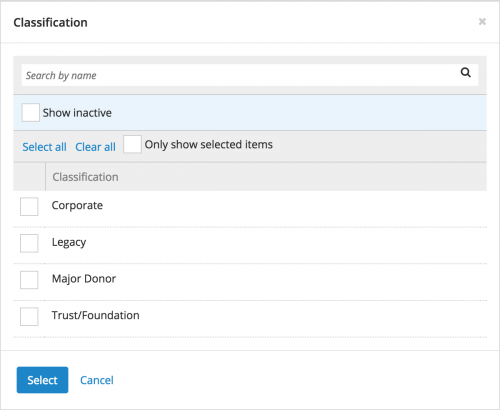 View and filter by prospect classification in constituent lists.
 With
Prospect Research Management, you can identify how your organization considers a prospect, such as Individual, Corporate, or Major donor. In a list of constituents, you can now view this information and use it to filter records.
- To view this information in a list of constituents, select Choose columns, Classification, and Apply changes.
- To include only those with specific classifications in a constituent list, select Filters, select Classification under Donor characteristics, choose which to include, and then select Select and Apply filters. For more information, see the Constituent Basics Filters Help.
For information about how to manage a constituent's classification, see
Prospect Management.
View contact and address information from relationship records. In the database view, when you create a relationship to connect an organization to another record, you can save contact or address information on the relationship's record. In the web view, you can now view this information under
Relationships on the constituent's record. For more information, see the
Relationships Help.
For more information about these features, or to catch up on previous releases, check out the
What's New Help and
What's Recent Help.
Enjoy!