In
Fundraising,
Work, fundraisers have easy access to their assigned constituent portfolio and all that goes those relationships — actions, gifts, opportunities, and so on. To fine-tune the focus of this one-stop shop, there are several settings Admins can configure to determine what appears for fundraisers in their
Work Center.
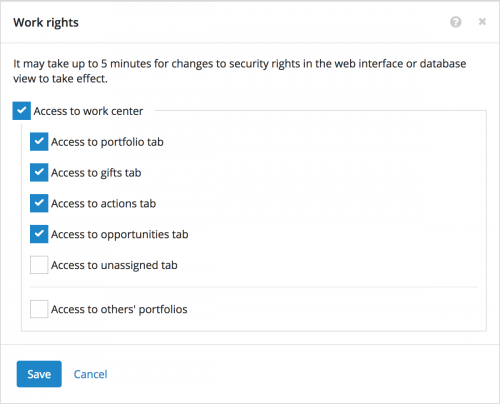 Work rights.
 In
Control Panel,
Security, admins can choose which web view features members of a security group can access. To enable a security group to use
Fundraising,
Work, select
Edit rights under
Work rights on its record, and then select
Access to work center. When you set a security group's access to
Fundraising,
Work, you can also choose which
Work Center tabs should appear to it members. For example, you may want to limit volunteers' access to gift information.
To enable some people — like fundraising team managers — to easily view other fundraisers' assignments, select
Access to others' portfolios. These members can then choose to view
Work Center as another fundraiser — or all of them! — to track activity across your organization.
For more information, see the
Fundraising Work Center Rights Help.
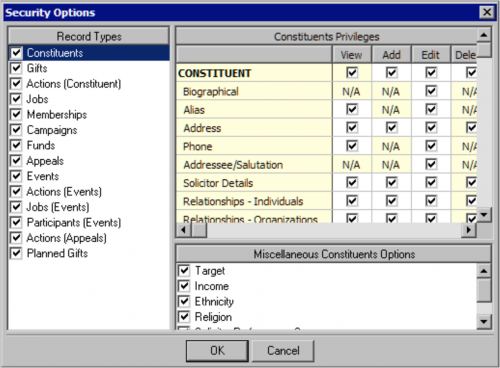 Database view security.
 In the database view, admins can further define what
Raiser's Edge data members of a security group can access or modify. To manage settings for a security group in the database view, open its record in
Admin,
Security.
- To define what its members can do with specific information such as addresses, select Records under Group Privileges, select Options, and choose what they can view, add, edit, or delete.
- To limit its members' access to information about specific constituents such as celebrities or politicians, select Security by Constituency under Group Privileges, select Options, and choose which constituent codes they can — or cannot — view or edit. For more information, see the Record Security Help.
- To restrict its members' access to information about gifts toward specific funds, select Gift Security by Fund under Group Privileges, select Options, and choose which funds they can't view or edit.
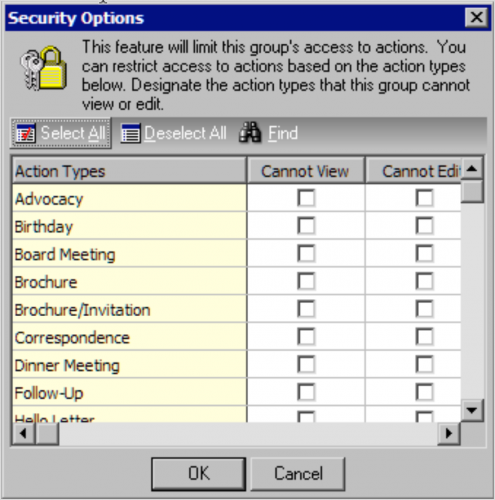 To restrict its members' access to information about specific actions such as confidential meetings, select Action Security by Type under Group privileges, select Options, and choose which action types they can't view or edit.
- With Prospect Research Management, to restrict its members' access to information about specific opportunities, select Proposal Security by Purpose under Group Privileges, select Options, and choose which purposes they can't view or edit.
With these security settings, admins can protect sensitive information and help fundraisers focus on the data that matters most to them. For more information about security options in the database view, check out
The Raiser's Edge Configuration & Security Guide.