As announced at bbcon,
Raiser's Edge NXT kicked off this week by releasing the final wave of
Add gift to everyone — one more step in the path to transform the web view into your "web
do" solution! To add a one-time gift (aka
cash gift in the database view), select
Add gift from
Home or under
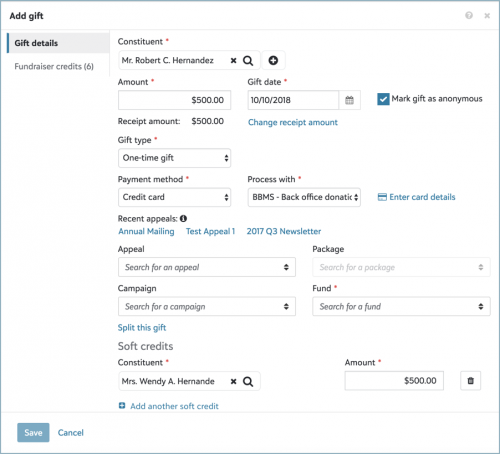
Giving history on the donor's constituent record. When you add a one-time gift, you can save several details about the giving.
DonorYou can add the gift from the donor's constituent record, or — if you add the gift from
Home —
search for (or add) their record. To respect a donor's request for privacy, you can also choose whether to mark the gift as anonymous.
AmountThe full amount of the gift, as well as the tax-deductible amount to appear on its receipt.
DateWhen you receive the gift – key for later fundraising analysis and financial reporting!
 Payment method
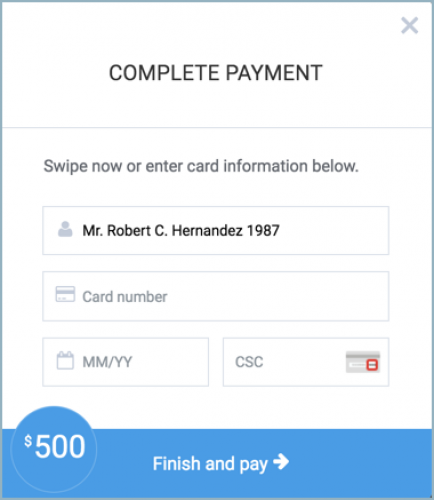
 How they pay for the gift, such as cash, check, or credit card. For a gift by credit card or direct debit, you can select
Enter card details or
Enter account details to process the transaction
immediately through
Blackbaud Checkout and your payment processor like
Blackbaud Merchant Services. No more awkward follow-up phone calls to verify account information after a declined or failed transaction!
Fundraising effortTo track the intent of the giving and for fundraising analysis, you can save the campaign or fund to receive the revenue, and the appeal and package used to ask for the gift. (To ease data entry, you can choose from the donor's recent appeals!) To apply the gift to multiple efforts, select
Split this gift and enter how much goes to each.
Soft creditsTo recognize another constituent for the gift, such as the donor's spouse or a family foundation, select
Add a soft credit and specify who to credit with the gift (and how much). You can recognize multiple constituents for all or part of the gift's amount.
Acknowledgement and receiptTo thank the donor for the gift and help them track it for their own finances, you can choose whether to issue the donor an acknowledgement or receipt and which acknowledgement letter they should receive.
Post statusFor your organization's financial accounting, you can track whether — and when — to post the gift to your general ledger.
CommentYou can track any special notes or details about the gift, such as to capture a comment the donor makes about the campaign they're supporting or any unique conditions around their contribution.
Fundraiser creditsTo credit a fundraiser — someone who solicits gifts on your organization's behalf — for the acquisition of the gift, select
Fundraiser credits and
Add a fundraiser credit, and then specify who to credit with the gift (and how much). You can recognize multiple fundraisers for all or part of the gift's amount.
After you save the new gift, you can track additional information — such as any specialized custom fields your organization tracks, or to attach a copy of a check — on its record. For more information, see the
Gifts Help.
To learn more about this week's new features, or to catch up on previous releases, check out the
What's New Help and
What's Recent Help.
Enjoy!