To help you plan and manage your in-person or virtual events this fall, we’re introducing RSVP options in
Raiser’s Edge NXT web view. The new options will be available next week and – as many requested in the RENXT Ideas Portal – will enable you to track when people decline event invitations.
Our research When we started researching how to best capture declines, we learned that customers currently collect them in the database view in different ways:
- Response field with custom responses.
- Status field with custom statuses.
- Registration field with an internal business process that defines what Registered and Not Registered mean.
Since the
Response and
Status fields are user-defined, the values vary widely. Some customers use a succinct set of options, while others include catch-all values to solve other data capture needs as necessary.
During the discovery process, customers told us they need an easy way to see who’s planning to attend an event, who might be coming, and who definitely isn’t coming. By tracking these responses, customers explained they could alter their invitation processes as necessary and estimate walkups to plan for logistics like meals.
Our solution We decided to repurpose the
Registration field in web view by changing the label to
RSVP and replacing the existing “Registered” and “Not registered” values with a standard set of options:
- No response (default)
- Attending (previously Registered)
- Declined (previously Not registered)
- Interested
- Cancelled
- Waitlisted
- N/A (Not Applicable)
The benefit of a controlled set of statuses is that we can show total counts for various responses. This also sets us up for some future automation possibilities using Workflow Designer. From an event’s record, under
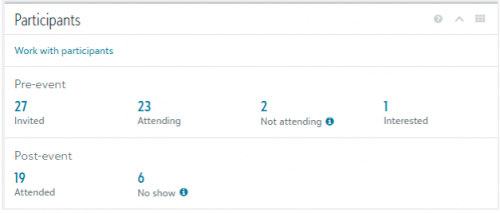
Participants, you’ll be able to track the number of people who are attending, not attending, and interested in the event. After you take attendance, you’ll also be able to view how many attended and how many confirmed participants didn’t show. Each total will link to a prefiltered list of participants you can use to follow up, such as to send reminders to people who indicated they’re interested in attending.
 Differences Between Database View and Web View
 Now that you know the reasons for the changes and the benefits you get from them, let’s review how web view and database view will differ.
First, since everyone uses different values for the
Response and
Status fields, we decided not to move them to web view. Also, you’ll only be able to view the new statuses in web view. In the database view, RSVP statuses will correspond to the existing options in the
Registration field.
- Attending in web view will appear as Registered in the database view.
- Declined, Interested, Cancelled, and Waitlisted in web view will appear as Not registered in the database view.
We hope you enjoy these changes and make sure you join me on September 24, 2020 at 12pm EST for a deep dive webinar on these new
Raiser’s Edge NXT RSVP features. Click
here to register and stay tuned, because soon you’ll also be able to see more revenue information in events and enter event donations in web view.
FAQs: Q: My event has pre-registration where I collect names for interest, then I follow-up to ask them to register at a later date. How do I use these values to capture the pre-registration?
A: You'll want to count the pre-registration as the "Interested" value. Then, you can take registration as you usually do and update the participant's RSVP status to "Attending" at the point of registration.
Q: Is there a way to capture RSVP declines in a more automated way other than manually changing that for the participant in NXT?
A: Currently, Blackbaud's online registration forms (through Blackbaud NetCommunity, Online Express or
Raiser’s Edge NXT) only assign the Registered/Attending value. In a future release, we will be adding support to
Raiser’s Edge NXT to collect RSVP declines and accept a donation in lieu of attendance. If you want to be notified of our progress on this work,
please vote for the Idea here.
Q: What happens when I add a participant in database view and mark them as “Not registered”? Which value shows up in web view for their RSVP status?
A: When you add or change a participant’s registration in database view to “Not registered” it will appear as “No response” in web view.
Q: I want to see all participants who have given us a RSVP of “Interested.” How do I see this in database view?
A: The “Interested” response is only viewable in web view and will appear as “Not registered” in the database view. To see all participants marked as “Interested” in the event, go to the event record in web view. Under
Participants, you’ll be able to see the total count of participants who responded that they’re interested. To view a filtered list of these participants, select the number in the
Interested field.
Additional Note: If you want to use this filtered list of participants to send them an email from RENXT, on the Participant List, select the option to Create Constituent List at the top of the page. Further, if you want this list of filtered constituents to be available in database view for querying, save your Constituent List of interested participants as a static query.
Q: The participant tile shows “Not attending” participant totals, but that’s not a value I can select for a participant. How is that number calculating?
A: The
Not attending calculation under
Participants is a sum of the “Declined” and “Cancelled” RSVP statuses.
Q: How do I mark a participant as a no-show to my event so they show up in my no show totals on the participant tile?
A: No show is a number on the
Participants tile that starts to calculate once you’ve started taking attendance for the event. To see a number other than zero, mark at least one participant as attended. The no show total calculates the number of participants planning to attend (Attending) minus the number who have been marked as Attended.