Organizing Export Fields with Groups
Susan Sloan
Blackbaud Employee
Have you ever needed to export multiple contact types and found that the order of the contact types was different for each record? This can make the export output hard to use, especially if you need each contact type to be in a specific column. Luckily, there is an easy solution! Instead of including all 3 contact numbers in one group, we can set up separate groups for each contact type. In this example I used Home, Cell, and Email.
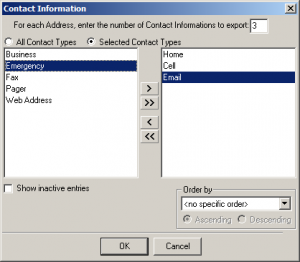
Here is an example of selecting all 3 contact types in one group. This would be your criteria:
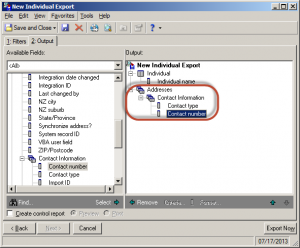
This is what your export output would look like:
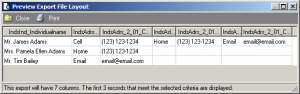
And here is the preview. See how the first contact for James is Cell, but the first contact for Pamela is Home? This can make the information seem jumbled and unusable.
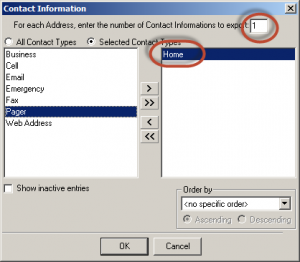
If you're looking to have these fields in a specific order, you can use groups for each contact type in your export so that each contact type will have its own specific spot in the export. To do this, you'll add your export field just like you did in the above example, but instead of selecting all 3 contact types you're looking for, you select just one. In this example, let's say Home is the first one:
Once this has been added, you'll see something similar to what is shown in the second image above. Now add that same field to the export output again. You'll receive a prompt telling you that the field already exists in that group and will ask if you want to add a new group - choose Yes. You will get a the criteria screen again. This time, choose a different phone type - in this example, let's choose Cell:
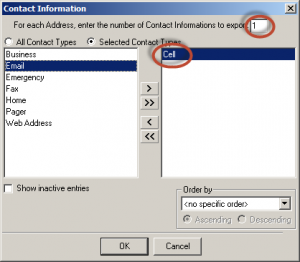
Repeat until you have all of the different fields you need. Once you're done, you'll see something like this, where the contact information is split into three groups:
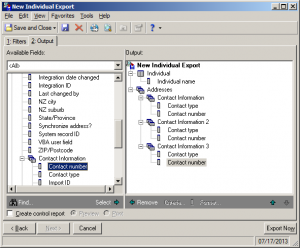
By doing this, you keep each contact type in a specific spot in your export, so your final product will be more organized. Here's what this preview would look like. See how the first contact for both James and Pamela is the home number? This makes things much easier!
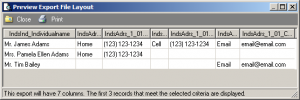
Keep in mind that exporting in groups is not limited to just contact information; you can also export relationships and other information in groups. Here are links to two Knowledgebase solutions that you can bookmark as a handy reference.
How to export a specific contact type or email address in a specific column of an export
How to export the same field multiple times with different criteria by using criteria groups
I hope that this helps with your next export project!
Here is an example of selecting all 3 contact types in one group. This would be your criteria:

This is what your export output would look like:

And here is the preview. See how the first contact for James is Cell, but the first contact for Pamela is Home? This can make the information seem jumbled and unusable.

If you're looking to have these fields in a specific order, you can use groups for each contact type in your export so that each contact type will have its own specific spot in the export. To do this, you'll add your export field just like you did in the above example, but instead of selecting all 3 contact types you're looking for, you select just one. In this example, let's say Home is the first one:

Once this has been added, you'll see something similar to what is shown in the second image above. Now add that same field to the export output again. You'll receive a prompt telling you that the field already exists in that group and will ask if you want to add a new group - choose Yes. You will get a the criteria screen again. This time, choose a different phone type - in this example, let's choose Cell:

Repeat until you have all of the different fields you need. Once you're done, you'll see something like this, where the contact information is split into three groups:

By doing this, you keep each contact type in a specific spot in your export, so your final product will be more organized. Here's what this preview would look like. See how the first contact for both James and Pamela is the home number? This makes things much easier!

Keep in mind that exporting in groups is not limited to just contact information; you can also export relationships and other information in groups. Here are links to two Knowledgebase solutions that you can bookmark as a handy reference.
How to export a specific contact type or email address in a specific column of an export
How to export the same field multiple times with different criteria by using criteria groups
I hope that this helps with your next export project!
0
Categories
- All Categories
- 6 Blackbaud Community Help
- 213 bbcon®
- 1.4K Blackbaud Altru®
- 402 Blackbaud Award Management™ and Blackbaud Stewardship Management™
- 1.1K Blackbaud CRM™ and Blackbaud Internet Solutions™
- 15 donorCentrics®
- 360 Blackbaud eTapestry®
- 2.6K Blackbaud Financial Edge NXT®
- 655 Blackbaud Grantmaking™
- 576 Blackbaud Education Management Solutions for Higher Education
- 3.2K Blackbaud Education Management Solutions for K-12 Schools
- 939 Blackbaud Luminate Online® and Blackbaud TeamRaiser®
- 84 JustGiving® from Blackbaud®
- 6.6K Blackbaud Raiser's Edge NXT®
- 3.7K SKY Developer
- 248 ResearchPoint™
- 119 Blackbaud Tuition Management™
- 165 Organizational Best Practices
- 241 Member Lounge (Just for Fun)
- 34 Blackbaud Community Challenges
- 34 PowerUp Challenges
- 3 (Open) PowerUp Challenge: Chat for Blackbaud AI
- 3 (Closed) PowerUp Challenge: Data Health
- 3 (Closed) Raiser's Edge NXT PowerUp Challenge: Product Update Briefing
- 3 (Closed) Raiser's Edge NXT PowerUp Challenge: Standard Reports+
- 3 (Closed) Raiser's Edge NXT PowerUp Challenge: Email Marketing
- 3 (Closed) Raiser's Edge NXT PowerUp Challenge: Gift Management
- 4 (Closed) Raiser's Edge NXT PowerUp Challenge: Event Management
- 3 (Closed) Raiser's Edge NXT PowerUp Challenge: Home Page
- 4 (Closed) Raiser's Edge NXT PowerUp Challenge: Standard Reports
- 4 (Closed) Raiser's Edge NXT PowerUp Challenge: Query
- 792 Community News
- 2.9K Jobs Board
- 54 Blackbaud SKY® Reporting Announcements
- 47 Blackbaud CRM Higher Ed Product Advisory Group (HE PAG)
- 19 Blackbaud CRM Product Advisory Group (BBCRM PAG)