Statements For Diverse Families


Many families have unique needs for the way the statements need to be printed and which transactions should show on each one. This blog post will list a few scenarios you may have in your school and explains how to handle them.
Scenario 1 – Student-Centric with divorced parents
If your school is set up to be Student-Centric, students are responsible for the charges on their accounts. Although they may not be the person who actually writes the check, all charges are assigned to them. To select this option, you would select the billing option “Assign each charge to a student’s account” on the student’s Bio 1 tab.
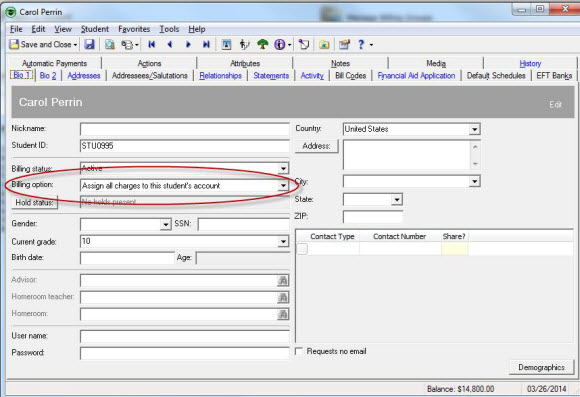
There is not a Payers tab on the Student Record if you are Student-Centric because all charges are assigned to the student. Payments made by other people can be applied to the student’s charges, but the Student is set up to be “responsible” for them.
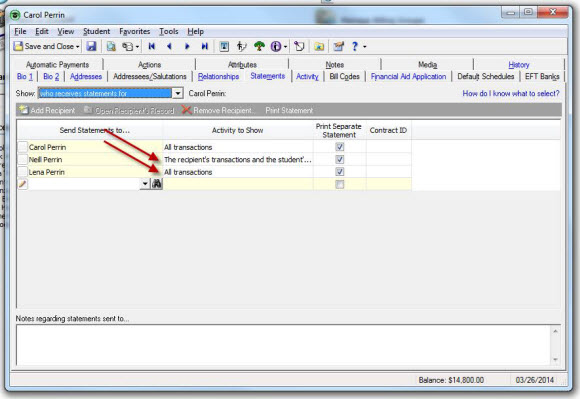
Since the student is responsible for the charges, they are automatically listed on the Statements tab and cannot be removed.
You can also add additional Statement Recipients if desired. For example, if the parents are divorced, and you want them to see charges that are assigned to the student as well as all payments have been made by either parent, you could set their Activity to Show to All Transactions.
Scenario 2 – Payer-Centric with Multiple Payers or Divorced Parents
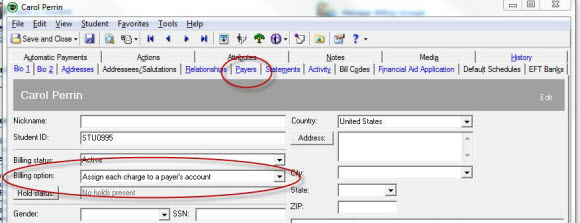
If parents are responsible for charges or you want to share responsibility for charges between multiple payers/parents, you will want to select “Assign each charge to a payer’s account” on the Bio 1 tab. This will create a Payers tab on the Student record.
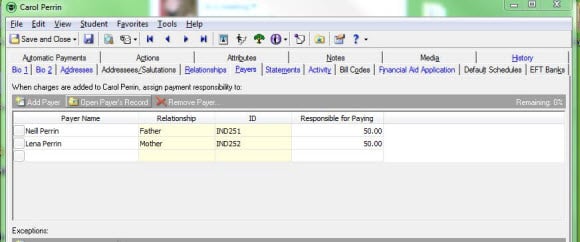
If Mom and Dad are each responsible for 50% of the student’s transactions, we want to set up each parent to be responsible for 50% on the Payers tab.
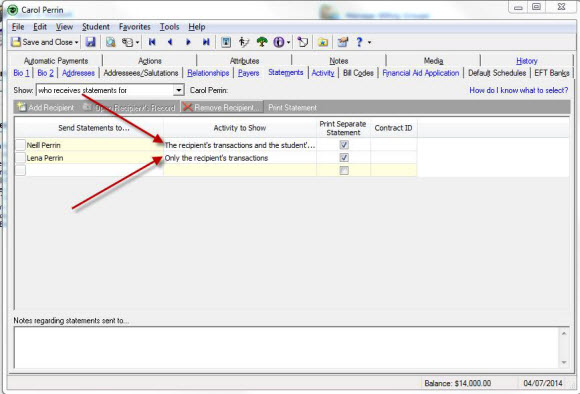
Then, on the Statements tab, you will set up the appropriate Activity to Show on statements for each of the statement recipients.
If you want to print separate charges on statements for each parent, you will select the option to show “Only show recipient’s transactions.” This will show only those transactions assigned to the parent.
**Note: If you sometimes assign charges to the student, you will want to select the option to show “The recipient’s transactions and the student’s transactions” so that those transactions assigned to the student still show on statements.
Scenario 3 – Send copies of statements to someone other than designated Statement Recipients
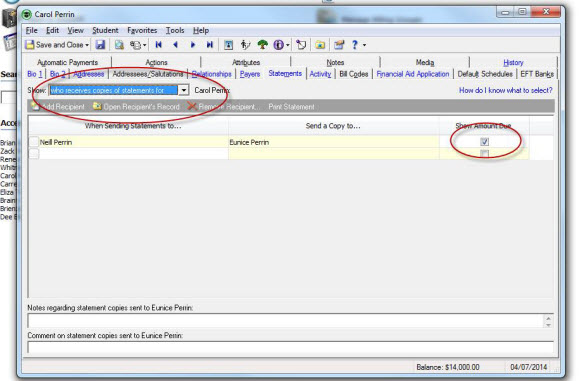
On the Statements tab, you can choose to show either “who receives statements for” the student or “who receives copies of statements for” the student. You may want to set up statements so that someone receives a copy whenever a statement is sent to one of the statement recipients. For example, the student’s grandmother may want to receive a copy of the statement each time the father receives a statement. You also have the option of whether to show the amount due or not.
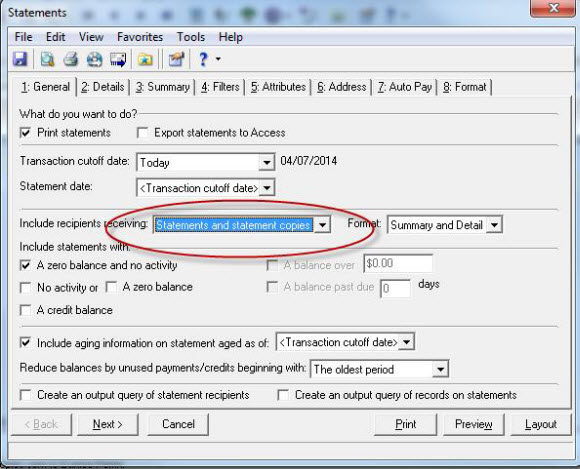
Then, on the General tab of the Statement parameter, you will choose to print statements for those receiving “Statements and statement copies.”
Summary:
When sending statements to diverse families, the main areas of the record to note are the:
How to separate charges on statements for divorced parents: http://www.blackbaud.com/kb/index?page=content&id=BB743069
How to set options on the Statements tab in Student Billing 7: http://www.blackbaud.com/kb/index?page=content&id=BB216314
How to print statements for parents in a student-centric system: http://www.blackbaud.com/kb/index?page=content&id=BB244688
Scenario 1 – Student-Centric with divorced parents
If your school is set up to be Student-Centric, students are responsible for the charges on their accounts. Although they may not be the person who actually writes the check, all charges are assigned to them. To select this option, you would select the billing option “Assign each charge to a student’s account” on the student’s Bio 1 tab.

There is not a Payers tab on the Student Record if you are Student-Centric because all charges are assigned to the student. Payments made by other people can be applied to the student’s charges, but the Student is set up to be “responsible” for them.
Since the student is responsible for the charges, they are automatically listed on the Statements tab and cannot be removed.
You can also add additional Statement Recipients if desired. For example, if the parents are divorced, and you want them to see charges that are assigned to the student as well as all payments have been made by either parent, you could set their Activity to Show to All Transactions.

Scenario 2 – Payer-Centric with Multiple Payers or Divorced Parents
If parents are responsible for charges or you want to share responsibility for charges between multiple payers/parents, you will want to select “Assign each charge to a payer’s account” on the Bio 1 tab. This will create a Payers tab on the Student record.

If Mom and Dad are each responsible for 50% of the student’s transactions, we want to set up each parent to be responsible for 50% on the Payers tab.

Then, on the Statements tab, you will set up the appropriate Activity to Show on statements for each of the statement recipients.
If you want to print separate charges on statements for each parent, you will select the option to show “Only show recipient’s transactions.” This will show only those transactions assigned to the parent.
**Note: If you sometimes assign charges to the student, you will want to select the option to show “The recipient’s transactions and the student’s transactions” so that those transactions assigned to the student still show on statements.

Scenario 3 – Send copies of statements to someone other than designated Statement Recipients
On the Statements tab, you can choose to show either “who receives statements for” the student or “who receives copies of statements for” the student. You may want to set up statements so that someone receives a copy whenever a statement is sent to one of the statement recipients. For example, the student’s grandmother may want to receive a copy of the statement each time the father receives a statement. You also have the option of whether to show the amount due or not.

Then, on the General tab of the Statement parameter, you will choose to print statements for those receiving “Statements and statement copies.”

Summary:
When sending statements to diverse families, the main areas of the record to note are the:
- Bio 1 tab, Billing Option – Are you student centric or payer centric?
- Payers tab – Who is responsible?
- Statements tab – Who is listed and what do you want them to see?
- Activity tab, Assigned to column – Who has been assigned the transactions you wish to show?
- Statements tab, copies dropdown – Do you want to send copies to anyone other than designated statement recipients?
How to separate charges on statements for divorced parents: http://www.blackbaud.com/kb/index?page=content&id=BB743069
How to set options on the Statements tab in Student Billing 7: http://www.blackbaud.com/kb/index?page=content&id=BB216314
How to print statements for parents in a student-centric system: http://www.blackbaud.com/kb/index?page=content&id=BB244688
0
Categories
- All Categories
- New YourCause Community TEST
- New SKY Community TEST
- New Grantmaking TEST Community
- New Altru Test Community
- New bbcon Community - TEST
- 12 Blackbaud Agents for Good™
- New Raiser's Edge NXT Community
- 7 Blackbaud Community Help
- 218 bbcon®
- 1.4K Blackbaud Altru®
- 409 Blackbaud Award Management™ and Blackbaud Stewardship Management™
- 1.2K Blackbaud CRM™ and Blackbaud Internet Solutions™
- 16 donorCentrics®
- 361 Blackbaud eTapestry®
- 2.7K Blackbaud Financial Edge NXT®
- 680 Blackbaud Grantmaking™
- 598 Blackbaud Education Management Solutions for Higher Education
- 3.3K Blackbaud Education Management Solutions for K-12 Schools
- 952 Blackbaud Luminate Online® and Blackbaud TeamRaiser®
- 85 JustGiving® from Blackbaud®
- 7K Blackbaud Raiser's Edge NXT®
- 3.9K SKY Developer
- 257 ResearchPoint™
- 123 Blackbaud Tuition Management™
- 165 Organizational Best Practices
- 247 Member Lounge (Just for Fun)
- 40 Blackbaud Community Challenges
- 37 PowerUp Challenges
- 3 (Closed) PowerUp Challenge: Grid View Batch
- 3 (Closed) PowerUp Challenge: Chat for Blackbaud AI
- 3 (Closed) PowerUp Challenge: Data Health
- 3 (Closed) Raiser's Edge NXT PowerUp Challenge: Product Update Briefing
- 3 (Closed) Raiser's Edge NXT PowerUp Challenge: Standard Reports+
- 3 (Closed) Raiser's Edge NXT PowerUp Challenge: Email Marketing
- 3 (Closed) Raiser's Edge NXT PowerUp Challenge: Gift Management
- 4 (Closed) Raiser's Edge NXT PowerUp Challenge: Event Management
- 3 (Closed) Raiser's Edge NXT PowerUp Challenge: Home Page
- 4 (Closed) Raiser's Edge NXT PowerUp Challenge: Standard Reports
- 4 (Closed) Raiser's Edge NXT PowerUp Challenge: Query
- 822 Community News
- 3.1K Jobs Board
- 57 Blackbaud SKY® Reporting Announcements
- 47 Blackbaud CRM Higher Ed Product Advisory Group (HE PAG)
- 19 Blackbaud CRM Product Advisory Group (BBCRM PAG)