Times, They Are A-Changin': Editing Your Timetable

Jacqueline Koca
Blackbaud Employee




As the school year approaches, decisions may be made to make changes to the bell schedule or order of periods. These changes may not be decided on until after you have already set up the schedule for the next academic year, or you may have not scheduled any classes yet. Instead of starting from scratch, you can edit the existing timetable.
Before editing the timetable, there is some important information to consider:
Updating your Timetable
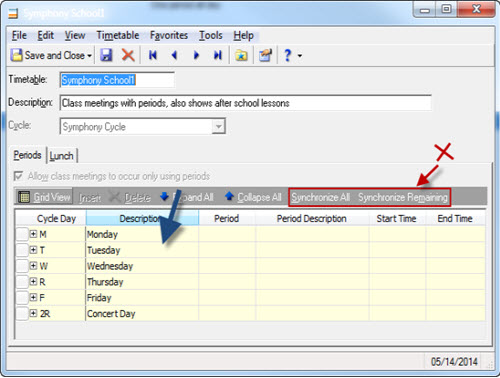
Ready to update your timetable? Great! The process for updating your timetable is fairly straightforward. First you’ll open up the existing timetable for the Academic Year and make a change to the data in the grid, shown with the blue arrow below.
Important note: When editing an existing timetable, never use the Synchronize All or Synchronize Remaining options, marked by the red box and arrow below. These will remove information once you save.
After saving one minor change, you can save the timetable. The following messages will come up:
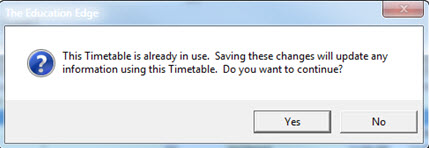
Select Yes on the first message and the next message box will come up. This is where we can select which schools and years will be updated with the changes.
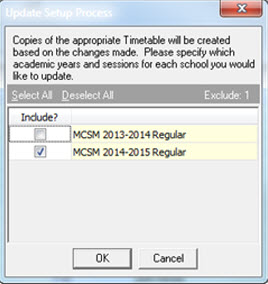
Only the schools and years that should be updated should be marked in the Include column. Once we click Ok here, a final message will come up.
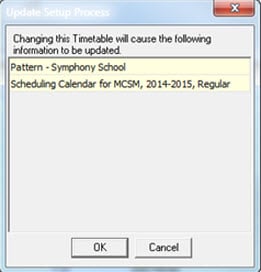
This window will let you know of any patterns or scheduling information that will be adjusted to reflect the changes. Any patterns will be saved with a 1 behind the name. This will leave the original patterns to be associated with the timetable on any years we are not updating.
After clicking OK on this window, the updating process will begin!
If you followed the recommendation to only make one minor change the first time, you can now open the new timetable, which will have the same name with a 1 behind it, and make the rest of the changes.
Need more information on the steps for editing the timetable? Check out How to edit timetables for an academic year that already has scheduling information in The Education Edge.
Have any questions? Comment below!
Before editing the timetable, there is some important information to consider:
- Always backup your database before editing existing Cycle Days, Timetables, or Patterns.
- Haven’t copied over anything for the next academic year yet? Information can only be copied over if the timetables are the same. You can copy over restrictions and the scheduling year prior to making any changes to the timetable. Any changes you make will then automatically update throughout.
- Does attendance exist? Timetables cannot be edited if any attendance exists for the year you are trying to edit.
- Do cycle days need to be changed? Make sure to edit them first. Check out How to Edit a Cycle That is in Use.
- Do patterns also need to be changed? After editing the timetable, check out How to Edit a Pattern That is in Use.
- Updating the timetable can take a long time to process and may make web applications unavailable. Allowing the changes to run when few or no users will be accessing The Education Edge will limit the impact on normal functions.
- Not all academic years and schools that use the timetable will be updated. There will be an option to select which schools and years will reflect the changes..
Updating your Timetable
Ready to update your timetable? Great! The process for updating your timetable is fairly straightforward. First you’ll open up the existing timetable for the Academic Year and make a change to the data in the grid, shown with the blue arrow below.
Important note: When editing an existing timetable, never use the Synchronize All or Synchronize Remaining options, marked by the red box and arrow below. These will remove information once you save.

After saving one minor change, you can save the timetable. The following messages will come up:

Select Yes on the first message and the next message box will come up. This is where we can select which schools and years will be updated with the changes.

Only the schools and years that should be updated should be marked in the Include column. Once we click Ok here, a final message will come up.

This window will let you know of any patterns or scheduling information that will be adjusted to reflect the changes. Any patterns will be saved with a 1 behind the name. This will leave the original patterns to be associated with the timetable on any years we are not updating.
After clicking OK on this window, the updating process will begin!
If you followed the recommendation to only make one minor change the first time, you can now open the new timetable, which will have the same name with a 1 behind it, and make the rest of the changes.
Need more information on the steps for editing the timetable? Check out How to edit timetables for an academic year that already has scheduling information in The Education Edge.
Have any questions? Comment below!
0
Categories
- All Categories
- New YourCause Community TEST
- New SKY Community TEST
- New Grantmaking TEST Community
- New Altru Test Community
- New bbcon Community - TEST
- 12 Blackbaud Agents for Good™
- New Raiser's Edge NXT Community
- 7 Blackbaud Community Help
- 218 bbcon®
- 1.4K Blackbaud Altru®
- 409 Blackbaud Award Management™ and Blackbaud Stewardship Management™
- 1.2K Blackbaud CRM™ and Blackbaud Internet Solutions™
- 16 donorCentrics®
- 361 Blackbaud eTapestry®
- 2.7K Blackbaud Financial Edge NXT®
- 681 Blackbaud Grantmaking™
- 599 Blackbaud Education Management Solutions for Higher Education
- 3.3K Blackbaud Education Management Solutions for K-12 Schools
- 952 Blackbaud Luminate Online® and Blackbaud TeamRaiser®
- 85 JustGiving® from Blackbaud®
- 7K Blackbaud Raiser's Edge NXT®
- 3.9K SKY Developer
- 257 ResearchPoint™
- 123 Blackbaud Tuition Management™
- 165 Organizational Best Practices
- 247 Member Lounge (Just for Fun)
- 40 Blackbaud Community Challenges
- 37 PowerUp Challenges
- 3 (Closed) PowerUp Challenge: Grid View Batch
- 3 (Closed) PowerUp Challenge: Chat for Blackbaud AI
- 3 (Closed) PowerUp Challenge: Data Health
- 3 (Closed) Raiser's Edge NXT PowerUp Challenge: Product Update Briefing
- 3 (Closed) Raiser's Edge NXT PowerUp Challenge: Standard Reports+
- 3 (Closed) Raiser's Edge NXT PowerUp Challenge: Email Marketing
- 3 (Closed) Raiser's Edge NXT PowerUp Challenge: Gift Management
- 4 (Closed) Raiser's Edge NXT PowerUp Challenge: Event Management
- 3 (Closed) Raiser's Edge NXT PowerUp Challenge: Home Page
- 4 (Closed) Raiser's Edge NXT PowerUp Challenge: Standard Reports
- 4 (Closed) Raiser's Edge NXT PowerUp Challenge: Query
- 822 Community News
- 3.1K Jobs Board
- 57 Blackbaud SKY® Reporting Announcements
- 47 Blackbaud CRM Higher Ed Product Advisory Group (HE PAG)
- 19 Blackbaud CRM Product Advisory Group (BBCRM PAG)