Are you ready to start creating classes for the upcoming school year? There are different ways classes can be created and it is good to be aware of some of the more common ways to make the creation of classes easier! Today I wanted to focus on two useful ways to create classes:
1. Automatically create classes via the Create Classes wizard
2. Manually create classes via List View or Grid View in Edit Master Schedule
Automatically creating classes via the Create Classes wizard:Using the Create Classes wizard, you can automatically create classes for your designated academic year and session based on specified filters.
Note: You should not run Create Classes unless no grades, skill ratings, or attendance ratings exist for the year. This is because Create Classes can also be used to delete existing class sessions (see step 5 below) which automatically deletes grading and attendance information.
To run the Create Classes wizard:
- Click Create Classes in the Scheduling module under Class Scheduling Tasks. The wizard can also be opened from the Summary View of Edit Master Schedule by choosing Create Classes.
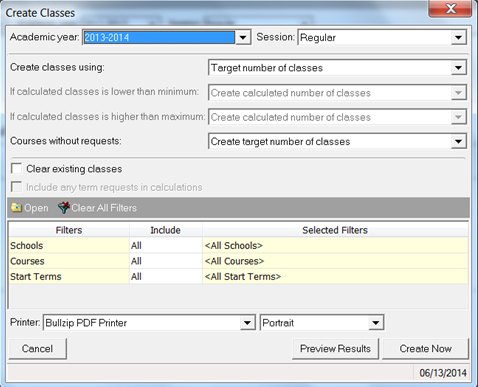
2. Select Academic Year and Session
3. For the Create classes using field, choose Target number of classes or Calculated number of classes
a. Target number of classes will use the target number of classes specified on the course record
b. Calculated number of classes will calculate the classes based on the total number of course requests, target class sizes, and existing number of classes. If the calculated number of classes is out of the range specified on the course record, the two “If calculated classes…”fields will determine how many classes are created
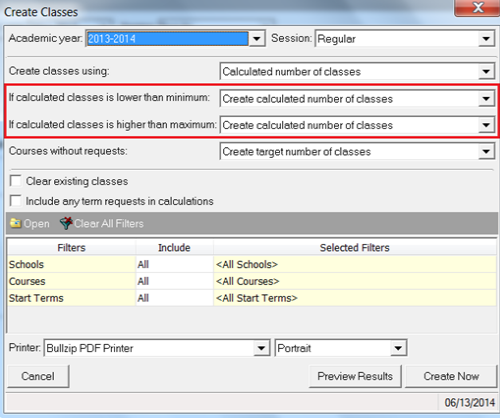
4. In the Courses without requests field, choose how you want classes to be created for courses without requests
5. To clear classes already created, click the Clear existing classes checkbox. Note that if classes already exist and you do not clear them, the program will subtract that number from the total number of classes needed
6. To include Any Term requests, check the Include any term requests in calculations checkbox. This option is only available if you selected Calculated number of classes in step 3 above
7. In the Filters section, filter on the school, courses and start terms you want to create classes for.
8. Once finished with the configuration, click Preview Results to preview a report of classes that will be created, or click Create Now to create the classes
9. Once processing is complete, a finish screen will appear that will allow you to view information about what was created
Manually creating classes via List View or Grid View in Edit Master ScheduleThe second way to create classes that I wanted to discuss is through List View or Grid View in Edit Master Schedule. This is a good option to use after automatically creating classes if you just need to add a few additional ones.
To manually create classes with this method:
- Within the Scheduling module, click Edit Master Schedule
- Select View and either List View or Grid View from the Menu bar
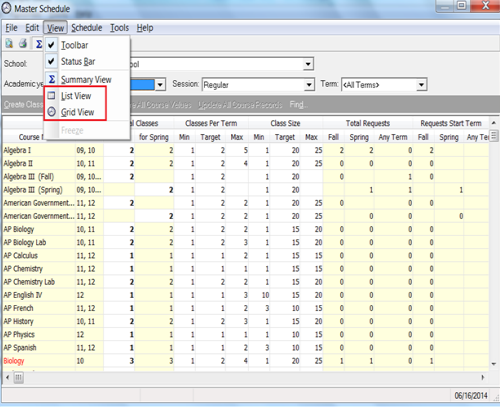
3. Click Add Class on the Action bar
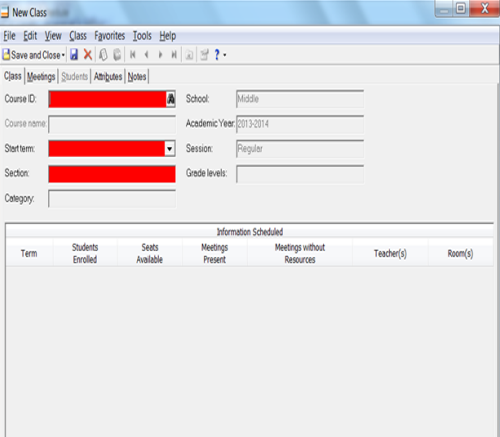
4. In the Course ID field on the New Class screen, select the course for which a class should be created
5. In the Start term field, select the start term for the class. The field is grayed out if only one start term is available. Note that after saving the class,
you can no longer edit the start term6. In the Section field, enter the section number or name
7. Once finished, click Save and Close to save the class and return to the Edit Master Schedule screen
Good luck creating classes!
