Whether you are at the beginning, middle, or completely finished with scheduling there are some great reports at your fingertips. They can be found in Reports > Scheduling Reports for you to use!
The reports included are:
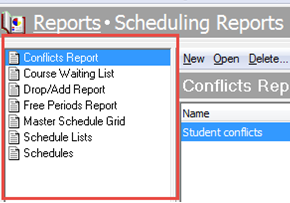 Conflicts Report
The Conflicts report is great to use when editing your master schedule and scheduling students. It provides a list of scheduling conflicts for teachers, rooms or students.
Here are steps to run the Conflicts report:
How to find teacher, room, and student conflicts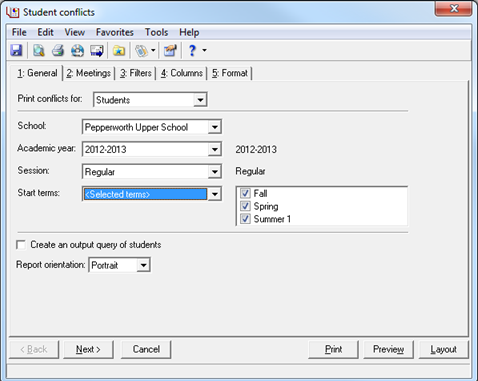
A few things to remember before running this report:
- When you create a report to show conflicts for students, only students who have a student progression for the selected school and academic year are included.
- Withdrawn and dropped classes are not included for students
- When showing conflicts for teachers or rooms, only teachers and rooms that are valid for the selected school are included.
Course Waiting ListThis report provides a list of all courses with unfulfilled student requests and can also include the names of the students.
Here are steps to run this report:
How to find courses with unfulfilled student requests and determine edits to the master scheduleDrop/Add ReportThis report is very useful, since it will list student schedule changes by student, teacher or class. You can also include dropped, added, transferred, or withdrawn classes.
Here are steps to run this report:
How to report on students that dropped or withdrew from a class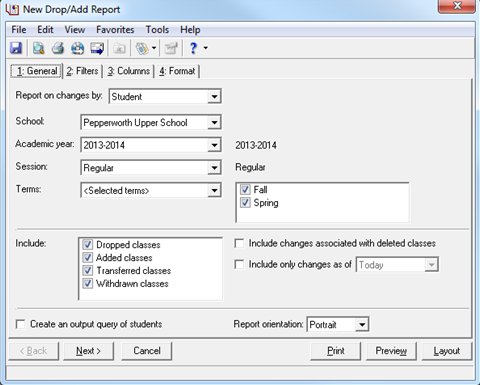
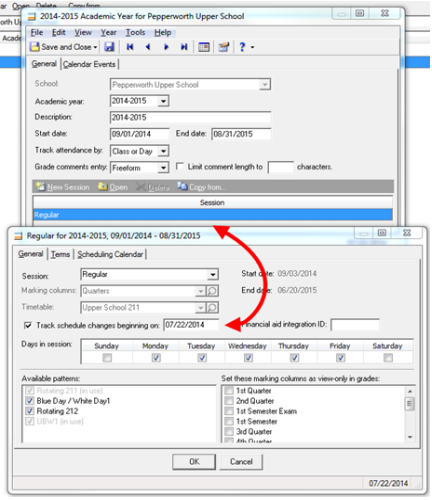
Important note: This report only includes changes made when the selected session is
set to track scheduling changes. In Configuration > Academic Years, open the year and session, where you will enter the date on which to begin tracking changes.
 Free Periods Report
This report will provide a list of teachers, rooms or students that are free for a given period, block or time of day.
Here are steps to run this report:
How to find periods where rooms, students and teachers are free in EEHow to find periods where rooms, students and teachers are free in BBSISHow to run the Free periods report by timeMaster Schedule Grid With this report you can print off a grid of teacher, room, student or course schedules. You can select to group the meetings on the report by blocks, time intervals, or periods and can also limit the blocks, time intervals and periods included on the report.
Here are steps to run this report:
How to run the Master Schedule Grid report in Education EdgeYou can also
print a blank Master Schedule Grid to help schedule for the upcoming year.
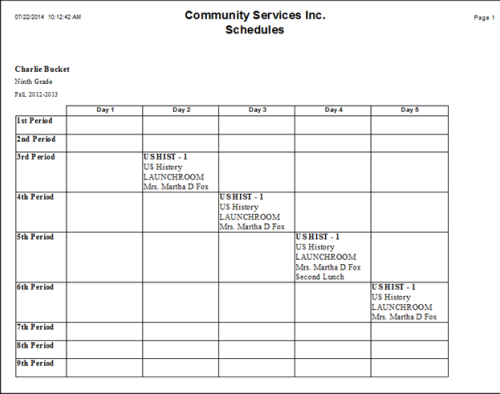
Schedule Lists and Schedules Some of the most used reports listed in this section are the Schedule Lists and Schedules reports. The Schedule Lists report provides a list of schedule information by teacher, room, student, course or time while the Schedule report provides a grid for each student, room or teacher.
Here are steps to run these reports:
How to print schedules as listsHow to print schedules for teachers, rooms, or studentsHow to format schedules
Now that you know what information the reports can provide, you can begin using them to help with your scheduling for the academic year!
Have any tips on running these reports? Share below in the comments!