Need To Send A Mass Mailing? Here’s How!
Are you looking for an easy way to let your students know what their user names and passwords are for NetClassroom in a letter without going through the trouble of typing each letter out? You can do this in The Education Edge by taking a simple student export and turning it into a Microsoft Simple Word Merge.
If you are unfamiliar with word merges and how they function in the Education Edge, you basically take an export with the fields that you want to include in your letter, and the word merge can take these fields and have them pre-populate with that information within Microsoft Word. Pretty cool, huh? Here’s how you can do it!
First, create a new Student export in the Export module. For the export format option, choose “Blackbaud Simple Word Merge”. Then, click Create Now to begin.
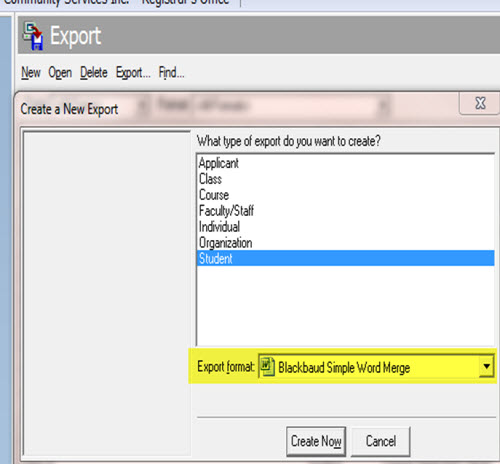
You can select whatever student filters that you want on the Filters tab, such as Student Current Status = Current Student, or you can filter using student-based query.
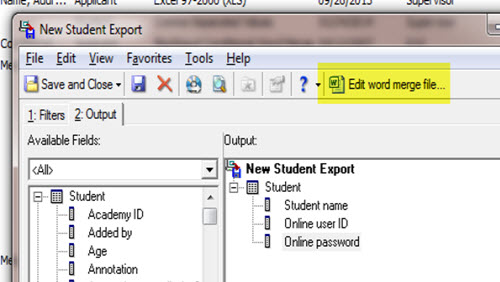
What you select on the Output tab is important, because the fields that you select have the power to automatically populate fields within your Microsoft Word document. If you want to send a letter to students with their NetClassroom user names and passwords, you will want to expand the Student field, and select the Online user ID and Online password fields. If you are looking to send out parent user names and passwords, these steps can also be followed by using an Individual type export.
When you are finished selecting your export fields for your letter, click Edit word merge file. This will cause the Microsoft Word program to launch outside of The Education Edge.
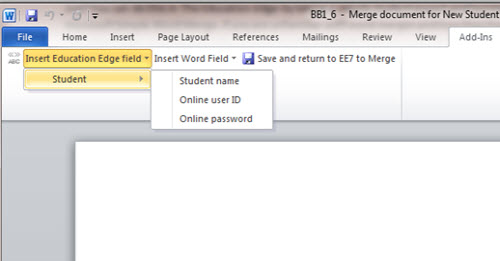
To begin your letter, click the Add-Ins tab, and then Click Insert Education Edge field. The dropdowns within this feature contain all of the fields that you selected in your export.
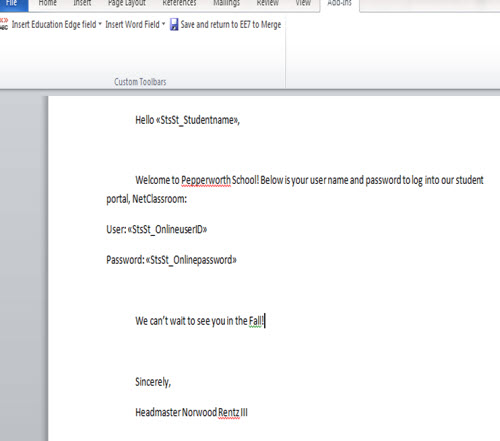
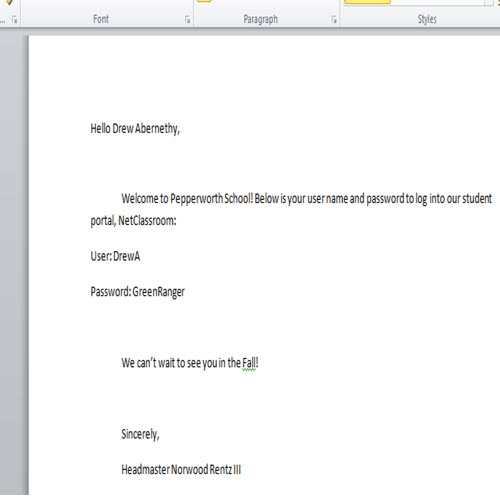
In Microsoft Word, begin typing your letter as you normally would, and insert the merge fields within your file where you want them to populate. Your letter will look something like the example below.
Once you are finished writing your letter, click Save and return to EE7 to Merge. This will close out Microsoft Word and bring you back to your export.

In order to generate the letter for you students, click the Merge Now button at the bottom right of your export parameter, and choose a name and location to save your word merge file.
You will now be able to view the finished product by opening the Word file. A page with your text and export fields will print out for each student included in your export filters.
Have any tips on letter topics? Let me know in the comments below!
For a chance to win a $25 Staples® gift card comment below with your Name, Email and Site ID or email backtoschoolcontest@blackbaud.com with the name of the blog in the subject line, your name, and Site ID in the body of the email. Participants must submit their entry by 11:59 pm Eastern on August 31, 2014.
If you are unfamiliar with word merges and how they function in the Education Edge, you basically take an export with the fields that you want to include in your letter, and the word merge can take these fields and have them pre-populate with that information within Microsoft Word. Pretty cool, huh? Here’s how you can do it!
First, create a new Student export in the Export module. For the export format option, choose “Blackbaud Simple Word Merge”. Then, click Create Now to begin.

You can select whatever student filters that you want on the Filters tab, such as Student Current Status = Current Student, or you can filter using student-based query.
What you select on the Output tab is important, because the fields that you select have the power to automatically populate fields within your Microsoft Word document. If you want to send a letter to students with their NetClassroom user names and passwords, you will want to expand the Student field, and select the Online user ID and Online password fields. If you are looking to send out parent user names and passwords, these steps can also be followed by using an Individual type export.
When you are finished selecting your export fields for your letter, click Edit word merge file. This will cause the Microsoft Word program to launch outside of The Education Edge.

To begin your letter, click the Add-Ins tab, and then Click Insert Education Edge field. The dropdowns within this feature contain all of the fields that you selected in your export.

In Microsoft Word, begin typing your letter as you normally would, and insert the merge fields within your file where you want them to populate. Your letter will look something like the example below.

Once you are finished writing your letter, click Save and return to EE7 to Merge. This will close out Microsoft Word and bring you back to your export.

In order to generate the letter for you students, click the Merge Now button at the bottom right of your export parameter, and choose a name and location to save your word merge file.
You will now be able to view the finished product by opening the Word file. A page with your text and export fields will print out for each student included in your export filters.

Have any tips on letter topics? Let me know in the comments below!
For a chance to win a $25 Staples® gift card comment below with your Name, Email and Site ID or email backtoschoolcontest@blackbaud.com with the name of the blog in the subject line, your name, and Site ID in the body of the email. Participants must submit their entry by 11:59 pm Eastern on August 31, 2014.
0
Categories
- All Categories
- 6 Blackbaud Community Help
- 213 bbcon®
- 1.4K Blackbaud Altru®
- 400 Blackbaud Award Management™ and Blackbaud Stewardship Management™
- 1.1K Blackbaud CRM™ and Blackbaud Internet Solutions™
- 15 donorCentrics®
- 360 Blackbaud eTapestry®
- 2.6K Blackbaud Financial Edge NXT®
- 655 Blackbaud Grantmaking™
- 576 Blackbaud Education Management Solutions for Higher Education
- 3.2K Blackbaud Education Management Solutions for K-12 Schools
- 939 Blackbaud Luminate Online® and Blackbaud TeamRaiser®
- 84 JustGiving® from Blackbaud®
- 6.6K Blackbaud Raiser's Edge NXT®
- 3.7K SKY Developer
- 248 ResearchPoint™
- 119 Blackbaud Tuition Management™
- 165 Organizational Best Practices
- 241 Member Lounge (Just for Fun)
- 34 Blackbaud Community Challenges
- 34 PowerUp Challenges
- 3 (Open) PowerUp Challenge: Chat for Blackbaud AI
- 3 (Closed) PowerUp Challenge: Data Health
- 3 (Closed) Raiser's Edge NXT PowerUp Challenge: Product Update Briefing
- 3 (Closed) Raiser's Edge NXT PowerUp Challenge: Standard Reports+
- 3 (Closed) Raiser's Edge NXT PowerUp Challenge: Email Marketing
- 3 (Closed) Raiser's Edge NXT PowerUp Challenge: Gift Management
- 4 (Closed) Raiser's Edge NXT PowerUp Challenge: Event Management
- 3 (Closed) Raiser's Edge NXT PowerUp Challenge: Home Page
- 4 (Closed) Raiser's Edge NXT PowerUp Challenge: Standard Reports
- 4 (Closed) Raiser's Edge NXT PowerUp Challenge: Query
- 790 Community News
- 2.9K Jobs Board
- 53 Blackbaud SKY® Reporting Announcements
- 47 Blackbaud CRM Higher Ed Product Advisory Group (HE PAG)
- 19 Blackbaud CRM Product Advisory Group (BBCRM PAG)