Now that school has begun, it’s time to dig up the old loafers hiding in the back of your closet, brush off those scholarly cobwebs and refresh your knowledge on how to use FAWeb! If you are new to using FAWeb, just know that it is all you will need to have in order to enter grades, assignments, conduct, and class announcements for your students to see in NetClassroom. In this blog we will touch on some topics that are important for teachers to know in order to use FAWeb to its fullest.
- Entering assignments and grades in FAWeb
The gradebook tracks all of your assignments and grades in each class that you are scheduled to teach. Depending on how your administrators set up FAWeb and NetClassroom, these can be made visible to students and parents in NetClassroom. If you want to track assignments in FAWeb, you have the choice to add these assignments to a specific category like Quizzes, Tests, or Homework. Assignments and their categories are set up in the Gradebook, under Edit Categories, and Edit Assignments.
For more information on adding assignments in FAWeb, take a look at:
How to add assignments in FAWeb to show in NetclassroomIf you taught in a prior year, and want to copy the past year’s categories and assignments to the next year in FAWeb, you can! Copying these will save time so that you can get on with the rest of your academia-filled day. Check out:
How to copy categories and/or assignments[caption id="attachment_8895" align="alignnone" width="497"]
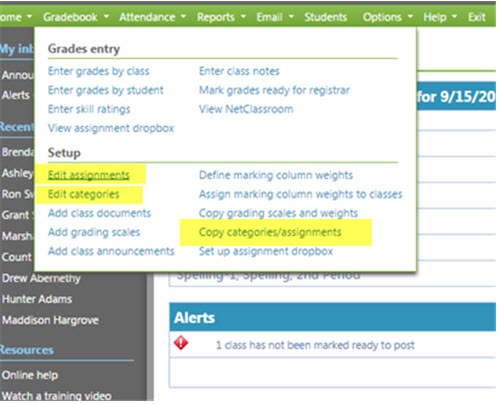
FAWeb copy assignments/categories[/caption]
2. Entering attendance in FAWeb
In FAWeb, there are two ways to enter attendance for your students each day. One is through the Attendance grid, found under the Attendance dropdown by selecting Enter attendance using grid. You can select to view a specific date range of attendance depending on your preferences.
[caption id="attachment_8896" align="alignnone" width="500"]
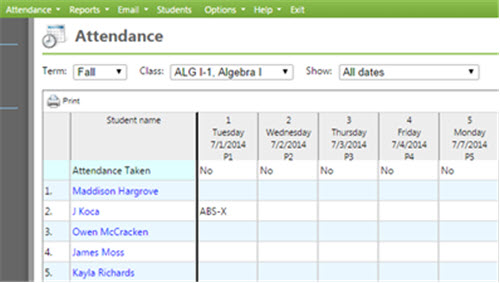
FAWeb Attendance[/caption]
The other way to enter attendance is through the seating chart. You can edit your seating chart by dragging student names into your attendance grid:
[caption id="attachment_8897" align="alignnone" width="502"]
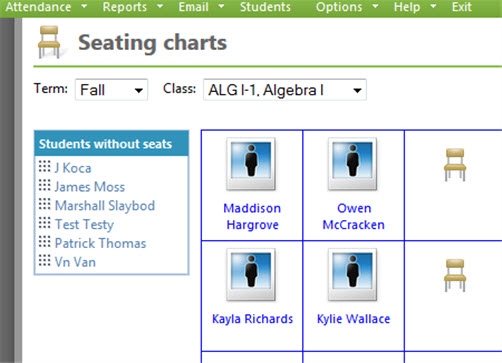
FAWeb seating charts[/caption]
Later if you want to enter attendance for these students, just go to Attendance, then Enter attendance using seating chart.
[caption id="attachment_8898" align="alignnone" width="435"]
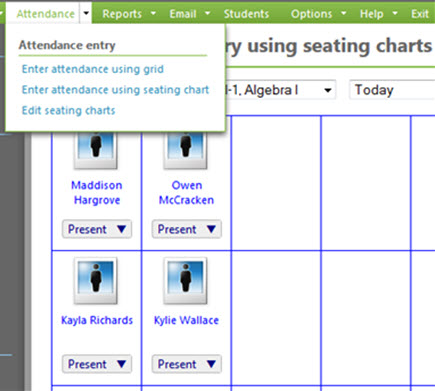
FAWeb Attendance seating chart[/caption]
3. Adding class documents
If you want to supply your students with a syllabus, reading materials, or supplemental material that they can download off of NetClassroom, this can be uploaded as a class document. Class documents are added by hovering over the Gradebook icon and selecting Add class documents. You have the ability to associate the document with a specific assignment, but it is not required. These documents can be edited or removed from FAWeb and NetClassroom at any time.
[caption id="attachment_8899" align="alignnone" width="627"]
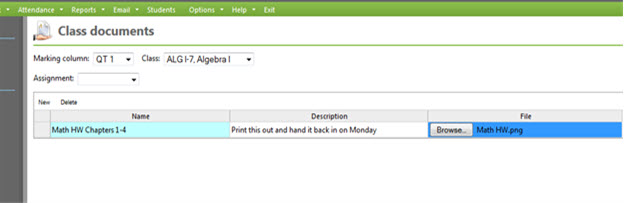
FAWeb class documents[/caption]
You can upload files of these types, with 12mb as the maximum size: .ai, .avi, .bmp, .css, .doc, .docx, .eps, .fun, .gif, .htm, .html, .ico, .jpeg, .jpg, .js, .mov, .mp3, .mp4, .mpeg, .mpg, .pdf, .png, .ppt, .pptx, .psd, .qt, .rtf, .swf, .txt, .xls, .xlsx, .xml, .zip, See:
What are Downloadable Documents in FAWeb and how do I upload them?4. Using the assignment dropbox
The assignment dropbox is a way for students to submit their work to you without having to bring in a hard copy, floppy disk, or carrier pigeon with them to class. Not only does this eliminate the “my dog ate my homework” excuse, but it saves paper!
When you add your assignments, you will have the option to enable your assignment dropbox for specific assignments. You can also tell the program when the dropbox will no longer accept submissions by indicating the dropbox close date and dropbox close time for each assignment.
[caption id="attachment_8900" align="alignnone" width="625"]
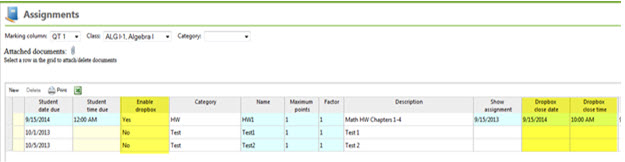
FAWeb Edit Assignments[/caption]
When you are ready to start downloading the submissions, go to your Gradebook icon and select View assignment dropbox. This screen will show you pending, graded, or all assignments with the dropbox option enabled.
[caption id="attachment_8901" align="alignnone" width="551"]
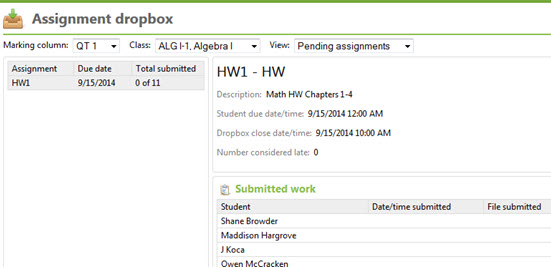
FAWeb Assignment Dropbox[/caption]
For more information on what file types are accepted, see:
What file types are accepted when using assignment dropbox in Netclassroom or when uploading shared documents in FAWeb?Hope this helps you navigate and use Faculty Access for the Web to its fullest extent this year! Have any questions? Comment below!
For a chance to win a $25 Staples® gift card comment below with your Name, Email and Site ID or email
backtoschoolcontest@blackbaud.com with the name of the blog in the subject line, your name, and Site ID in the body of the email. Participants must submit their entry by 11:59 pm Eastern on September 30, 2014.
