Control Advance Deposit Credits with Application Restrictions
In my last post, Backstage Pass to the Advance Deposit, we reviewed the working parts of the Advance Deposit. In this post, I’d like to review the set up and use of Application Restrictions.
Application Restrictions are a way to specify that specific payments, credits, advance deposit credits, or financial aid credits apply to a specific billing item. For example, when it’s time to generate the Advance Deposit credit for the year, most schools want the credit to go against a specific tuition charge instead of a technology fee or lunch charge.
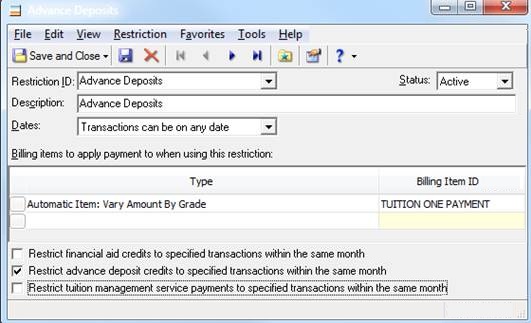
To create the Application Restriction, go to Configuration, Application Restrictions, and click New Restriction. Enter the ID, description, and dates the item can be used. Then select a billing cycle or the valid dates for the item. If you select a date range, the payment or credit is applied to payments/credits that fall within the specified date range. Select the Item type and the specific billing item(s) for the items that should be applied for when the restrictions should be used.
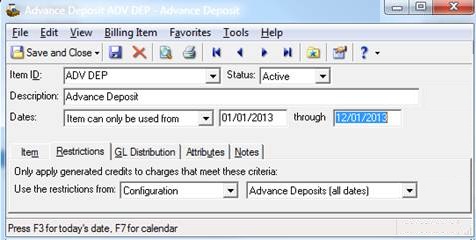
In my example below, I’m creating a specific Application Restriction so that my Advance Deposit credit goes against my tuition charge. Once the Application Restriction is created, it needs to be added to the Advance Deposit item in Products and Billing Items.
Note: The Restriction should be added to the Advance Deposits in Products and Billing Items prior to using the billing item on records. Adding the Restriction after the Advance Deposits are already added to records will not update the transactions on the records. To see how the Application Restrictions work, test it out on a record in the database before adding all of the Advance Deposits to student records.
Have a question or comment? Let me know in the comments below.

Application Restrictions are a way to specify that specific payments, credits, advance deposit credits, or financial aid credits apply to a specific billing item. For example, when it’s time to generate the Advance Deposit credit for the year, most schools want the credit to go against a specific tuition charge instead of a technology fee or lunch charge.
To create the Application Restriction, go to Configuration, Application Restrictions, and click New Restriction. Enter the ID, description, and dates the item can be used. Then select a billing cycle or the valid dates for the item. If you select a date range, the payment or credit is applied to payments/credits that fall within the specified date range. Select the Item type and the specific billing item(s) for the items that should be applied for when the restrictions should be used.
In my example below, I’m creating a specific Application Restriction so that my Advance Deposit credit goes against my tuition charge. Once the Application Restriction is created, it needs to be added to the Advance Deposit item in Products and Billing Items.
Note: The Restriction should be added to the Advance Deposits in Products and Billing Items prior to using the billing item on records. Adding the Restriction after the Advance Deposits are already added to records will not update the transactions on the records. To see how the Application Restrictions work, test it out on a record in the database before adding all of the Advance Deposits to student records.
Have a question or comment? Let me know in the comments below.
0
Categories
- All Categories
- 6 Blackbaud Community Help
- 213 bbcon®
- 1.4K Blackbaud Altru®
- 403 Blackbaud Award Management™ and Blackbaud Stewardship Management™
- 1.2K Blackbaud CRM™ and Blackbaud Internet Solutions™
- 15 donorCentrics®
- 360 Blackbaud eTapestry®
- 2.6K Blackbaud Financial Edge NXT®
- 656 Blackbaud Grantmaking™
- 577 Blackbaud Education Management Solutions for Higher Education
- 3.2K Blackbaud Education Management Solutions for K-12 Schools
- 940 Blackbaud Luminate Online® and Blackbaud TeamRaiser®
- 84 JustGiving® from Blackbaud®
- 6.7K Blackbaud Raiser's Edge NXT®
- 3.7K SKY Developer
- 249 ResearchPoint™
- 119 Blackbaud Tuition Management™
- 165 Organizational Best Practices
- 241 Member Lounge (Just for Fun)
- 34 Blackbaud Community Challenges
- 37 PowerUp Challenges
- 3 (Open) PowerUp Challenge: Grid View Batch
- 3 (Closed) PowerUp Challenge: Chat for Blackbaud AI
- 3 (Closed) PowerUp Challenge: Data Health
- 3 (Closed) Raiser's Edge NXT PowerUp Challenge: Product Update Briefing
- 3 (Closed) Raiser's Edge NXT PowerUp Challenge: Standard Reports+
- 3 (Closed) Raiser's Edge NXT PowerUp Challenge: Email Marketing
- 3 (Closed) Raiser's Edge NXT PowerUp Challenge: Gift Management
- 4 (Closed) Raiser's Edge NXT PowerUp Challenge: Event Management
- 3 (Closed) Raiser's Edge NXT PowerUp Challenge: Home Page
- 4 (Closed) Raiser's Edge NXT PowerUp Challenge: Standard Reports
- 4 (Closed) Raiser's Edge NXT PowerUp Challenge: Query
- 796 Community News
- 3K Jobs Board
- 54 Blackbaud SKY® Reporting Announcements
- 47 Blackbaud CRM Higher Ed Product Advisory Group (HE PAG)
- 19 Blackbaud CRM Product Advisory Group (BBCRM PAG)


