When you start your scheduling process, it’s important to do things in the correct order to ensure that setting up the foundation of your scheduling year goes smoothly. This will provide a quick overview of what needs to be done in a certain order and why.
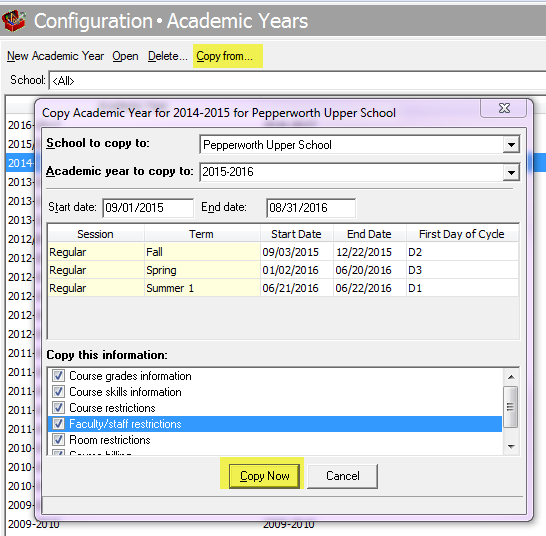
- First off, you will need to create your academic year, session and terms. This might seem pretty obvious, because you won’t get very far without this basic setup. You can create your academic year in Registrar’s Office by going to Configuration> Academic Years. You can create a new year from scratch, or if your new year needs to be set up like your last year, you can copy the previous academic year by clicking “Copy From”.
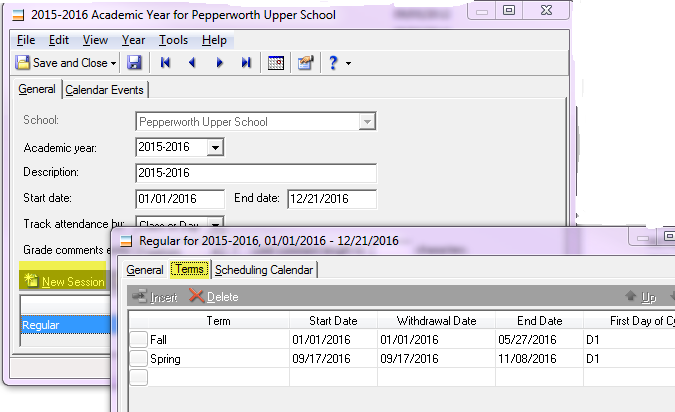
You will also need to create a session on the General tab of the academic year by clicking “New Session”. In your session, you will then need to define your terms, along with their start and end dates. We recommend you do not overlap terms because this can cause scheduling errors. Overlapping terms are commonly used when tracking sports seasons not occurring during class time.
For more information about creating/copying your academic year, see:
-How to add an academic year:
BB129553-How to copy an academic year:
BB222646
- After your academic year has been created, your next step is to create your cycle. In a cycle, you define the days of the schedule. How you define a cycle depends on the rotation of classes in a school. Examples of cycles you might create include:
- Mon, Tue, Wed, Thu, Fri
- A, B, C, D4, D5, D6
- Red, Blue
- A, B, C, D, E
- A, B
You can create the cycle in Configuration>Registrar Setup> Cycles. It is not necessary to create a new cycle each year if your cycle days do not change, so it is common to reuse the same cycle each year.
For more information about setting up your cycle, check out:
-How to define cycles and timetables in The Education Edge:
BB177578-How to edit a cycle that is in use:
BB308642
- Once the cycle has been set up, yourwill need to set up a timetable for your academic year, if one is not already created. Think of the term “timetable” as a fancy word for “bell schedule”. The timetable dictates how long your school days are going to be each day, as well as the start and stop times for each period during the day.
NOTE: You cannot go any further with your scheduling until this has been set up, because your patterns and classes are created based on the information within the timetable. You create the timetable in Configuration> Registrar Setup> Timetables.
Just as you can copy an academic year, you can also copy an existing timetable, and then you can go back and make any minor changes that you need. Do know that you do not have to create a new timetable each year, as it is very common to use the same timetable year after year, just like your cycles.
For more information about setting up your timetable, check out:
-How to define cycles and timetables in The Education Edge:
BB177578-How to edit timetables for an academic year that already has scheduling information in The Education Edge:
BB201338Have questions? Let me know in the comments below!