When you want to automatically schedule students using the Generate Student Schedules wizard, you have to enter course requests for students first. Here are some steps that will help you breeze through the process!
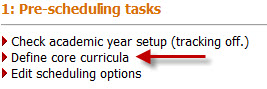
1. Define Core Curriculum
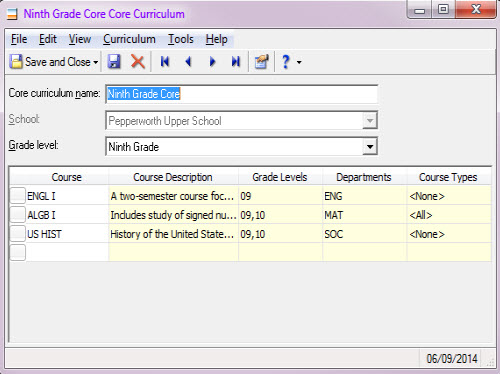
If you know each grade level should be taking certain classes, you can define the set of classes as a core curriculum. For example, if you have Freshman level courses, such as English I, Algebra I, US History, etc., you can create this as a grouping of courses to quickly add as requests.
2. Add Core Curriculum As Course Requests
Once you’ve defined your core curricula, you can add these courses as requests, either globally or individually.
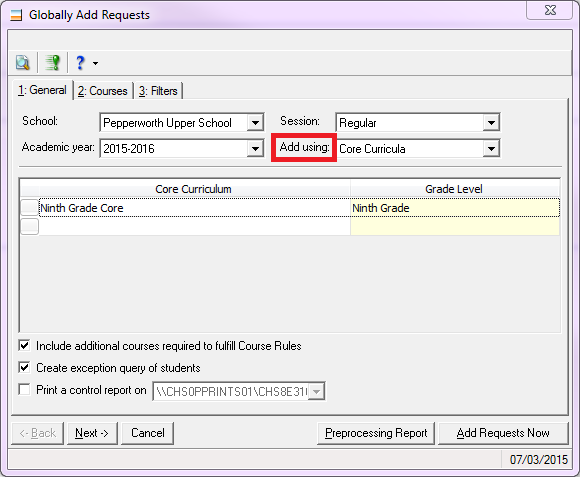
If you globally add your course requests, you’ll need to select Core Curricula in the Add using field. Then, you’ll select which curriculum to use.
On the Courses tab, you will see the same courses listed that you defined in Step 1. Make sure that you filter the global add so that you add the requests to the appropriate records.
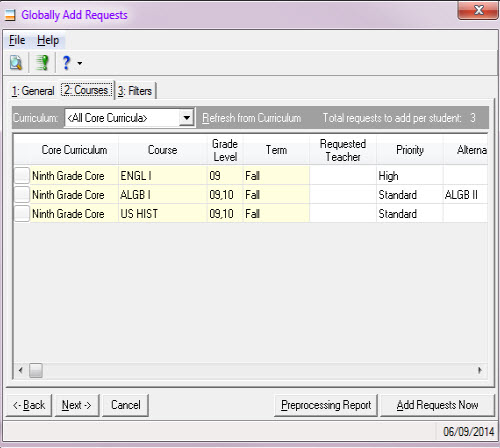
NOTE: We recommend globally adding requests for one grade level at a time. This not only allows the system to process faster but also ensures that the right records get the requests.
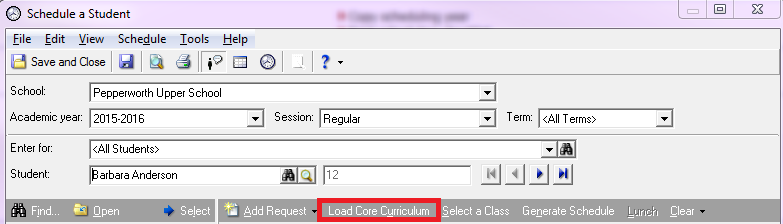
If you’re more comfortable adding the requests on individual records, you can load the core curriculum on each student. Just go to Enter course requests by student and click on Load Core Curriculum.
3. Add Other Requests
Now that the core requests have been entered, you can add any other requests outside the core curriculum onto the records. This would be for electives or other courses that only certain students will need or want to take.
You can globally enter specific courses and filter on the records that are requesting the course, or you can enter these requests individually on the student records.
Optionally, if you know certain students or grade levels are required to take certain courses, you can give their requests a high priority. For example, if your seniors are required to take Speech before they graduate, and Speech is a multi-grade level class, you can set it up in such a way that seniors will be enrolled before any other grade levels. All you need to do is set a request priority, and voila! No more headaches trying to make sure those seniors get into the classes they need.
Have any other tips on speeding up course requests? Let me know in the comments below!