Refunds For Everyone!

Jacqueline Koca
Blackbaud Employee




By this time of year, students will have most likely begun paying their tuition bills. In Student Billing, we’ve been recording the payments and getting them applied to the correct charges. Sometimes, however, we will need to refund a payment back to the student. The student may have paid a little extra, or may no longer be returning to the school. The Refund option for transactions is a great tool to get the money back to the student, while making sure that the student record reflects the correct balance.
Creating Refunds
When creating refunds, there are a few options to initially create the refund.
If we have multiple payments that need to be refunded, either partially or in full, we can create the refund directly from the Activity screen.
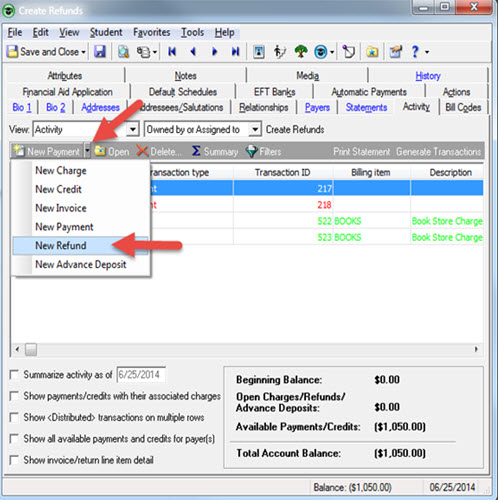
We can then set the amount of the refund and select which payments should fund the refund by selecting the Payments/Credits tab and selecting Add/Edit Applications.


What about if we only have one payment? There’s a quick way to create the refund directly from the payment! This can be used whether the full amount needs to be refunded or just a partial amount.
Open the payment that needs to be refunded. In the top menus, select the Payment menu, and select Reverse this Payment as a Refund.

This pulls up the Refund item automatically. Information for amount and the GL distribution information will automatically fill out based on the payment that we used.
Creating the Refund Check Options
When we create the Refund item, we have multiple options regarding creating the refund check.
If we do not want to record the check within The Financial Edge, we can save the Refund item without clicking the Create Refund Check button. This will record the refund on the student record, but will not record any check.
Sometimes you may need to write a check outside of The Financial Edge. In these cases, we can record the check, without printing another physical check. We can select the Create Refund Check button on the refund window.

A window will then come up where you can select the bank account and the person whose name should appear on the check. In this example, Create Refunds is our Student.

In the next window, we can set up the check information if anything needs to be edited. Most of these fields should prepopulate based on your bank settings. To record the check in Accounts Payable, but not actually print a check, we will click Record and Close.

But what if we need to print a check? We still have options then!
If you are ready to print the check at that very moment, it’s as simple as clicking Print Now on check window.

If you will eventually want to print the check, but are not ready to print it yet, we can select the Print Later and Close option. This will add the check to Accounts Payable to be printed at a later time.

Your refund is now complete!
To see how refunds affect General Ledger be sure to check out What is the distribution of a refund?
Check out the other great refund resources below!
How to create a refund in Student Billing 7
How to reverse a payment as a refund
How to reverse a credit as a refund
How to partially refund a payment
How to refund an Advance Deposit payment
How to get a student-centric refund/one-time check addressed to the parent
How to enter a refund without creating a check
Refund check does not post to the General Ledger
How to delete a refund in Student Billing 7
Have any questions? Leave a comment below!
Creating Refunds
When creating refunds, there are a few options to initially create the refund.
If we have multiple payments that need to be refunded, either partially or in full, we can create the refund directly from the Activity screen.

We can then set the amount of the refund and select which payments should fund the refund by selecting the Payments/Credits tab and selecting Add/Edit Applications.


What about if we only have one payment? There’s a quick way to create the refund directly from the payment! This can be used whether the full amount needs to be refunded or just a partial amount.
Open the payment that needs to be refunded. In the top menus, select the Payment menu, and select Reverse this Payment as a Refund.

This pulls up the Refund item automatically. Information for amount and the GL distribution information will automatically fill out based on the payment that we used.
Creating the Refund Check Options
When we create the Refund item, we have multiple options regarding creating the refund check.
If we do not want to record the check within The Financial Edge, we can save the Refund item without clicking the Create Refund Check button. This will record the refund on the student record, but will not record any check.
Sometimes you may need to write a check outside of The Financial Edge. In these cases, we can record the check, without printing another physical check. We can select the Create Refund Check button on the refund window.

A window will then come up where you can select the bank account and the person whose name should appear on the check. In this example, Create Refunds is our Student.

In the next window, we can set up the check information if anything needs to be edited. Most of these fields should prepopulate based on your bank settings. To record the check in Accounts Payable, but not actually print a check, we will click Record and Close.

But what if we need to print a check? We still have options then!
If you are ready to print the check at that very moment, it’s as simple as clicking Print Now on check window.

If you will eventually want to print the check, but are not ready to print it yet, we can select the Print Later and Close option. This will add the check to Accounts Payable to be printed at a later time.

Your refund is now complete!
To see how refunds affect General Ledger be sure to check out What is the distribution of a refund?
Check out the other great refund resources below!
How to create a refund in Student Billing 7
How to reverse a payment as a refund
How to reverse a credit as a refund
How to partially refund a payment
How to refund an Advance Deposit payment
How to get a student-centric refund/one-time check addressed to the parent
How to enter a refund without creating a check
Refund check does not post to the General Ledger
How to delete a refund in Student Billing 7
Have any questions? Leave a comment below!
0
Categories
- All Categories
- New K-12 Community Home (TEST)
- New Higher Education Home Page (Test)
- New Impact Edge Community TEST
- New YourCause Community TEST
- New SKY Community TEST
- New Grantmaking TEST Community
- New Altru Test Community
- New bbcon Community - TEST
- 12 Blackbaud Agents for Good™
- New Raiser's Edge NXT Community
- 8 Blackbaud Community Help
- 222 bbcon®
- 1.4K Blackbaud Altru®
- 411 Blackbaud Award Management™ and Blackbaud Stewardship Management™
- 1.2K Blackbaud CRM™ and Blackbaud Internet Solutions™
- 16 donorCentrics®
- 361 Blackbaud eTapestry®
- 2.7K Blackbaud Financial Edge NXT®
- 687 Blackbaud Grantmaking™
- 604 Blackbaud Education Management Solutions for Higher Education
- 3.3K Blackbaud Education Management Solutions for K-12 Schools
- 954 Blackbaud Luminate Online® and Blackbaud TeamRaiser®
- 85 JustGiving® from Blackbaud®
- 7K Blackbaud Raiser's Edge NXT®
- 4K SKY Developer
- 258 ResearchPoint™
- 123 Blackbaud Tuition Management™
- 165 Organizational Best Practices
- 248 Member Lounge (Just for Fun)
- 40 Blackbaud Community Challenges
- 37 PowerUp Challenges
- 3 (Closed) PowerUp Challenge: Grid View Batch
- 3 (Closed) PowerUp Challenge: Chat for Blackbaud AI
- 3 (Closed) PowerUp Challenge: Data Health
- 3 (Closed) Raiser's Edge NXT PowerUp Challenge: Product Update Briefing
- 3 (Closed) Raiser's Edge NXT PowerUp Challenge: Standard Reports+
- 3 (Closed) Raiser's Edge NXT PowerUp Challenge: Email Marketing
- 3 (Closed) Raiser's Edge NXT PowerUp Challenge: Gift Management
- 4 (Closed) Raiser's Edge NXT PowerUp Challenge: Event Management
- 3 (Closed) Raiser's Edge NXT PowerUp Challenge: Home Page
- 4 (Closed) Raiser's Edge NXT PowerUp Challenge: Standard Reports
- 4 (Closed) Raiser's Edge NXT PowerUp Challenge: Query
- 829 Community News
- 3.1K Jobs Board
- 57 Blackbaud SKY® Reporting Announcements
- 47 Blackbaud CRM Higher Ed Product Advisory Group (HE PAG)
- 19 Blackbaud CRM Product Advisory Group (BBCRM PAG)