My Community
YourCause®
Impact Edge™
All-Star Lounge
Member Lounge (Just for Fun)
Community News
Community Manager
Groups
Browse Categories
Members
Community All-Stars
Monthly Challenges
Member Search
Jobs Board
Help
Using the Blackbaud Community
Blackbaud Support
Knowledgebase
Blackbaud University
Discussions
Categories
Groups
Home
Blackbaud Education Management Solutions for K-12 Schools
Blackbaud K-12 Education Solutions™ Blog
How To View and Print Transcripts from Blackbaud Videos
Derek Nichols
One of our goals here on the documentation team at Blackbaud is to always strive to make your experience as informative and helpful as possible. It’s part of the reason why we’ve continued to branched out from our traditional online help center to other places including here in the Community, to the in-product help panel, and even our
BlackbaudSupport
YouTube
channel
.
Sometimes the best way to explain a feature is through a visual demonstration, which is where our videos come in. For those who need it, captions are available on every single K-12 video we put out. For many schools, we understand that there’s also a need for viewing and even printing out these transcripts.
Thankfully, there is a way to do just that!
While viewing any one of our
YouTube
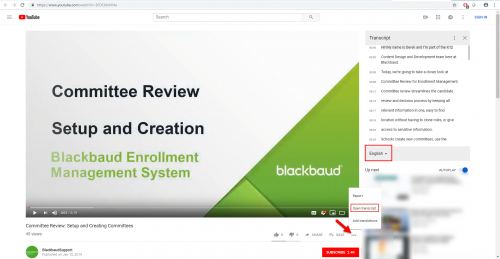
videos, there’s an ellipsis icon towards the bottom right corner under the video itself. Selecting that gives you three options to pick from, though for the purpose of this topic you'll want to select
Open Transcript
.
This embeds a new panel to the right of the video, displaying the closed captions in transcript form and the timestamp as to where that phrasing occurs in the video. Selecting the sentence jumps you to that exact point in the video.
Unfortunately, there isn’t a way to print this directly from
YouTube
. An alternative would be to highlight and copy this section, and then paste it to a text editor such as
Microsoft Word
,
Notepad
, or a similar tool. While the formatting of the pasted text may vary based on the program you use, at the very least you can then print it out and use it as needed.
Don’t see the ellipsis icon? For users who may be using an older version of Windows or
YouTube
, you’ll want to select the
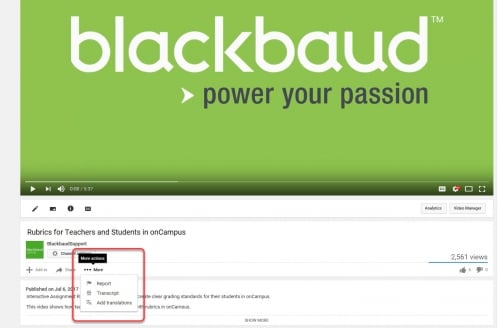
…More
option under the video next to
+ Add to
and
Share
. There’s a
Transcript
option listed there that opens a panel below the video in a similar way as described above.
Keep in mind that in either scenario,
YouTube
may default the transcript to the auto-generated version and not the one that we personally upload. We recommend avoiding any option that has
(auto-generated)
in the name as they don't always tend to be very accurate.
We hope this tip helps those of you searching for a way to view and print a video transcript. If you found this information helpful or enjoyable, make sure to hit that like button at the end of this post, and offer up your best
YouTube
tips in the comments below.
Thanks, as always, for reading and we’ll see you back here next week for an all new post!
Find more posts tagged with
Comments
Nancy Gervais
This is very helpful. I don't generate a lot of transcript during the school year, but in the summer month I am the person covering for guidance and running tons of transcripts.
Trish McCraven
Good to know!
Kathryn Ann Dougery
great
Quick Links
All Categories
Recent Posts
Activity
Unanswered
Groups
Help
Best Of