My Community
YourCause®
Impact Edge™
All-Star Lounge
Member Lounge (Just for Fun)
Community News
Community Manager
Groups
Browse Categories
Members
Community All-Stars
Monthly Challenges
Member Search
Jobs Board
Help
Using the Blackbaud Community
Blackbaud Support
Knowledgebase
Blackbaud University
Discussions
Categories
Groups
Home
Blackbaud Education Management Solutions for K-12 Schools
Blackbaud K-12 Education Solutions™ Blog
Introducing: Student Reapply!
Derek Nichols
This month, the Enrollment management team has released a new feature called Student reapply. This blog goes over everything about it including what it is, how to set it up, and what your school can do with it.
Over the past few months, the Enrollment management team has been hard at work on a brand-new feature for the product. Through the new Student reapply addition, admissions managers can give existing students both the candidate and student role at the same time.
It’s a powerful tool that offers a lot of versatility for all Enrollment management schools. Here’s everything you need to know about this feature.
Why is this important?
With both the candidate and student role, existing students can proceed through the admissions process again as if they’re brand-new candidates.
Okay, so why is this important?
Schools that span multiple levels now have a mechanism for allowing their students to re-apply for their next level. For example, pre-kindergarten applying to kindergarten, or 8th graders applying to high school.
Where can I find it?
Admissions managers can find this feature from Reapply users located under Admissions, then Admissions management.
If you prefer the process to be parent or student directed, your apply+ tile can also be used by either role to re-apply.
However, before getting to this step, a few settings need to be enabled inside of
Core
first. Head to
Core
,
Settings
,
School information
, and then
School & grade levels
to get started.
What do I do?
Under
School & grade levels
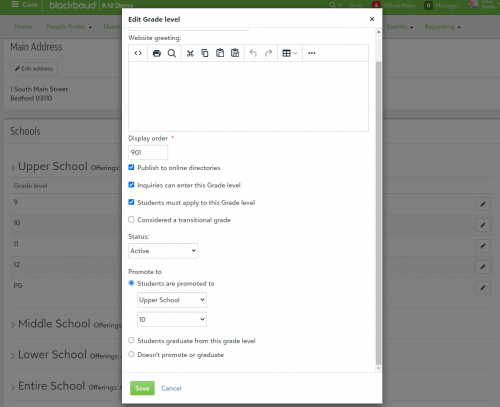
, make sure that the grade level prior to the one where users need to reapply is set to either
Doesn't promote or graduate
or
Students graduate from this grade level
under the
Promote to
setting when editing a grade level. Next, make sure the grade the user wants to apply to has Students must apply to this Grade level enabled. This essentially tells the system that students will need to apply to this grade level.
Now that these settings are in place, admissions managers can reapply students from the
Admissions management
section under
Admissions
.
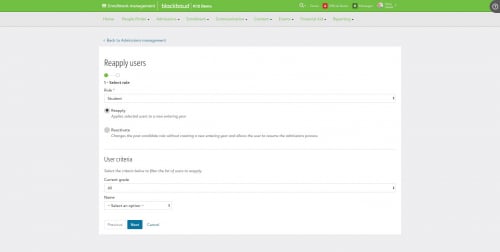
Select the
Student
Role
form the drop down, then the
Reapply
option. Filter your potential results under
User criteria
. This includes features like the
Entering Year
,
Grade
,
Status
, and more. Selecting
Next
brings up a list of possible matches where you can individually change their values or in bulk.
What About Parents?
From a parent perspective, they’ll come into the Resource Board and see the
Reapply Another Child
tile appear. Selecting it opens up the
Apply
modal window where they can choose to either apply a candidate or Reapply a student. If it is a new candidate, they can enter in that information or they can select the student’s name that automatically populates the list.
From there, they can enter in information related to the Candidate’s date of birth, entering year, and entering grade. Finally, parents must then check that they are the Parent or Guardian of the child to proceed. They then select Begin to automatically be taken to the application with as much information prefilled as possible.
That’s your basic rundown of Student reapply, though if you need more information on the topic, be sure to head over to our online help. We'll let you know how to
set it up
as well as how to use it whether you're a
faculty member or parent
.
Next week, we have another double event taking place with a couple of new topics that you’re not going to want to miss out on. We have some big things on the horizon, especially for you teachers out there. We’ll see you next week!
Find more posts tagged with
Comments
Rick Geyer
Hallelujah! So thankful this feature is now available. This is going to make dealing with these situation much, much easier.
Kimo Zachariah
By turning off the 'Promote to' function, does that change the school year process to move current students between grades (under Core > Users > Manage Student Enrollments)? If so, how?
Derek Nichols
Hey Kimo,
So, in order to be enrolled in the next grade, the individual needs to be enrolled at the school just like a "regular" candidate would be. You wouldn't have to use manage student enrollments for them.
Ingrid Coolins
In the past we have had to create a second student record for those applying to out high school from 8th grade. Is there functionality where we can merge those two records together?
Derek Nichols
Hi Ingrid,
As of now, there have been no changes to merging duplicate users. Any duplicates that exist today will need to either be dealt with through the merge duplicate users tool in Core or by manually merging them. You can read a bit more about that here:
https://webfiles.blackbaud.com/files/support/helpfiles/education/k12/full-help/content/bb-core-potential-duplicate-users.html
David Lee
Very nice improvement... thanks for the update.
Lauren Marcus Eisenberg
Is there a way to use this function for schools like ours who do not require an application to move from one division to another (i.e., middle to high school)? I could see how this would be useful for tracking retention and how it correlates to the various events held for incoming/prospective high school families.
Derek Nichols
So you would need to assign them an application, but it wouldn’t need to be required to fill out. Keep in mind that they will truly hold the candidate and parent of candidate role and would see their candidate information when logging in so it's not just limited to being viewable on the admin side.
Additionally, the user will need to be enrolled at the end of the process as well and would be treated like candidates for contracts and in other areas.
Quick Links
All Categories
Recent Posts
Activity
Unanswered
Groups
Help
Best Of