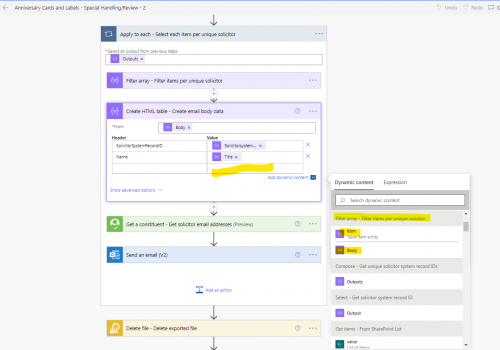
These flows were largely created by @Ashley Moose as part of receiving the Microsoft Power Platform Community Award so a huge thanks to her for her work on this project.
Summary:
These flows (3) create a reply device and label to send donors a solicitation on the anniversary of their last gift. Some of these can simply be created without review (Flow 1), but for those prospects assigned to a fundraiser, there is a process for those fundraisers to provide approval before sending (Flow 2) and for any approved to be merged into their own files after time for review (Flow 3).
Required Connections:
- Blackbaud Raisers Edge NXT Connector
- Encodian
- SFTP-SSH – to access your hosted files
- Sharepoint
- Word Online (Business) Connection
- Mail Connection (optional: This can be replaced by Outlook or Gmail, I just added Mail so everyone could import the flow should they desire)
Skill Level:
Intermediate/Advanced
Flow Configuration Needs:
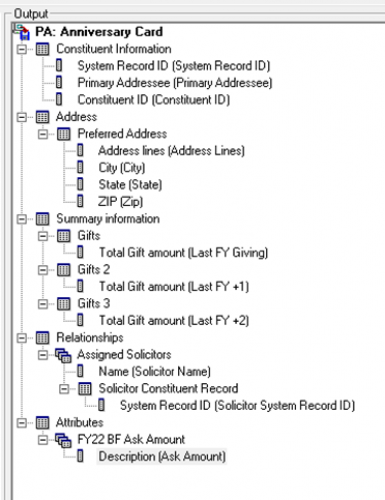
Before updating any flows, you will need to create the queries and exports you are using as part of this flow. Below is the output used for these flows. I also chose to create two CSV files, one for the flow of unassigned prospects and one for the flow with assigned prospects. We also have the Queue module, so we were able to schedule the export of the files we need, but it is NOT necessary to use Queue to use these flows.
Update Flow 1 – Reply device and label creation for unassigned prospects
1 - Update the Recurrence and schedule when the flow should occur. The Automated Flow will launch based on this schedule.
2 – Update the Recipient Email and FTP File Path variables for your organization.
3 – Update the SharePoint connection to point to your SharePoint in 3 separate steps
4 - Update the Word connection to point to the location of your label and reply card templates. Templates used for this flow are attached below, but for instructions on creating template letters see this guide.
5 – Update the email steps to reflect the messages you wish to have sent. You can also change to either Outlook or Gmail depending on your organization.
Update Flow 2 – Adding prospects to a SharePoint list for gift officer review
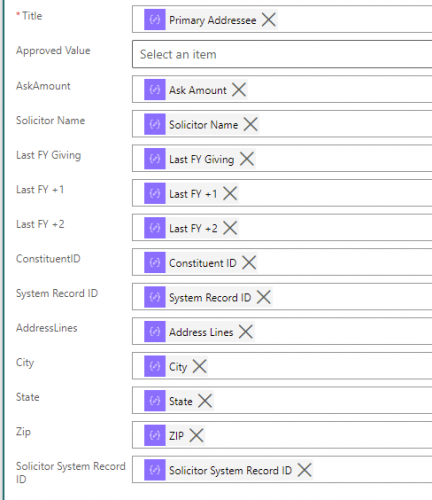
1 – Create a SharePoint List with the following columns. For Approved value, we created a choice column with the options of “Pending”, “Approved”, and “Do Not Send” with the default value being Pending. Please note that if you change any of these values, there will be steps towards the end of the flow that will need to be adjusted.
2 - Update the Recurrence and schedule when the flow should occur. The Automated Flow will launch based on this schedule.
3 – Update the Recipient Email and FTP File Path variables for your organization. The Recipient Email variable is used only if there is nothing to review in this flow.
4 – Update the SharePoint connection to point to your SharePoint in all applicable steps. If you have changed any of the options in step 1 for this flow, pay particular attention to the two “Get Items” actions following the delay.
5 – Update the email steps to reflect the messages you wish to have sent. For this flow, there is a step asking gift officers to review their prospects and one to remind them to review if they have not after 3 days. You can also change to either Outlook or Gmail depending on your organization.
Update Flow 3 – Creation of approved cards and deletion of items from SharePoint List
1 - Update the Recurrence and schedule when the flow should occur. The Automated Flow will launch based on this schedule.
2 – Update the Recipient Email variable for your organization.
3 – Update the SharePoint connection to point to your SharePoint in all relevant steps
4 - Update the Word connection to point to the location of your label and reply card templates.
5 – Update the email steps to reflect the messages you wish to have sent. You can also change to either Outlook or Gmail depending on your organization.
AnniversaryCardsNoReview(Flow1)_20220406132638.zip
AnniversaryCards-SpecialHandlingReview(Flow2)_20220406133918.zip
AnniversaryCardsSpecialHandlingMerge(Flow3)_20220406134947.zip
Anniversary Reply Card Template New.docx
Word Merge Labels Template.docx