Manual Scheduling





Hi! We are new to BB and have spent way too much time troubleshooting the steps to take for manual scheduling. Does anyone have a tutorial or any handy tips/tricks for doing this? All of the guides and courses are way too bogged down by other details. We just need to know the steps to take to manually input our schedule! Thanks!
Comments
-
@Shannon Craige This will assume you already have your courses entered into the system as well as the scheduling outline complete (the times and days that each period will meet). If that is done, the bare bones steps would be
- Head to Scheduling, then Requests and Schedules
- Go to Offer Courses and then go through each term and offer the course the specific terms you want
- Go to the Manage Classes tab and manage each class by clicking the white circle with the three periods.
- When you go to manage each class, click "add section" for each section you want. When you add the section, you can assign blocks, teachers, and rooms for that section. If you know what students you want, you can also add them at this point
3 -
@Shannon Craige By manual scheduling, do you mean that you're not using the “Generate Master Schedule” feature? If so, you could use Data Imports to create the sections and then to import the students. Data import can be found under Core - System Tools - Data Import. Click Create Import Job. Category=Academic Groups.
Once you pick an Import Type, you can scroll down a little and click “View File Layout Help” and then “Sample File." I'd be happy to help if you want more info.
0 -
@Kate Warner Thank you! We do have the courses, teachers, rooms, etc. in there. Now, we are just simply looking to assign the courses to days/times. Is the easiest way to do that in the “manage classes” sections? Seems like it from Chris' response. It just seems so tedious. Really appreciate dialoguing about this, so thank you!
0 -
@Chris Felinski really appreciate your response! We are all set with the steps you mention, so scheduling through “manage classes” seems like our next step!
We were doing that while trouble shooting, and trying to check our work along the way through checking a student and teacher view. I had an “ah-ha” moment today and realized that we can't view it from the student and teacher end until we set access dates for them! There are so many little details!
Thanks again for your response- trouble shooting has been driving me crazy, but having this discussion board has helped.
2 -
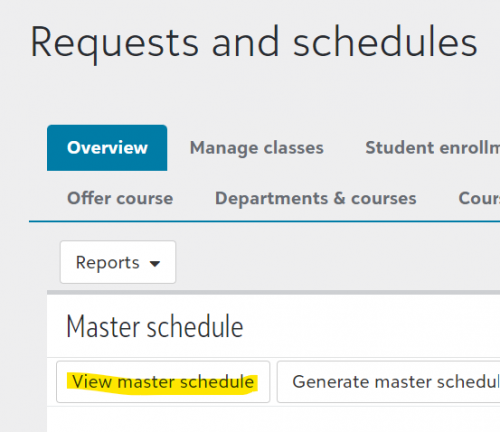
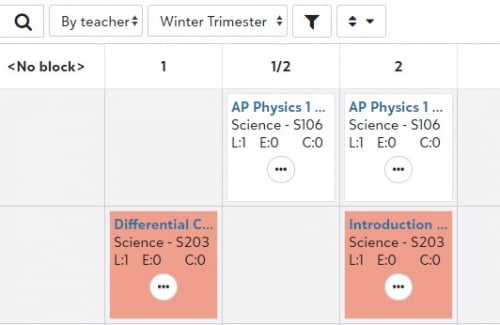
@Shannon Craige An invaluable tool for me is “View Master Schedule” which you can find on Scheduling - Requests and Schedules - Overview. You can easily drag and drop classes from block to block, and check for student, teacher, and room conflicts.
 1
1 -
@Shannon Craige If you aren't doing random blocks, set section info allows adding of teachers, blocks, rooms pretty quickly as well, if the sections are already built through manage classes. So next year if you roll over your sections, that'll help. But definitely manage sections the first time through
0 -
@Kate Warner
Hello this is my first time setting up the schedule. Some courses I rolled over and some I have set up individually. I am trying to figure out why some of the classes are orange tiles and some are white tiles in the View Master Schedule Matrix? It doesn't seem to correspond with the rollover classes or the ones I created. Such a basic thing but I can't locate the answer. Thanks!0 -
@Catherine Druhan - The orange indicates that there is a conflict. The yellowish orange indicates the course is above its set target size.
Hope that helps.
Scott
0 -
@Scott Chrysler
Thank you!0













Categories
- All Categories
- New K-12 Community Home (TEST)
- New Higher Education Home Page (Test)
- New Impact Edge Community TEST
- New YourCause Community TEST
- New SKY Community TEST
- New Grantmaking TEST Community
- New Altru Test Community
- New bbcon Community - TEST
- 12 Blackbaud Agents for Good™
- New Raiser's Edge NXT Community
- 8 Blackbaud Community Help
- 222 bbcon®
- 1.4K Blackbaud Altru®
- 411 Blackbaud Award Management™ and Blackbaud Stewardship Management™
- 1.2K Blackbaud CRM™ and Blackbaud Internet Solutions™
- 16 donorCentrics®
- 361 Blackbaud eTapestry®
- 2.7K Blackbaud Financial Edge NXT®
- 687 Blackbaud Grantmaking™
- 604 Blackbaud Education Management Solutions for Higher Education
- 3.3K Blackbaud Education Management Solutions for K-12 Schools
- 954 Blackbaud Luminate Online® and Blackbaud TeamRaiser®
- 85 JustGiving® from Blackbaud®
- 7K Blackbaud Raiser's Edge NXT®
- 4K SKY Developer
- 258 ResearchPoint™
- 123 Blackbaud Tuition Management™
- 165 Organizational Best Practices
- 248 Member Lounge (Just for Fun)
- 40 Blackbaud Community Challenges
- 37 PowerUp Challenges
- 3 (Closed) PowerUp Challenge: Grid View Batch
- 3 (Closed) PowerUp Challenge: Chat for Blackbaud AI
- 3 (Closed) PowerUp Challenge: Data Health
- 3 (Closed) Raiser's Edge NXT PowerUp Challenge: Product Update Briefing
- 3 (Closed) Raiser's Edge NXT PowerUp Challenge: Standard Reports+
- 3 (Closed) Raiser's Edge NXT PowerUp Challenge: Email Marketing
- 3 (Closed) Raiser's Edge NXT PowerUp Challenge: Gift Management
- 4 (Closed) Raiser's Edge NXT PowerUp Challenge: Event Management
- 3 (Closed) Raiser's Edge NXT PowerUp Challenge: Home Page
- 4 (Closed) Raiser's Edge NXT PowerUp Challenge: Standard Reports
- 4 (Closed) Raiser's Edge NXT PowerUp Challenge: Query
- 829 Community News
- 3.1K Jobs Board
- 57 Blackbaud SKY® Reporting Announcements
- 47 Blackbaud CRM Higher Ed Product Advisory Group (HE PAG)
- 19 Blackbaud CRM Product Advisory Group (BBCRM PAG)