My Community
YourCause®
Impact Edge™
All-Star Lounge
Member Lounge (Just for Fun)
Community News
Community Manager
Groups
Browse Products
Members
Community All-Stars
Monthly Challenges
Member Search
Jobs Board
Help
Using the Blackbaud Community
Blackbaud Support
Knowledgebase
Blackbaud University
Discussions
Categories
Groups
Home
Blackbaud CRM™ and Blackbaud Internet Solutions™
Blackbaud CRM™ and Blackbaud Internet Solutions™ Blog
Enhanced Password Security Implemented In Blackbaud Internet Solutions Service Pack 27
Nikki Cameron
In our latest release we have tightened Password complexity requirements for online supporters in a number of ways:
Minimum length has increased from 8 to 12 characters.
Passwords must include:
Both numbers and letters
At least one special character (#/$/%/&/@, etc.)
Uppercase and lowercase letters
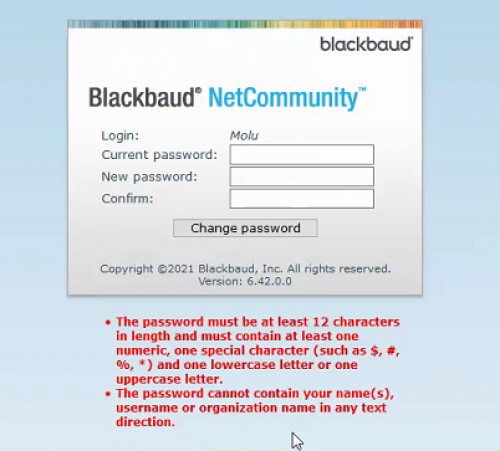
Passwords cannot include the registrant's name(s), user ID, username, or organization name.
Passwords cannot match any of the last six passwords.
NOTE:
If an existing user has a password that does not meet the new criteria, they will be prompted to reset their password before they can continue.
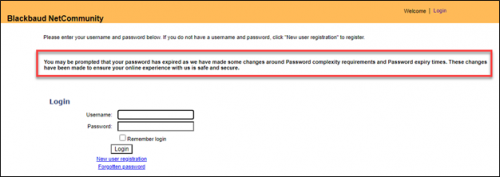
You may wish to customise the User Login part Helplet to expand on these new complex requirements and direct your user’s expectations.
Password Expiry
Password will be shown as expired when:
The users existing Password is not complex enough.
The users Password has been expired due to the following:
In SP27, we have increased the minimum expiry period to 90 days and the maximum to 365 days. If your current password expiry duration is set greater than 365 days, the system will consider passwords to be expired.
By default, if no duration is currently set, expiration will be 90 days.
You can increase this time limit on the web.config file up to 365 days. Please refer to
Product Release Notes
on how this is achieved.
If you are hosted by Blackbaud and wish this expiry period to be amended, please raise a ticket with Customer Support.
User Experience
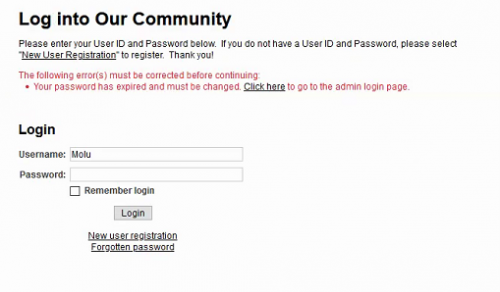
If a user’s password has expired, they will be shown the following:
Note
– Text in Black font is the customizable Helplet and Text in Red font can only be changed via Java Script.
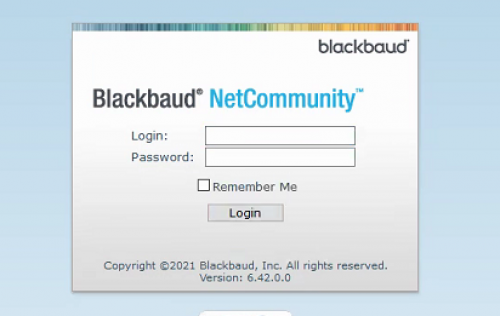
On selecting “Click here” the website will navigate to a login screen, and the user will have to enter their existing credentials and click on Login.
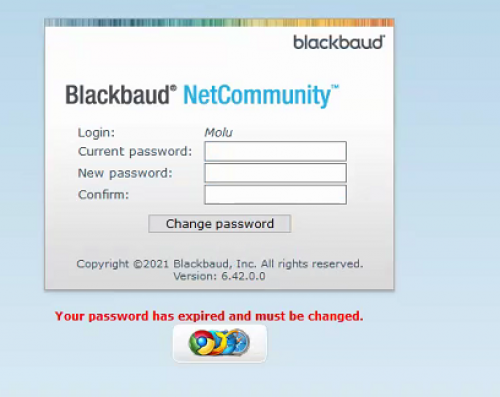
They will then be navigated to the “Change Password” screen and can change their password ensuring adherence to the complexity requirements which are indicated:
Find more posts tagged with
Comments
There are no comments yet
Quick Links
All Categories
Recent Posts
Activity
Unanswered
Groups
Help
Best Of