Point Of Sale Printing In Google Chrome
Jillian Vrba
Blackbaud Employee
In the upcoming release of Altru (version 4.99), we are excited to announce support for printing Sales Documents in Google Chrome! Since this was a top idea in our Community (over 130 votes across 3 different ideas), we know that many of you are likely eager to make the switch from IE to Chrome on your Point of Sale workstations. Read on to learn about what has changed, and what steps you’ll need to take to start printing tickets and receipts through Chrome on a Windows device.
What has changed?
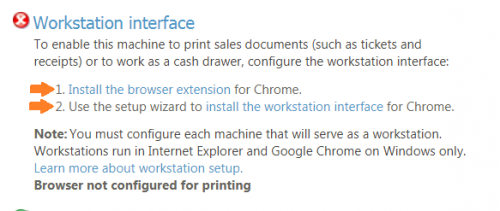
If you’re familiar with the Print Setup page in Altru, you’ll know that one of the first steps to configure a workstation for printing is to install the Workstation interface. Prior to 4.99, this installer utilized ActiveX functionality and was only available for Internet Explorer. Now in 4.99, we’ve introduced a newly developed browser extension and workstation interface that will allow you to print seamlessly through Chrome:
Note: while the Workstation interface is installed directly on the machine, Chrome browser extensions are stored in the Windows user profile on the machine. If your users have separate Windows logins to access the machine, the Chrome extension needs to be installed for each user’s Windows profile. Refer to our New Features Guide for more details.
Will my existing workstations, printers, etc. be affected after the upgrade?
No. Any workstations that have already been configured to print in IE will continue to print exactly the same as before. While you now have the option to print from Altru in Chrome, it’s not mandatory that you make the switch, as we haven’t removed any IE functionality.
My machine is already setup to print sales documents in IE. How do I make the switch to Chrome?
For existing workstations that have already been configured to print tickets, receipts, etc., making the switch from IE to Chrome is as easy as following two simple steps. When logged into Altru in Chrome, navigate to Tickets > Print Setup. Under the Workstation Interface step (seen in screenshot above), first install the browser extension for Chrome. Then, use the setup wizard to install the workstation interface for Chrome. Refresh the page to ensure you have a green checkmark beside that step, and you’re now all set to start printing in Chrome!
I want to setup a new workstation to print from Chrome. What additional steps do I need to take?
For workstations that have never printed from Altru in the past, you will still need to complete the standard additional steps like adding your workstation, printers, cash drawers, etc. (in addition to completing the Workstation interface step discussed above). View our User Guides for more information and a walk-through on the entire Print Setup process.
We hope you are looking forward to these changes, and as always, we welcome hearing your feedback!

What has changed?
If you’re familiar with the Print Setup page in Altru, you’ll know that one of the first steps to configure a workstation for printing is to install the Workstation interface. Prior to 4.99, this installer utilized ActiveX functionality and was only available for Internet Explorer. Now in 4.99, we’ve introduced a newly developed browser extension and workstation interface that will allow you to print seamlessly through Chrome:

Note: while the Workstation interface is installed directly on the machine, Chrome browser extensions are stored in the Windows user profile on the machine. If your users have separate Windows logins to access the machine, the Chrome extension needs to be installed for each user’s Windows profile. Refer to our New Features Guide for more details.
Will my existing workstations, printers, etc. be affected after the upgrade?
No. Any workstations that have already been configured to print in IE will continue to print exactly the same as before. While you now have the option to print from Altru in Chrome, it’s not mandatory that you make the switch, as we haven’t removed any IE functionality.
My machine is already setup to print sales documents in IE. How do I make the switch to Chrome?
For existing workstations that have already been configured to print tickets, receipts, etc., making the switch from IE to Chrome is as easy as following two simple steps. When logged into Altru in Chrome, navigate to Tickets > Print Setup. Under the Workstation Interface step (seen in screenshot above), first install the browser extension for Chrome. Then, use the setup wizard to install the workstation interface for Chrome. Refresh the page to ensure you have a green checkmark beside that step, and you’re now all set to start printing in Chrome!
I want to setup a new workstation to print from Chrome. What additional steps do I need to take?
For workstations that have never printed from Altru in the past, you will still need to complete the standard additional steps like adding your workstation, printers, cash drawers, etc. (in addition to completing the Workstation interface step discussed above). View our User Guides for more information and a walk-through on the entire Print Setup process.
We hope you are looking forward to these changes, and as always, we welcome hearing your feedback!
2
Comments
-
Excellent news!!!
If you are on Google Apps for Work/Gsuite, Google Admins can also push this Chrome extension out to all users (make it mandatory) via the Google Admin Console. Details here: https://support.google.com/chrome/a/answer/6306504?hl=en0 -
Does this mean netbooks will be able to Print?0
-
Hello! Do we get an automatic upgrade whenever there is a new Altru release? or, do we need to schedule upgrades every time they become available?0
-
Great point, Doug -- thanks for calling that out!
Hiroki - As long as the device is Windows based.
Sonia - Because all Altru databases are hosted by Blackbaud, you will be upgraded automatically. Your organization will be notified by email at least week in advance of your upgrade date.0 -
Awesome!! This will be great.0
Categories
- All Categories
- 6 Blackbaud Community Help
- 211 bbcon®
- 1.4K Blackbaud Altru®
- 398 Blackbaud Award Management™ and Blackbaud Stewardship Management™
- 1.1K Blackbaud CRM™ and Blackbaud Internet Solutions™
- 15 donorCentrics®
- 360 Blackbaud eTapestry®
- 2.5K Blackbaud Financial Edge NXT®
- 652 Blackbaud Grantmaking™
- 571 Blackbaud Education Management Solutions for Higher Education
- 3.2K Blackbaud Education Management Solutions for K-12 Schools
- 939 Blackbaud Luminate Online® and Blackbaud TeamRaiser®
- 84 JustGiving® from Blackbaud®
- 6.6K Blackbaud Raiser's Edge NXT®
- 3.7K SKY Developer
- 248 ResearchPoint™
- 119 Blackbaud Tuition Management™
- 165 Organizational Best Practices
- 240 The Tap (Just for Fun)
- 34 Blackbaud Community Challenges
- 34 PowerUp Challenges
- 3 (Open) PowerUp Challenge: Chat for Blackbaud AI
- 3 (Closed) PowerUp Challenge: Data Health
- 3 (Closed) Raiser's Edge NXT PowerUp Challenge: Product Update Briefing
- 3 (Closed) Raiser's Edge NXT PowerUp Challenge: Standard Reports+
- 3 (Closed) Raiser's Edge NXT PowerUp Challenge: Email Marketing
- 3 (Closed) Raiser's Edge NXT PowerUp Challenge: Gift Management
- 4 (Closed) Raiser's Edge NXT PowerUp Challenge: Event Management
- 3 (Closed) Raiser's Edge NXT PowerUp Challenge: Home Page
- 4 (Closed) Raiser's Edge NXT PowerUp Challenge: Standard Reports
- 4 (Closed) Raiser's Edge NXT PowerUp Challenge: Query
- 788 Community News
- 2.9K Jobs Board
- 53 Blackbaud SKY® Reporting Announcements
- 47 Blackbaud CRM Higher Ed Product Advisory Group (HE PAG)
- 19 Blackbaud CRM Product Advisory Group (BBCRM PAG)