Blackbaud’s Education Management Solutions: What’s New For March 13, 2023

Derek Nichols
Blackbaud Employee




Here are the latest changes, updates, and new features for the Education management products for March 13, 2023.
Dropped students appear in red with the Dropped indicator and a Dropped students count displays above the list of students. Teachers can enter and commit grades for dropped students as needed.
Just like the old Academic Profile, the new 360 Profile displays when you select a student or alumnus via the People finder in Academics. The new profile contains the same features and capabilities as the older Academic Profile (plus a few new tools that we’ll show off in the Community post linked below), but arranged under new tab headings in a more accessible format. Depending on your role at the school, some or all of the following profile areas will be available to you.
To see screenshots of the upcoming 360 Profile and an explanation of the new features, check out the announcement in the K-12 Education Solutions Community.
When a school user unlinks a parent’s Blackbaud ID (BBID) account, the record of the change now appears in the audit trail.
Previously we released the ability to unlink a BBID upon request, allowing the payer to create a BBID with a different email address to be linked with the BBTM account. To disconnect a BBID, go to a parent account that is connected with BBID. In the menu on the left side of the page, under More Options, select Update Parent & Student Info. Open the Settings tab. Select Disconnect BBID Account. A popup will ask you to confirm your decision. Select OK.
The change will be reflected under Audit Log at the bottom of the page.
If you enter “James Smith” as the Email Sent From Name, the email will appear in the parent’s inbox from “James Smith <customerservice@blackbaud.school>.” If you enter your email address in Reply To Email Address, replies will be directed to your email address.
To use this feature, select Families from the top menu and then Email Parents.
To manage your community subscriptions:
Academics
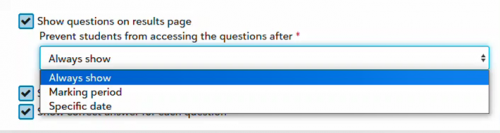
Expire student access to questions in assessment results after end of marking period or specific date
Teachers can now prevent students from accessing questions in their assessment results after a specific date or the end of the marking period. By default, questions on the results page are set to Always show when Show questions on results page is enabled. Students can still view their assessment score after access to the questions expires.
Show dropped students in gradebook
In gradebooks, teachers can now display dropped students by selecting More > Show dropped students.Dropped students appear in red with the Dropped indicator and a Dropped students count displays above the list of students. Teachers can enter and commit grades for dropped students as needed.
Coming soon: New academic profiles
We plan to roll out a new version of Academic Profiles to all schools in waves starting in late March.Just like the old Academic Profile, the new 360 Profile displays when you select a student or alumnus via the People finder in Academics. The new profile contains the same features and capabilities as the older Academic Profile (plus a few new tools that we’ll show off in the Community post linked below), but arranged under new tab headings in a more accessible format. Depending on your role at the school, some or all of the following profile areas will be available to you.
To see screenshots of the upcoming 360 Profile and an explanation of the new features, check out the announcement in the K-12 Education Solutions Community.
Billing management
Deposit, Reference number, and Reference date fields added to enrollment deposits
We’ve added Deposit, Reference number, and Reference date as optional fields for enrollment deposits; Billing clerks will now see these fields when creating, editing, or reviewing enrollment deposits.Enrollment management
Official Notes
We've expanded the character limit when writing Official Notes from 50 to 100.Tuition management
Audit trail reflects unlinking a BBID accountWhen a school user unlinks a parent’s Blackbaud ID (BBID) account, the record of the change now appears in the audit trail.
Previously we released the ability to unlink a BBID upon request, allowing the payer to create a BBID with a different email address to be linked with the BBTM account. To disconnect a BBID, go to a parent account that is connected with BBID. In the menu on the left side of the page, under More Options, select Update Parent & Student Info. Open the Settings tab. Select Disconnect BBID Account. A popup will ask you to confirm your decision. Select OK.
The change will be reflected under Audit Log at the bottom of the page.
Parent email replies directed to Customer Service
When a school user sends an email to payers via the Email Parents tool, the message will go out to payers from the email address customerservice@blackbaud.school. However, you can customize the Email Sent From Name and Reply To Email Address.If you enter “James Smith” as the Email Sent From Name, the email will appear in the parent’s inbox from “James Smith <customerservice@blackbaud.school>.” If you enter your email address in Reply To Email Address, replies will be directed to your email address.
To use this feature, select Families from the top menu and then Email Parents.
API and Integrations
School API and OneRoster API
For information about recently added endpoints and other updates, view the School API and OneRoster API changelog.Subscribe to “What’s New”
To receive email notifications when the What’s new update appears, make sure to subscribe to the K12 community’s blog by logging into the community site and selecting the Subscribe button.To manage your community subscriptions:
- Log into the community and locate your name and profile picture in the upper right corner.
- Select the drop-down arrow and select My Account.
- From the My Account page, select the Subscriptions tab and scroll down to the Blogs section.
- Locate Blackbaud K-12 Education solutions Blog. If you want to be notified as soon as the What’s new content goes live on the community, select the Instant option. You can also opt for Daily and Weekly notifications.
- Scroll to the end of the page and select Save changes.
What’s Recent
Missed any of our weekly releases? You can catch up on everything in our Month in Review blog posts, which cover every feature and update Education management releases each month.0
Categories
- All Categories
- New YourCause Community TEST
- New SKY Community TEST
- New Grantmaking TEST Community
- New Altru Test Community
- New bbcon Community - TEST
- 12 Blackbaud Agents for Good™
- New Raiser's Edge NXT Community
- 7 Blackbaud Community Help
- 219 bbcon®
- 1.4K Blackbaud Altru®
- 409 Blackbaud Award Management™ and Blackbaud Stewardship Management™
- 1.2K Blackbaud CRM™ and Blackbaud Internet Solutions™
- 16 donorCentrics®
- 361 Blackbaud eTapestry®
- 2.7K Blackbaud Financial Edge NXT®
- 682 Blackbaud Grantmaking™
- 599 Blackbaud Education Management Solutions for Higher Education
- 3.3K Blackbaud Education Management Solutions for K-12 Schools
- 952 Blackbaud Luminate Online® and Blackbaud TeamRaiser®
- 85 JustGiving® from Blackbaud®
- 7K Blackbaud Raiser's Edge NXT®
- 3.9K SKY Developer
- 257 ResearchPoint™
- 123 Blackbaud Tuition Management™
- 165 Organizational Best Practices
- 247 Member Lounge (Just for Fun)
- 40 Blackbaud Community Challenges
- 37 PowerUp Challenges
- 3 (Closed) PowerUp Challenge: Grid View Batch
- 3 (Closed) PowerUp Challenge: Chat for Blackbaud AI
- 3 (Closed) PowerUp Challenge: Data Health
- 3 (Closed) Raiser's Edge NXT PowerUp Challenge: Product Update Briefing
- 3 (Closed) Raiser's Edge NXT PowerUp Challenge: Standard Reports+
- 3 (Closed) Raiser's Edge NXT PowerUp Challenge: Email Marketing
- 3 (Closed) Raiser's Edge NXT PowerUp Challenge: Gift Management
- 4 (Closed) Raiser's Edge NXT PowerUp Challenge: Event Management
- 3 (Closed) Raiser's Edge NXT PowerUp Challenge: Home Page
- 4 (Closed) Raiser's Edge NXT PowerUp Challenge: Standard Reports
- 4 (Closed) Raiser's Edge NXT PowerUp Challenge: Query
- 822 Community News
- 3.1K Jobs Board
- 57 Blackbaud SKY® Reporting Announcements
- 47 Blackbaud CRM Higher Ed Product Advisory Group (HE PAG)
- 19 Blackbaud CRM Product Advisory Group (BBCRM PAG)