Including GPAs and Performance Categories on Report Cards/Transcripts


Welcome to report card /transcript season! So you’re in the middle of setting up your report card/transcript parameters, and you want to include students’ GPAs and Performance Categories after you’ve calculated them. With just a few clicks you’ll be all set to display this information in the Education Edge.
Include GPAs on Report Cards/Transcripts (BB311324):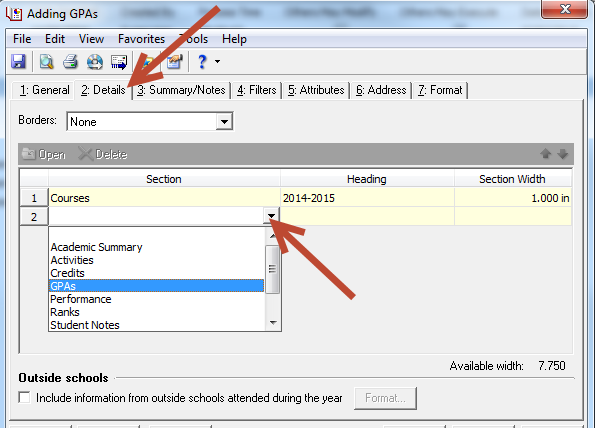
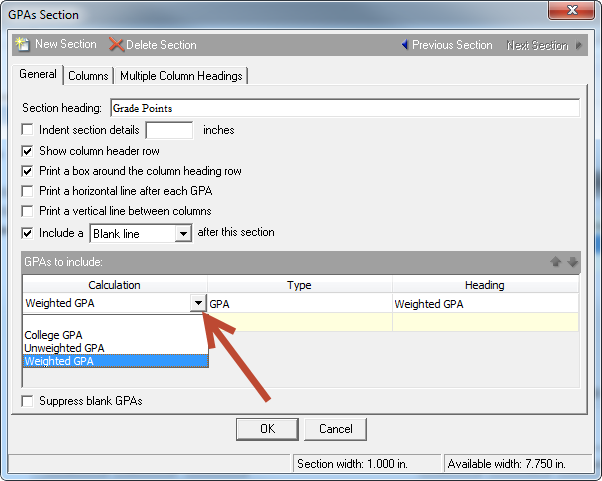
5. On the General tab, select the desired options including the GPA Calculation(s) and Type(s) to use.
6. On the Columns tab, mark the marking columns for which the GPA should be displayed.
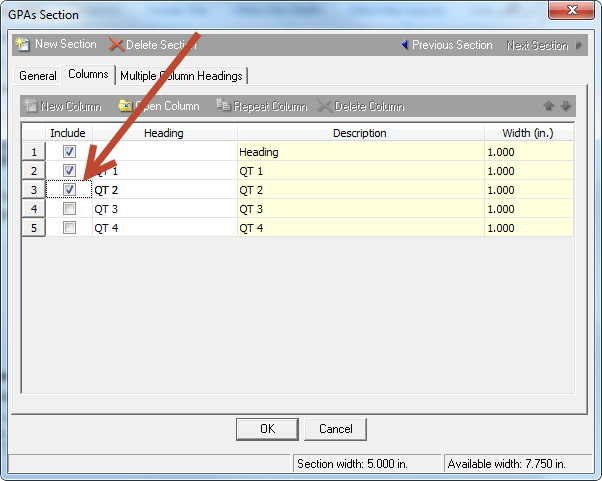
Note: only marking columns configured in Details > Courses > Columns of the parameter will be available to be selected when setting up the GPAs section.
Include Performance Categories on Report Cards/Transcripts (BB724304):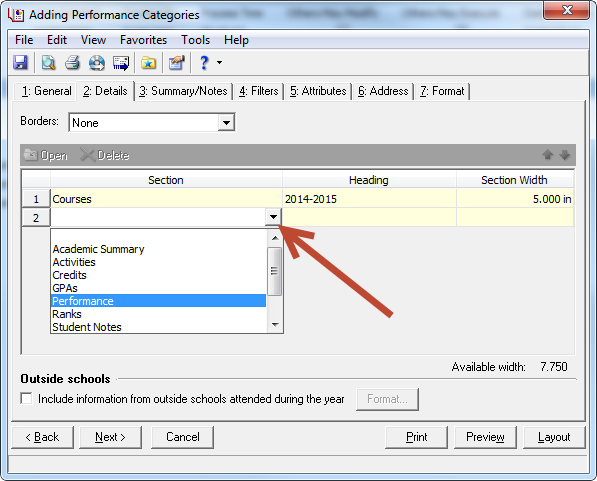
5. On the General tab, select the desired options including the Category, Details Format, Heading, and Comment Marking Columns to display.
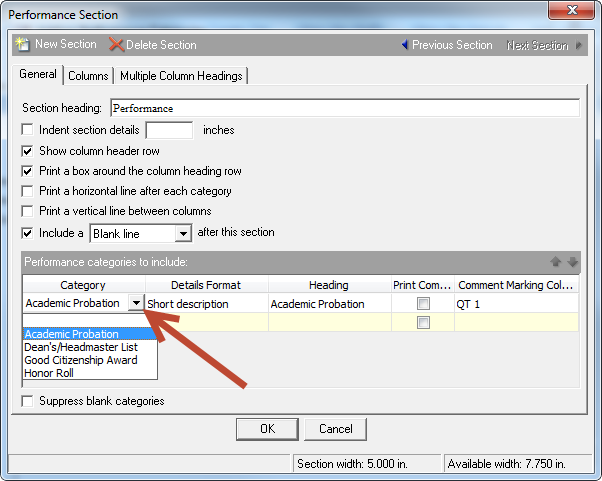
6. On the Columns tab, mark the marking columns for which the Performance Categories should be displayed.
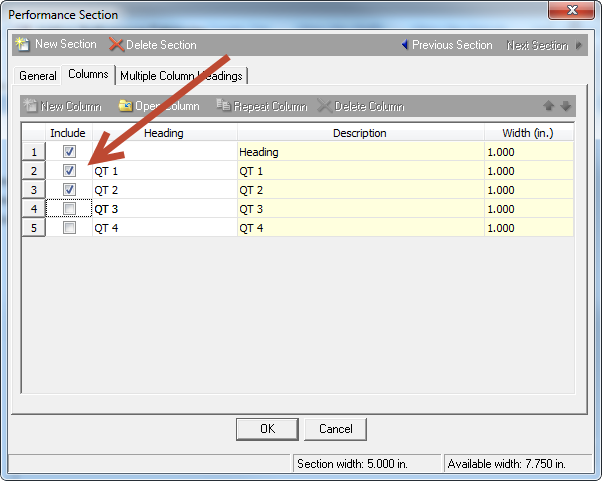
Note: only marking columns configured in Details > Courses > Columns of the parameter will be available to be selected when setting up the Performance Categories section.
Have any questions? Leave a comment below!
Include GPAs on Report Cards/Transcripts (BB311324):
- Go to Mail > Forms.
- Open the Report Card or Transcript parameters.
- Select the Details tab.
- Under Section, click into the first free row and select GPAs in the drop down.

5. On the General tab, select the desired options including the GPA Calculation(s) and Type(s) to use.

6. On the Columns tab, mark the marking columns for which the GPA should be displayed.

Note: only marking columns configured in Details > Courses > Columns of the parameter will be available to be selected when setting up the GPAs section.
Include Performance Categories on Report Cards/Transcripts (BB724304):
- Go to Mail > Forms.
- Open the Report Card or Transcript parameters.
- Select the Details tab.
- Under Section, click into the first free row and select Performance in the drop down.

5. On the General tab, select the desired options including the Category, Details Format, Heading, and Comment Marking Columns to display.

6. On the Columns tab, mark the marking columns for which the Performance Categories should be displayed.

Note: only marking columns configured in Details > Courses > Columns of the parameter will be available to be selected when setting up the Performance Categories section.
Have any questions? Leave a comment below!
0
Categories
- All Categories
- 6 Blackbaud Community Help
- 209 bbcon®
- 1.4K Blackbaud Altru®
- 395 Blackbaud Award Management™ and Blackbaud Stewardship Management™
- 1.1K Blackbaud CRM™ and Blackbaud Internet Solutions™
- 15 donorCentrics®
- 359 Blackbaud eTapestry®
- 2.5K Blackbaud Financial Edge NXT®
- 646 Blackbaud Grantmaking™
- 563 Blackbaud Education Management Solutions for Higher Education
- 3.2K Blackbaud Education Management Solutions for K-12 Schools
- 934 Blackbaud Luminate Online® and Blackbaud TeamRaiser®
- 84 JustGiving® from Blackbaud®
- 6.4K Blackbaud Raiser's Edge NXT®
- 3.7K SKY Developer
- 243 ResearchPoint™
- 118 Blackbaud Tuition Management™
- 165 Organizational Best Practices
- 238 The Tap (Just for Fun)
- 33 Blackbaud Community Challenges
- 28 PowerUp Challenges
- 3 (Open) Raiser's Edge NXT PowerUp Challenge: Product Update Briefing
- 3 (Closed) Raiser's Edge NXT PowerUp Challenge: Standard Reports+
- 3 (Closed) Raiser's Edge NXT PowerUp Challenge: Email Marketing
- 3 (Closed) Raiser's Edge NXT PowerUp Challenge: Gift Management
- 4 (Closed) Raiser's Edge NXT PowerUp Challenge: Event Management
- 3 (Closed) Raiser's Edge NXT PowerUp Challenge: Home Page
- 4 (Closed) Raiser's Edge NXT PowerUp Challenge: Standard Reports
- 4 (Closed) Raiser's Edge NXT PowerUp Challenge: Query
- 779 Community News
- 2.9K Jobs Board
- 53 Blackbaud SKY® Reporting Announcements
- 47 Blackbaud CRM Higher Ed Product Advisory Group (HE PAG)
- 19 Blackbaud CRM Product Advisory Group (BBCRM PAG)