Tips and Tricks for Formatting Student Billing Statements




There are so many odds and ends involved when creating a statement that sometimes various little details are overlooked. The following information will show you some tips and tricks to refine your billing statements.
Note: This section can only be used if you use Registrar’s Office, as the grade level information pulls from the Student Progression Entry on the Student record. If you do not have Registrar’s Office, “Display grade level from” is not available. The grade level that will be displayed is the Current grade listed on the Bio 1 tab of the record.
Note: In order to receive statements for multiple records, the payer must be marked to receive statements on the Statements tab and on the Relationships tab of the student record.
Does your organization have any handy information for statements? Let me know in the comments below!
Showing grade levels
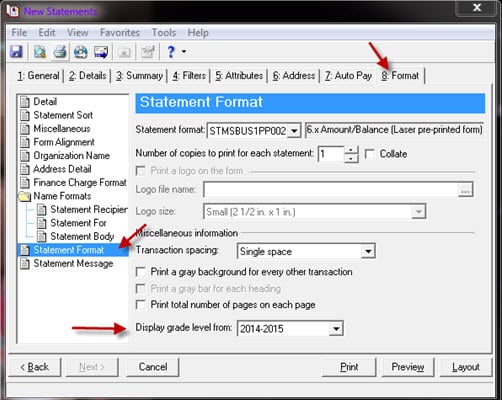
Some users like to display the student grade levels on the statements. But what if you’re creating a statement for the next school year? There is a location on the statement parameter that will pull the student’s grade level for the upcoming year.
Note: This section can only be used if you use Registrar’s Office, as the grade level information pulls from the Student Progression Entry on the Student record. If you do not have Registrar’s Office, “Display grade level from” is not available. The grade level that will be displayed is the Current grade listed on the Bio 1 tab of the record.
Displaying credit balances as $0.00
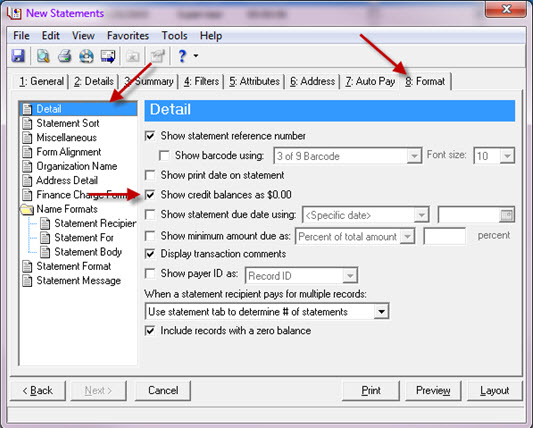
Do you print statements for records with a credit balance? If so, you have the option to either show the credit balance or show a balance of $0.00. To show a balance of $0.00 for records with a credit balance, go to the Format tab, highlight detail and mark “Show credit balances as $0.00.”
Showing due dates
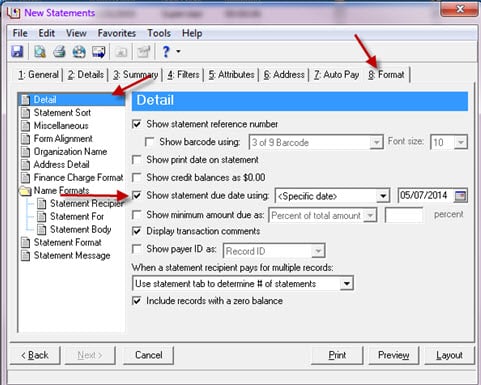
If you would like to display a due date on the statement, mark the option for “Show statement due date using:” and select the appropriate option.- <Statement date> plus 0 days will list the statement date you entered on the General tab
- <Statement date> plus [] days will take the statement date from the General tab and add however many days you list in the blank. For example, if the statement date is May 1 and you enter 10 in the blank, the due date on the statement will show as May 11.
- <Transaction cutoff date> plus 0 days will list the transaction cutoff date you entered on the General tab
- <Transaction cutoff date> plus [] days will take the statement date from the General tab and add however many days you list in the blank. For example, if the statement date is May 1 and you enter 10 in the blank, the due date on the statement will show as May 11.

Adding a Logo
To personalize your statements, you are able to add a logo. The two logo size options are: Small (2 ½ in x 1 in) and Large (5 3/8 in x 1 in). Logos can only be added to the following statement formats listed in the drop down next to Statement format (under Format > Statement Format):- STMSBUS1BP001
- STMSBUS1BP002
- STMSBUS1BP003
- STMSBUS1BP004
Displaying aging information
If there are records with aging information, you can add this to the statement by following these steps: Select the Miscellaneous tab and then mark the 'Include aging information on statement' checkbox. You can even include messages for these aging buckets. As long as the record reflects a balance in one of the aging buckets, the associated message will print on the statementCombining students onto one statement
It’s not uncommon that siblings attend the same school. In these scenarios, most organizations would like to print just one statement for the statement recipient(s).Note: In order to receive statements for multiple records, the payer must be marked to receive statements on the Statements tab and on the Relationships tab of the student record.
Hiding transactions on statements
When printing statements and there are certain items that should not show then you have the ability to hide them on the statement. For example, if you use advance deposits, you may choose to hide this on the statement if it’s been paid already. We don’t generally advise hiding other information on statements because it would skew the balance on the statement. This action would need to be done at the discretion of your organization.Does your organization have any handy information for statements? Let me know in the comments below!
0
Categories
- All Categories
- 6 Blackbaud Community Help
- 209 bbcon®
- 1.4K Blackbaud Altru®
- 394 Blackbaud Award Management™ and Blackbaud Stewardship Management™
- 1.1K Blackbaud CRM™ and Blackbaud Internet Solutions™
- 15 donorCentrics®
- 359 Blackbaud eTapestry®
- 2.5K Blackbaud Financial Edge NXT®
- 646 Blackbaud Grantmaking™
- 563 Blackbaud Education Management Solutions for Higher Education
- 3.2K Blackbaud Education Management Solutions for K-12 Schools
- 934 Blackbaud Luminate Online® and Blackbaud TeamRaiser®
- 84 JustGiving® from Blackbaud®
- 6.4K Blackbaud Raiser's Edge NXT®
- 3.7K SKY Developer
- 243 ResearchPoint™
- 118 Blackbaud Tuition Management™
- 165 Organizational Best Practices
- 238 The Tap (Just for Fun)
- 33 Blackbaud Community Challenges
- 28 PowerUp Challenges
- 3 (Open) Raiser's Edge NXT PowerUp Challenge: Product Update Briefing
- 3 (Closed) Raiser's Edge NXT PowerUp Challenge: Standard Reports+
- 3 (Closed) Raiser's Edge NXT PowerUp Challenge: Email Marketing
- 3 (Closed) Raiser's Edge NXT PowerUp Challenge: Gift Management
- 4 (Closed) Raiser's Edge NXT PowerUp Challenge: Event Management
- 3 (Closed) Raiser's Edge NXT PowerUp Challenge: Home Page
- 4 (Closed) Raiser's Edge NXT PowerUp Challenge: Standard Reports
- 4 (Closed) Raiser's Edge NXT PowerUp Challenge: Query
- 779 Community News
- 2.9K Jobs Board
- 53 Blackbaud SKY® Reporting Announcements
- 47 Blackbaud CRM Higher Ed Product Advisory Group (HE PAG)
- 19 Blackbaud CRM Product Advisory Group (BBCRM PAG)