ResearchPoint™ Export Tips: Adding Grateful Patient Solution Encrypted Fields To Export Definitions

Shelley Weifenbach
Blackbaud Employee




Sometimes it is necessary to extract data from your ResearchPoint™ database to share with your colleagues, yet Query is not always the best tool for this task. Export Definitions are a great way to export data without duplicates you may see in the results of a query or research list, especially when including attributes about your patient prospects. This blog will discuss how to update your ResearchPoint™ Export Definitions with the Grateful Patient Solution encrypted attributes.In most circumstances, exporting data directly from a query or research list will meet your needs, however, when it comes to extracting complex data the Export tool may be a better option. This is often the case for organizations with the Grateful Patient Solution (GPS) because of the patient-related custom fields or attributes submitted in the patient screening file. For instance, if you want to see only the most recent GPS date screened, you will want to setup an export definition to customize how many attributes to display and the proper order--such as only the most recent attribute value--then use the Export tool to download the results using a customized export definition and a query selection. This blog post will discuss how to update your existing export definitions to include the encrypted Grateful Patient attributes which provide an extra layer of security around select sensitive patient data for organizations with the Grateful Patient Solution (GPS):
If you are not familiar with Export, start by creating a new export definition with contact information, attributes, GPS scores, and any other data would like to view. The blog “ResearchPoint™ Export Tips: Creating An Export Definition With Attributes” takes you step-by-step through this process with instructions and short videos.
Create the Export
Now you are ready to begin the export process.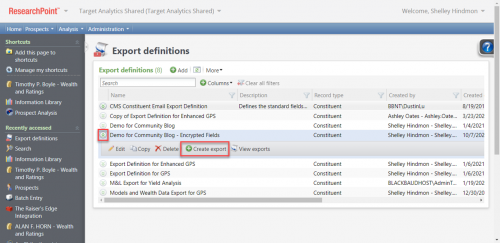
Ready for More?
If you would like to learn more about upgrading your Grateful Patient Solution to include these encrypted fields, please contact your Target Analytics Strategic Consultant or Target Analytics Project Coordinator or email tacoordinators@blackbaud.com for more information.
Interested in learning more? Check out the Grateful Patient Solution Security Enhancements (February 2021) announcement with FAQs. Bookmark the ResearchPoint™ Assistance and Resources landing page to keep updated on all the new features and other helpful links.
- Insurance: health insurance status (Yes/No)
- Department: general department of service information
- Service Start Date: start date of service
- Service End Date: end date of service
- Physician: treating physician name
- Outcome: outcome information
Why Use Export?
The encrypted Grateful Patient attributes can only have one value at a time on a record with the field getting updated each time they are screened through the Grateful Patient Solution. This makes viewing these fields much simpler in queries and research lists because you will not see duplicate results. Why use the Export tool when your regular grateful patient prospecting process likely includes a series of queries and/or research lists? There are a few key reasons:- In addition to the six encrypted Grateful Patient attributes, you may have other patient-related attributes that are not restricted to one per record that could cause duplicates in queries or research lists. In an export definition, you can restrict the output to only the most recent attribute regardless of how many are on the record, for instance the last GPS screening date.
- You want to extract more complex data, such as one-to-many fields like constituencies, that create duplicates in queries or research lists (if they can even be viewed in the results at all).
- You want to quickly divide a spreadsheet among your team, for example by hospital, department, physician, etc. There is a great Export feature to automate this process.
Begin Your Export Definition with Contact Information and Attributes
The first step is to create a new Export Definition (from Administration > Export definitions > Add). You may also copy or edit an existing export definition. Add your preferred fields, such as the name, contact information, patient attributes, and/or model scores.If you are not familiar with Export, start by creating a new export definition with contact information, attributes, GPS scores, and any other data would like to view. The blog “ResearchPoint™ Export Tips: Creating An Export Definition With Attributes” takes you step-by-step through this process with instructions and short videos.
Add Encrypted Attributes to an Export Definition
Let’s review the steps to add the Grateful Patient encrypted attributes into an existing export definition.- In ResearchPoint™, navigate to Administration then under the Tools header select Export definitions.
- Use the double chevron button to the left of the export definition name and select Edit or Copy then Edit.
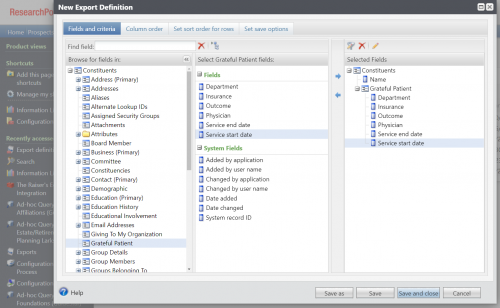
- On the Fields and Criteria tab, navigate to the Grateful Patient section and add the fields one at a time. Tip: Add these fields in the order you want them to display to save time sorting later


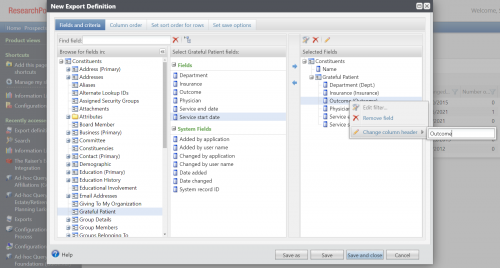
- Right-click on each field, choose "Change column header", then type the custom header name. You may also select the field then use the pencil icon above to edit the column header.

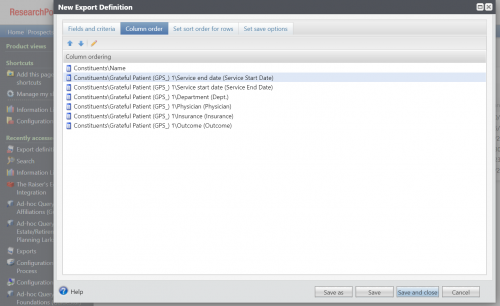
- On the Column Order tab, use the arrows to rearrange the fields. This is the order they will appear in the exported spreadsheet.

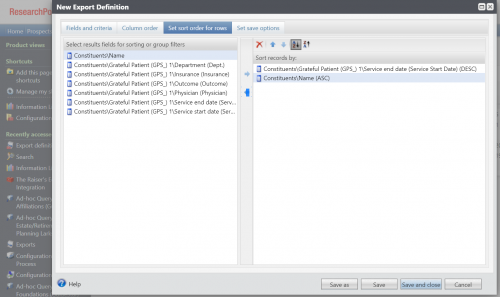
- On the Set Sort Order for Rows tab, choose which field(s) to sort by in ascending and/or descending order. Sort by multiple fields for a more complex order.

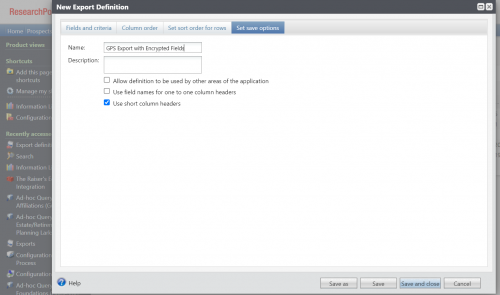
- On the final tab Set Save Options, update the name (as desired) and check the box to “Use the field name for one to one column headers” or "Use short column headers" depending on your preference. Not sure which to select? Export a version of each and choose your favorite!

- Save and close.
Create the Export
Now you are ready to begin the export process.
- Use the double chevron button to the left of the export definition name and choose Create export. You will only need to complete this step once if you plan to export the same query every time.

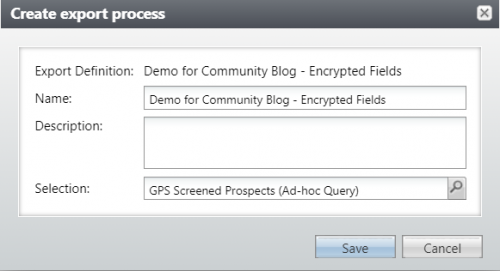
- Enter a descriptive name and choose a query selection, then Save.

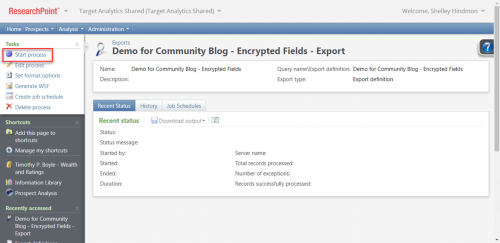
- Once you hit Save, the export window will open, ready for you to hit Start Process when you are ready.

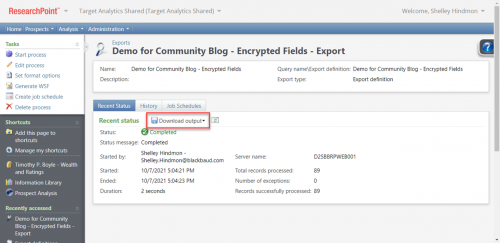
- When the Status says complete, choose to Download output to save onto your computer.

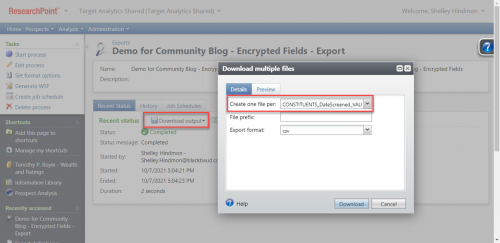
- To create separate spreadsheets divided by a field in the export, for example Date Screened or Department, choose “Download multiple files” from other “Download output” option then select which field to use in the “Create one file per” dropdown.

- Select Edit Process if you need to change the query selection.
Ready for More?
If you would like to learn more about upgrading your Grateful Patient Solution to include these encrypted fields, please contact your Target Analytics Strategic Consultant or Target Analytics Project Coordinator or email tacoordinators@blackbaud.com for more information.
Interested in learning more? Check out the Grateful Patient Solution Security Enhancements (February 2021) announcement with FAQs. Bookmark the ResearchPoint™ Assistance and Resources landing page to keep updated on all the new features and other helpful links.
4
Comments
-
Shelly, your instructions are fantastic! Thank you!
0



Categories
- All Categories
- 6 Blackbaud Community Help
- 209 bbcon®
- 1.4K Blackbaud Altru®
- 394 Blackbaud Award Management™ and Blackbaud Stewardship Management™
- 1.1K Blackbaud CRM™ and Blackbaud Internet Solutions™
- 15 donorCentrics®
- 359 Blackbaud eTapestry®
- 2.5K Blackbaud Financial Edge NXT®
- 646 Blackbaud Grantmaking™
- 563 Blackbaud Education Management Solutions for Higher Education
- 3.2K Blackbaud Education Management Solutions for K-12 Schools
- 934 Blackbaud Luminate Online® and Blackbaud TeamRaiser®
- 84 JustGiving® from Blackbaud®
- 6.4K Blackbaud Raiser's Edge NXT®
- 3.7K SKY Developer
- 243 ResearchPoint™
- 118 Blackbaud Tuition Management™
- 165 Organizational Best Practices
- 238 The Tap (Just for Fun)
- 33 Blackbaud Community Challenges
- 28 PowerUp Challenges
- 3 (Open) Raiser's Edge NXT PowerUp Challenge: Product Update Briefing
- 3 (Closed) Raiser's Edge NXT PowerUp Challenge: Standard Reports+
- 3 (Closed) Raiser's Edge NXT PowerUp Challenge: Email Marketing
- 3 (Closed) Raiser's Edge NXT PowerUp Challenge: Gift Management
- 4 (Closed) Raiser's Edge NXT PowerUp Challenge: Event Management
- 3 (Closed) Raiser's Edge NXT PowerUp Challenge: Home Page
- 4 (Closed) Raiser's Edge NXT PowerUp Challenge: Standard Reports
- 4 (Closed) Raiser's Edge NXT PowerUp Challenge: Query
- 779 Community News
- 2.9K Jobs Board
- 53 Blackbaud SKY® Reporting Announcements
- 47 Blackbaud CRM Higher Ed Product Advisory Group (HE PAG)
- 19 Blackbaud CRM Product Advisory Group (BBCRM PAG)