Donation Thank You letters


Hi all, I am new to eTapestry but my organization is not. I'm wondering how to create a query that will generate thank you letters based on the type of donation ie. in-kind, tribute, etc.
Any help would be greatly appreciated!
Thanks,
Hannah
Comments
-
Hi Hannah. I can walk you through as best as I can.
- Create a query (if not already created) under Acknowledgement Letters - Name it the letter you intend to send (IE, this one is General)
- Follow the query basics to set up your query, see below and for each letter you will need a new query, so you will do this again once you set up your first letter. For additional letters, you will want to choose the corresponding letter name. Mine is General in this example, but I have all the names of my communications (which you will create next) and select the one I want to use for this query.
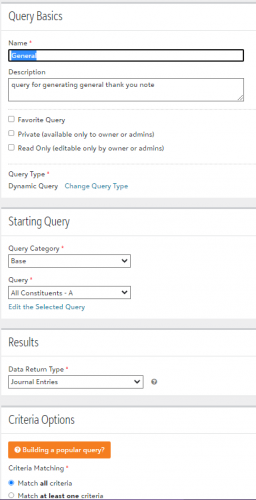
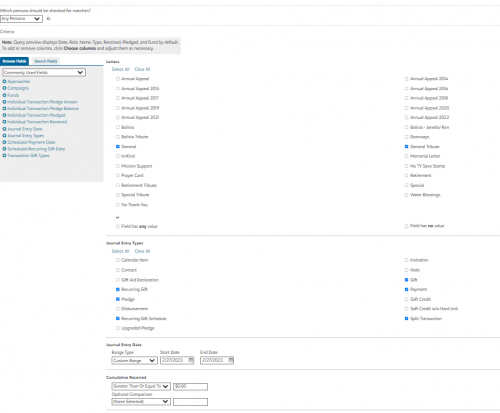
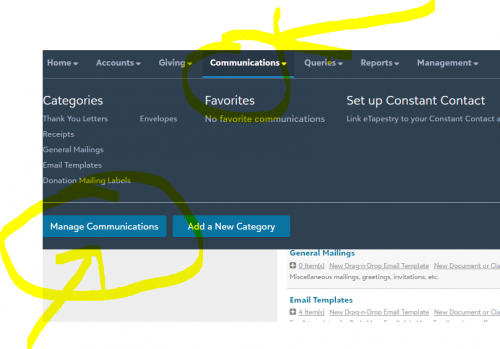
- Then go to communications and manage communications.
- In there, you may see a Thank You letter option. Click on the + to expand, if that option exists.
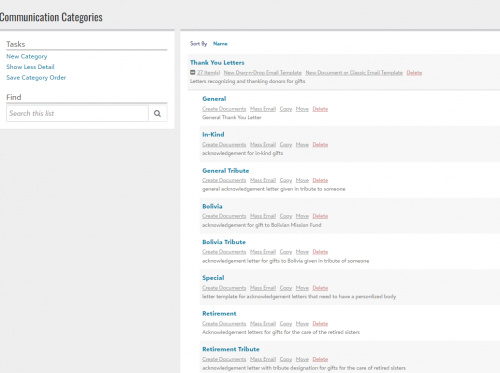
- If that option does not exist, you will have to create a communication category, click on New Category on the far left side under the title Communication Categories.
- Give it a name and a description and save. I named mine Thank You Letters

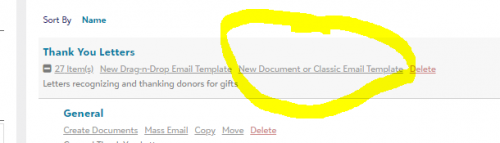
- Then go back to your communications and right below the saved title Thank You Letters, choose New Document or Classic Email Template (You can always use the drag and drop feature if the thank you is already created)
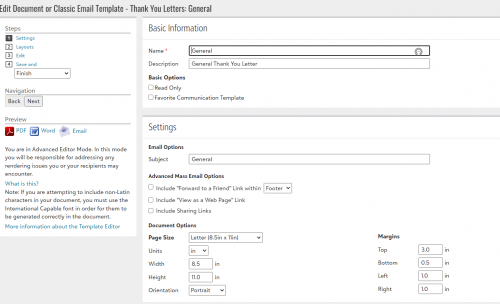
- Now create your settings for your document (You will do this for each thank you letter you would like created)
Here is what my settings look like:
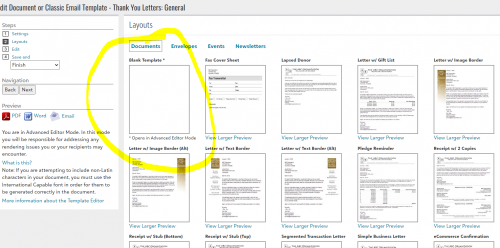
And Documents, I choose Blank Template and then Next from the far left hand side
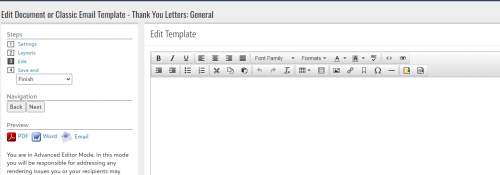
Type your letter and hit Next and Save and Finish
- Now go back into your Communications, from the tab at the top of your eTapestry
- Select the + to expand your letters and then choose the letter (IE mine is General) and Create Documents
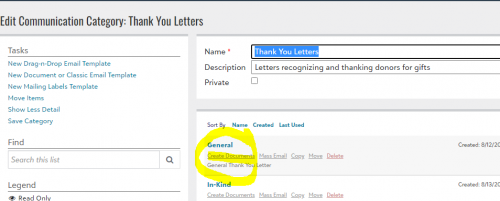
- From there, follow the steps to choose your query (created earlier)
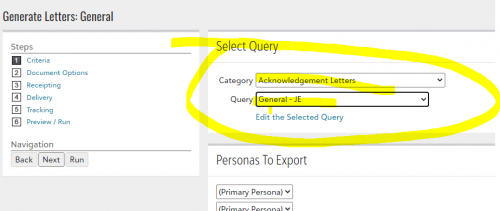
Then next.
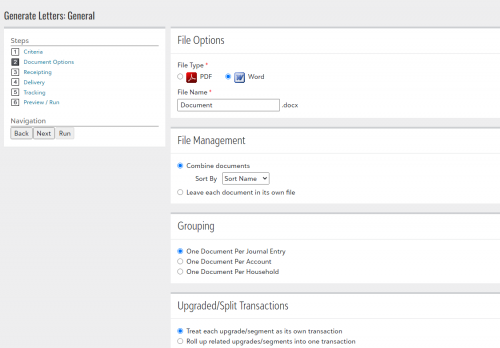
Choose your file options, and next again two times
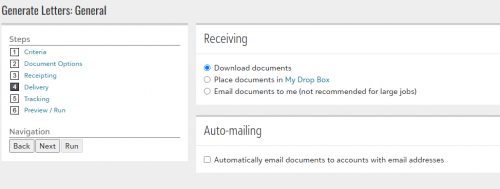
Download your documents
If you want to update all accounts with a mass update of the communication sent (I do every time so I know what was sent), click the check box for Tracking, Give it a Name (I named mine Acknowledgement sent for recent gift) and select the Method (I chose Letter) and then Next
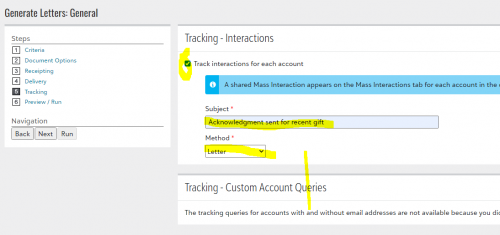
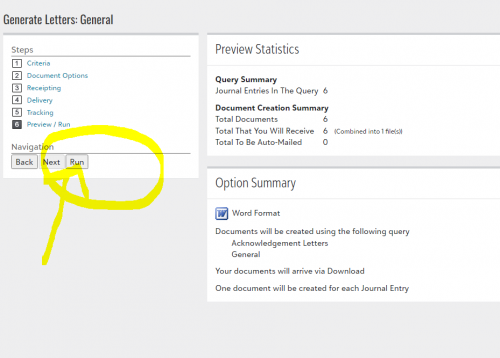
It will take a moment to run. Once completed you will see the following screen. Run and you are done. Your Word document will pull up with all thank you letters in this batch.
Let me know if you have any questions.
-Karen
1





Categories
- All Categories
- 6 Blackbaud Community Help
- 209 bbcon®
- 1.4K Blackbaud Altru®
- 394 Blackbaud Award Management™ and Blackbaud Stewardship Management™
- 1.1K Blackbaud CRM™ and Blackbaud Internet Solutions™
- 15 donorCentrics®
- 359 Blackbaud eTapestry®
- 2.5K Blackbaud Financial Edge NXT®
- 646 Blackbaud Grantmaking™
- 563 Blackbaud Education Management Solutions for Higher Education
- 3.2K Blackbaud Education Management Solutions for K-12 Schools
- 934 Blackbaud Luminate Online® and Blackbaud TeamRaiser®
- 84 JustGiving® from Blackbaud®
- 6.4K Blackbaud Raiser's Edge NXT®
- 3.7K SKY Developer
- 243 ResearchPoint™
- 118 Blackbaud Tuition Management™
- 165 Organizational Best Practices
- 238 The Tap (Just for Fun)
- 33 Blackbaud Community Challenges
- 28 PowerUp Challenges
- 3 (Open) Raiser's Edge NXT PowerUp Challenge: Product Update Briefing
- 3 (Closed) Raiser's Edge NXT PowerUp Challenge: Standard Reports+
- 3 (Closed) Raiser's Edge NXT PowerUp Challenge: Email Marketing
- 3 (Closed) Raiser's Edge NXT PowerUp Challenge: Gift Management
- 4 (Closed) Raiser's Edge NXT PowerUp Challenge: Event Management
- 3 (Closed) Raiser's Edge NXT PowerUp Challenge: Home Page
- 4 (Closed) Raiser's Edge NXT PowerUp Challenge: Standard Reports
- 4 (Closed) Raiser's Edge NXT PowerUp Challenge: Query
- 779 Community News
- 2.9K Jobs Board
- 53 Blackbaud SKY® Reporting Announcements
- 47 Blackbaud CRM Higher Ed Product Advisory Group (HE PAG)
- 19 Blackbaud CRM Product Advisory Group (BBCRM PAG)