Blackbaud’s Education Management Solutions: What’s New For April 4, 2023

Bob Costanzo
Blackbaud Employee




Here are the latest changes, updates, and new features for the Education management products for April 4, 2023.New Academic Profiles
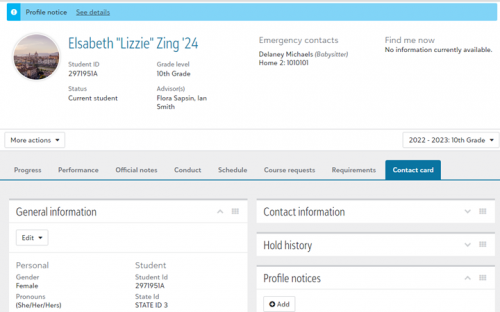
The new profile, also known as the 360 Profile, will display when you select a student or alumnus via the People finder or via a list in Academics. It contains the same features and capabilities as the older profile, but arranged in a more accessible format.
The new profile is arranged in tabs labeled Contact card, Progress, Performance, Official notes, Conduct, Schedule, Course requests, and Requirements. The tabs you are able to access and the features you are able to use depend on your role at the school, which can be managed by administrators at your school via Core.
For more information about accessing and using the new profile tabs, see the Academic Profile and Contact Card help topic. Help links for each of the tabs can be found at the bottom of the help topic page.
Assessment Reporting
Additional details and metrics will be added in the coming weeks.
For example, a multiple choice question worth 10 points has two correct answer choices and three incorrect answer choices. Each correct answer selected is worth 5 points and each incorrect answer selected deducts 5 points.
If a student selects:
To see this feature, open Conduct in the top menu and select Consequences list. The new columns appear by default on new lists. You can modify which column headers appear on a list by selecting Columns.
Billing management
The following new features are available to payers and billing clerks, respectively:
Payers
Payers can access the following features from the Current Bill page:
Billing clerks can manage the following features:
Set-up (Billing > Billing years > Auto-Pay)
Core
The requirement will be enforced in “waves.” The first wave of schools will require MFA as of October 3, 2023. If, by this summer, your organization has not yet established an SSO connection, then we will send you an email with the exact date on which your users will be required to use MFA.
Exemptions
The following users are exempt from Blackbaud’s MFA requirement for BBID and their login experiences will not be affected:
Multi-factor authentication (MFA) requires a user to successfully validate at least two of three factors to authenticate before gaining access to your solution and data. Blackbaud ID will require MFA using your password (what you use today) and a unique, time-based, one-time code accessed on a secondary device. We are proactively making this change, following industry-standard security measures, to help protect your organization and your data.
Try MFA early
We recommend testing MFA with a cloned role at your school’s convenience. For example, require users who have the nurse role to login with MFA and BBID. The nurse could complete the login using a numeric code sent to their phone for additional security.
As a platform manager, go to Core, Security, Roles, and search for a role. On the role’s row, select more (…) and then select to Enforce MFA.
Platform managers can also Remove MFA enforcement from here (during your testing phase). When you disable the MFA requirement for a role, users in the affected roles may still be prompted to login with MFA. However, after logging in, the user can go to their individual BBID profile to opt out of MFA.
When MFA is required for a school role, those users can view their BBID profile, but can’t opt out of MFA.
Encourage your users to act now by enabling MFA on their Blackbaud ID if they have not already done so.
Miscellaneous
Please note:
Please contact Support or your Customer Success Manager with any questions.
Enrollment management
Extracurricular
Financial Aid management
Tuition management
API and Integrations
Subscribe to “What’s New”
To receive email notifications when the What’s new update appears, make sure to subscribe to the K12 community’s blog by logging into the community site and selecting the Subscribe button.
To manage your community subscriptions:
What’s Recent
Missed any of our weekly releases? You can catch up on everything in our Month in Review blog posts, which cover every feature and update Education management releases each month.
Academics
New Academic Profiles
The new version of Academic Profiles is being gradually released to all schools. The first wave of schools received access last week, and more are coming soon. Click here to watch a walkthrough video demonstrating the features.

The new profile, also known as the 360 Profile, will display when you select a student or alumnus via the People finder or via a list in Academics. It contains the same features and capabilities as the older profile, but arranged in a more accessible format.
The new profile is arranged in tabs labeled Contact card, Progress, Performance, Official notes, Conduct, Schedule, Course requests, and Requirements. The tabs you are able to access and the features you are able to use depend on your role at the school, which can be managed by administrators at your school via Core.
For more information about accessing and using the new profile tabs, see the Academic Profile and Contact Card help topic. Help links for each of the tabs can be found at the bottom of the help topic page.
Assessment Reporting
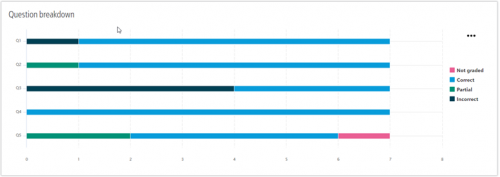
In the new assessment experience, we've added metrics on how students performed on assessment questions. From the assessment Evaluation page, select Detailed breakdown. Under Question breakdown, a stacked bar graph displays the number of Correct, Partial, Incorrect, and Not graded responses for each question. Faculty can hover over a bar in the graph to isolate that response category or select a response category from the key to show or hide that category in the graph.

Additional details and metrics will be added in the coming weeks.
Points deducted for incorrect responses when allowing for partial credit on multiple choice questions
When Allow for partial credit is enabled on multiple choice questions, points are awarded for correct answers selected and deducted for incorrect answers selected. If more incorrect answers are selected than correct answers, zero points are awarded, never a negative score.For example, a multiple choice question worth 10 points has two correct answer choices and three incorrect answer choices. Each correct answer selected is worth 5 points and each incorrect answer selected deducts 5 points.
If a student selects:
- Two correct answers and one incorrect answer, they're awarded 5 points.
- One correct answer and one incorrect answer, they're awarded 0 points.
- One correct answer and two incorrect answers, they're awarded 0 points.
Assignment description and Section block columns added to Assignment Center and class Assignments pages
In Assignment Center and on class Assignments pages, we’ve added columns for Assignment description and Section block. To add these columns to their view, teachers select Columns, enable Assignment Description and Section block, then select Apply changes.New columns for Consequences list
Two new columns are available for the Consequences list: Infraction date and Infraction description.To see this feature, open Conduct in the top menu and select Consequences list. The new columns appear by default on new lists. You can modify which column headers appear on a list by selecting Columns.
Billing management
Auto-Pay is now available for Canadian K-12 Schools
Auto-Pay is now available for all Canadian K-12 schools, enabling payers to automatically make payments against charges included in their payment plans.The following new features are available to payers and billing clerks, respectively:
Payers
Payers can access the following features from the Current Bill page:
- Enroll in Auto-Pay from the Current bill to automatically pay the upcoming payment plan installment amount on the scheduled due date.
- Review a Pre-Authorized Debit agreement outlining the repayment guidelines when selecting direct debit as a payment option
- Suspend and resume automatic withdrawal.
- Change payment method.
- View Auto-Pay status (e.g., Active, On Hold, Terminated).
- Review the Pre-Authorized Debit agreement.
- View the next payment date and amount.
Billing clerks can manage the following features:
Set-up (Billing > Billing years > Auto-Pay)
- Enable credit cards or direct debit as available payment methods.
- Append up to a 4% convenience fee for credit card processing.
- Determine when the convenience fee will be posted to the general ledger.
- Notify payers automatically via an email or text notification three days before an upcoming payment due date and immediately after enrolling in Auto-Pay.
- Enroll payers in Auto-Pay, put existing Auto-Pay accounts on hold, and terminate Auto-Pay for specific accounts.
- Note: Billing clerks cannot enroll payers in Auto-Pay using direct debit as the payment method.
- Review the Pre-Authorized Debit agreement, when applicable.
- Review the status of all changes made to Auto-Pay.
- Change the payment method on behalf of the payer.
- Report on statistics using the new Next payment date, Current year autopay, and Next year autopay columns available in the Students list.
Transaction type filter added to Recent payments
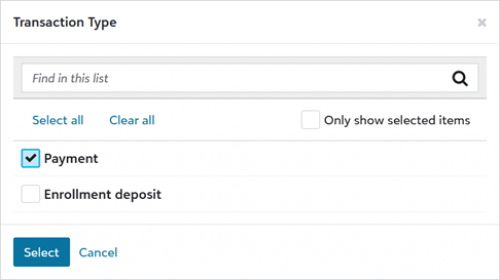
Transaction type is a new filter available on the Recent payments list, enabling Billing clerks to refine the list results by focusing on either Payments or Enrollment deposits. This refinement allows Billing clerks to exclusively display Enrollment deposits, making it easier to group them into bank deposits directly from the list.
Core
October 3, 2023 – Blackbaud ID requires Multi-factor Authentication
Starting October 2023, Blackbaud will begin to require faculty and staff users of Blackbaud Education Management® (BBEM) to enable multi-factor authentication (MFA) on their Blackbaud ID (BBID) username and password. These users have roles with Application or Employee/Volunteer types.The requirement will be enforced in “waves.” The first wave of schools will require MFA as of October 3, 2023. If, by this summer, your organization has not yet established an SSO connection, then we will send you an email with the exact date on which your users will be required to use MFA.
Exemptions
The following users are exempt from Blackbaud’s MFA requirement for BBID and their login experiences will not be affected:
- Users who login with a single sign on (SSO),
- Users who login with Sign in with Google,
- Users who login with Sign in with Apple,
- Students, alumni, parents, and non-administrative users of Blackbaud Education Management. These users have only Constituent or Other role types.
Multi-factor authentication (MFA) requires a user to successfully validate at least two of three factors to authenticate before gaining access to your solution and data. Blackbaud ID will require MFA using your password (what you use today) and a unique, time-based, one-time code accessed on a secondary device. We are proactively making this change, following industry-standard security measures, to help protect your organization and your data.
Try MFA early
We recommend testing MFA with a cloned role at your school’s convenience. For example, require users who have the nurse role to login with MFA and BBID. The nurse could complete the login using a numeric code sent to their phone for additional security.
As a platform manager, go to Core, Security, Roles, and search for a role. On the role’s row, select more (…) and then select to Enforce MFA.
Platform managers can also Remove MFA enforcement from here (during your testing phase). When you disable the MFA requirement for a role, users in the affected roles may still be prompted to login with MFA. However, after logging in, the user can go to their individual BBID profile to opt out of MFA.
When MFA is required for a school role, those users can view their BBID profile, but can’t opt out of MFA.
Encourage your users to act now by enabling MFA on their Blackbaud ID if they have not already done so.
Miscellaneous
Please note:
- Users who login with single sign on (SSO), Sign in with Google, or Sign in with Apple, will not be prompted to use Blackbaud’s MFA, even if the school enforces MFA for one of their roles.
- Users who use Sign in with Google or Sign in with Apple may be prompted to use an MFA that is managed by Google or Apple, even when Blackbaud doesn’t require MFA. These “social sign ins” are subject to the third party’s authentication processes, instead of Blackbaud’s process.
- Users who are already required to use MFA because they also use their BBID for other Blackbaud applications, such as Raiser’s Edge NXT, will still require MFA, regardless of their MFA settings for their roles in Education Management.
Please contact Support or your Customer Success Manager with any questions.
Enrollment management
Applications
Candidates filling out an Application form now copy address values from the Applicant Block and hide Household address fields when selecting Yes for the Address same as user option.Candidate Header
The Candidate date of birth is now included in the Process file submissions header information.Extracurricular
Manage team photos
In Manage teams, Athletic Group Managers can now update team photos. From Extracurricular, select Athletics > Athletics setup > Manage teams, then select the team name > Team details. If a team photo already exists, it displays under Team section photo. To add, update, or remove a team photo, select Edit team photo.Financial Aid management
Parent site warning after session timeout
When leaving the application window active in their browser, parents now receive a session timeout message if the application is left idle for 20 minutes.Tuition management
Notification email for failed Nacha validation
Payers now receive an email notification if their newly added bank account fails Nacha validation. The notification explains that any payments made with the bank account will not be processed and follow-up/late fees may be assessed if the payer's Tuition Management balance is not paid by the due date.API and Integrations
School API and OneRoster API
For information about recently added endpoints and other updates, view the School API and OneRoster API changelog.Subscribe to “What’s New”
To receive email notifications when the What’s new update appears, make sure to subscribe to the K12 community’s blog by logging into the community site and selecting the Subscribe button.
To manage your community subscriptions:
- Log into the community and locate your name and profile picture in the upper right corner.
- Select the drop-down arrow and select My Account.
- From the My Account page, select the Subscriptions tab and scroll down to the Blogs section.
- Locate Blackbaud K-12 Education solutions Blog. If you want to be notified as soon as the What’s new content goes live on the community, select the Instant option. You can also opt for Daily and Weekly notifications.
- Scroll to the end of the page and select Save changes.
What’s Recent
Missed any of our weekly releases? You can catch up on everything in our Month in Review blog posts, which cover every feature and update Education management releases each month.
0
Categories
- All Categories
- 6 Blackbaud Community Help
- 209 bbcon®
- 1.4K Blackbaud Altru®
- 394 Blackbaud Award Management™ and Blackbaud Stewardship Management™
- 1.1K Blackbaud CRM™ and Blackbaud Internet Solutions™
- 15 donorCentrics®
- 359 Blackbaud eTapestry®
- 2.5K Blackbaud Financial Edge NXT®
- 646 Blackbaud Grantmaking™
- 563 Blackbaud Education Management Solutions for Higher Education
- 3.2K Blackbaud Education Management Solutions for K-12 Schools
- 934 Blackbaud Luminate Online® and Blackbaud TeamRaiser®
- 84 JustGiving® from Blackbaud®
- 6.4K Blackbaud Raiser's Edge NXT®
- 3.7K SKY Developer
- 243 ResearchPoint™
- 118 Blackbaud Tuition Management™
- 165 Organizational Best Practices
- 238 The Tap (Just for Fun)
- 33 Blackbaud Community Challenges
- 28 PowerUp Challenges
- 3 (Open) Raiser's Edge NXT PowerUp Challenge: Product Update Briefing
- 3 (Closed) Raiser's Edge NXT PowerUp Challenge: Standard Reports+
- 3 (Closed) Raiser's Edge NXT PowerUp Challenge: Email Marketing
- 3 (Closed) Raiser's Edge NXT PowerUp Challenge: Gift Management
- 4 (Closed) Raiser's Edge NXT PowerUp Challenge: Event Management
- 3 (Closed) Raiser's Edge NXT PowerUp Challenge: Home Page
- 4 (Closed) Raiser's Edge NXT PowerUp Challenge: Standard Reports
- 4 (Closed) Raiser's Edge NXT PowerUp Challenge: Query
- 779 Community News
- 2.9K Jobs Board
- 53 Blackbaud SKY® Reporting Announcements
- 47 Blackbaud CRM Higher Ed Product Advisory Group (HE PAG)
- 19 Blackbaud CRM Product Advisory Group (BBCRM PAG)