Course Roster Report: A Solution To Printing A Class Rosters

Derek Nichols
Blackbaud Employee




A question we commonly get here is how teachers can easily find and print a class roster. With a new school year just getting underway for many schools, it’s an understandable question.
Thankfully, we have a very easy answer: The Course Roster report.
The place to start is under the Faculty persona, the location where teachers can find everything from their schedule, to Gradebooks, Conduct, Assignment Center, and much more. Under Classes, select the correct class from the list and then Roster. As expected, this displays everyone associated with the class like faculty and students in a nice, tiled format. Unfortunately, this page isn’t very printer friendly.
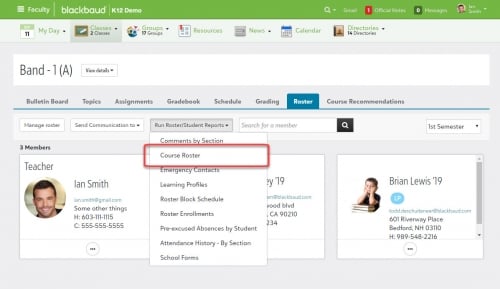
The place to turn to now is Run Roster/Student Reports where the aforementioned Course Roster report is waiting in the list. Select it to generate a new page with all sorts of vital information.
At the top of the report is your course information. This includes the class name, the school term that the class is associated with, room number and the teacher name. Under that is the complete class roster list with each student shown in alphabetical order, their expected graduation date, contact phone number and advisor if they have one. Parent contact information is also included here.
This report also features the option of viewing or printing from a different format such as a PDF or a Microsoft Word document. You can also export the data to Microsoft Excel if needed.
For many of you asking about an easy to print roster option, we hope this helps. While you’re here, consider subscribing to the K-12 Community if you haven’t already. This will keep you up to date on all the latest content including our monthly release letter blog update, which is coming next week.
Thanks for reading, everyone!
Thankfully, we have a very easy answer: The Course Roster report.
The place to start is under the Faculty persona, the location where teachers can find everything from their schedule, to Gradebooks, Conduct, Assignment Center, and much more. Under Classes, select the correct class from the list and then Roster. As expected, this displays everyone associated with the class like faculty and students in a nice, tiled format. Unfortunately, this page isn’t very printer friendly.
The place to turn to now is Run Roster/Student Reports where the aforementioned Course Roster report is waiting in the list. Select it to generate a new page with all sorts of vital information.

At the top of the report is your course information. This includes the class name, the school term that the class is associated with, room number and the teacher name. Under that is the complete class roster list with each student shown in alphabetical order, their expected graduation date, contact phone number and advisor if they have one. Parent contact information is also included here.
This report also features the option of viewing or printing from a different format such as a PDF or a Microsoft Word document. You can also export the data to Microsoft Excel if needed.
For many of you asking about an easy to print roster option, we hope this helps. While you’re here, consider subscribing to the K-12 Community if you haven’t already. This will keep you up to date on all the latest content including our monthly release letter blog update, which is coming next week.
Thanks for reading, everyone!
2
Comments
-
I would like to print only the students and their graduation year on a class roster. We don't want/need all the other info...phone number, parent contact, etc. Just a basic roster please.0
-
with pictures!0
-
Lynnette Zimmerli posted the exact request that I would have -- a year ago. Does anyone know if anything has been added to allow us to print simple rosters? I also want to print rosters by grade, or by department, but it seems the only way to do it in OnCampus is to print by teacher, which is not always what I want to do. Any ideas?
0 -
Yes, my biggest request every year is how to print rosters with pictures. Is Blackbaud still not set up to do this formally? Clicking control print doesn't always display pictures properly.
0









Categories
- All Categories
- 6 Blackbaud Community Help
- 211 bbcon®
- 1.4K Blackbaud Altru®
- 403 Blackbaud Award Management™ and Blackbaud Stewardship Management™
- 1.2K Blackbaud CRM™ and Blackbaud Internet Solutions™
- 15 donorCentrics®
- 360 Blackbaud eTapestry®
- 2.6K Blackbaud Financial Edge NXT®
- 659 Blackbaud Grantmaking™
- 579 Blackbaud Education Management Solutions for Higher Education
- 3.2K Blackbaud Education Management Solutions for K-12 Schools
- 943 Blackbaud Luminate Online® and Blackbaud TeamRaiser®
- 84 JustGiving® from Blackbaud®
- 6.7K Blackbaud Raiser's Edge NXT®
- 3.8K SKY Developer
- 250 ResearchPoint™
- 120 Blackbaud Tuition Management™
- 165 Organizational Best Practices
- 241 Member Lounge (Just for Fun)
- 36 Blackbaud Community Challenges
- 37 PowerUp Challenges
- 3 (Open) PowerUp Challenge: Grid View Batch
- 3 (Closed) PowerUp Challenge: Chat for Blackbaud AI
- 3 (Closed) PowerUp Challenge: Data Health
- 3 (Closed) Raiser's Edge NXT PowerUp Challenge: Product Update Briefing
- 3 (Closed) Raiser's Edge NXT PowerUp Challenge: Standard Reports+
- 3 (Closed) Raiser's Edge NXT PowerUp Challenge: Email Marketing
- 3 (Closed) Raiser's Edge NXT PowerUp Challenge: Gift Management
- 4 (Closed) Raiser's Edge NXT PowerUp Challenge: Event Management
- 3 (Closed) Raiser's Edge NXT PowerUp Challenge: Home Page
- 4 (Closed) Raiser's Edge NXT PowerUp Challenge: Standard Reports
- 4 (Closed) Raiser's Edge NXT PowerUp Challenge: Query
- 798 Community News
- 3K Jobs Board
- 56 Blackbaud SKY® Reporting Announcements
- 47 Blackbaud CRM Higher Ed Product Advisory Group (HE PAG)
- 19 Blackbaud CRM Product Advisory Group (BBCRM PAG)