Coming Soon: Holds For Academics And Billing Management

Derek Nichols
Blackbaud Employee




This week, we're giving you a sneak peak at upcoming features for both Academics and Billing management. Here's what you need to know about Account Holds.Soon, schools using Blackbaud Education Management will have the ability to set up customized holds on student accounts. The upcoming Holds feature (release date to be determined) will allow you to temporarily place restrictions on sending transcripts, requesting courses, and other actions.
Administrators will be able to set up Holds via the Communication menu in Academics or Billing management to temporarily restrict access on certain students' accounts. When users who have been placed on hold attempt to access restricted areas, they will see a notification instructing them to reach out to a designated contact person at the school to remedy the underlying problem.
Please note: The Holds feature is replacing the old Manage Exclusions workflow with a new process that is simpler, more accessible, and more customizable. The Manage Exclusions tool will no longer be available when Holds launches. Data from your school’s Exclusions will still be available via Holds when the feature launches.
We’ve been gathering feedback from some of our schools via an Early Adopter Program, and we are nearly ready to release the feature to all users. To give you an idea of what’s coming, here are a few screenshots of the feature in action.
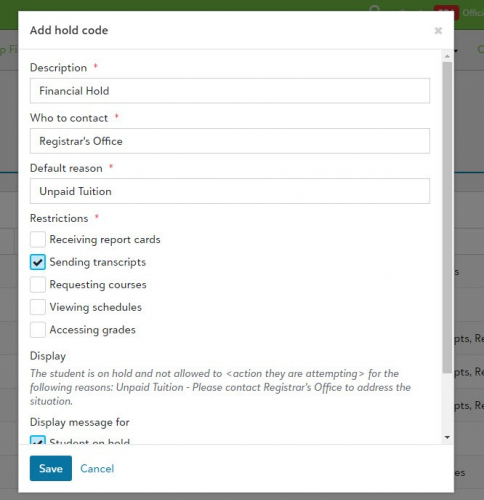
First, you will need to set up hold codes via Holds settings. Each hold code will include a contact person and default reason that will display to a user who has been put on hold. You will be able to specify which of the following restrictions apply to a person with this hold code: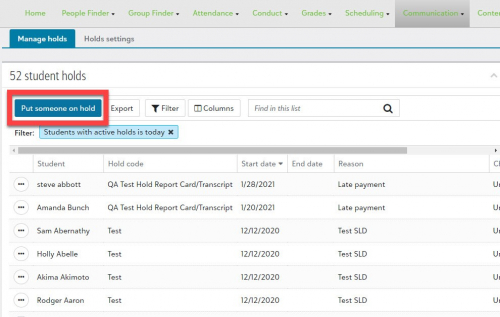
Once you have set up hold codes, you will be able to apply those hold codes to students. The above screenshot shows the Put someone on hold button on the Manage holds screen.
There will be 6 possible ways to place a student on hold, depending whether an administrator is designated as an Academics Holds Manager or a Billing Holds Manager: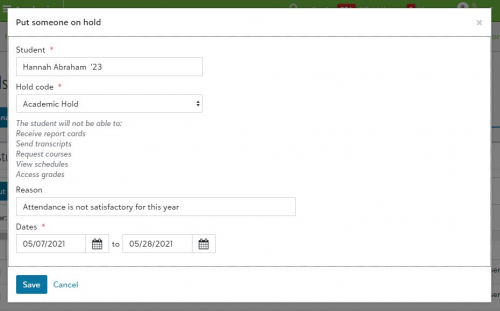
To place a hold on a student, you will choose a Hold code, enter a Reason, and select a date range for the hold (the end date is optional).
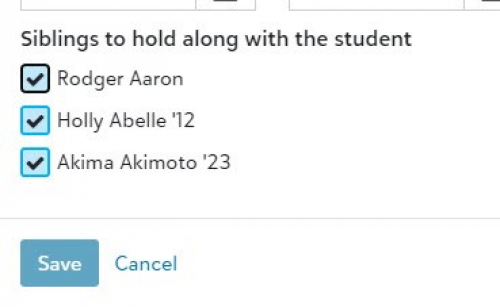
Scrolling down, you will have the option to place a student’s siblings on hold using the same hold code. Once you hit Save, the selected students will be placed on hold for the date range you have chosen.
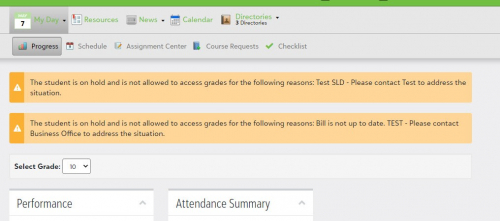
When students try to access a page or perform an action that is blocked due to their Hold status, they may see a notification explaining the Hold and how to remedy it. During the process of creating and editing hold codes, you will have the ability to customize whether these notifications display to students and/or faculty.
We will keep you posted once we have a release date, but we wanted to go ahead and give a sneak peek. We hope you will find these features helpful and simple to use.
Administrators will be able to set up Holds via the Communication menu in Academics or Billing management to temporarily restrict access on certain students' accounts. When users who have been placed on hold attempt to access restricted areas, they will see a notification instructing them to reach out to a designated contact person at the school to remedy the underlying problem.
Please note: The Holds feature is replacing the old Manage Exclusions workflow with a new process that is simpler, more accessible, and more customizable. The Manage Exclusions tool will no longer be available when Holds launches. Data from your school’s Exclusions will still be available via Holds when the feature launches.
We’ve been gathering feedback from some of our schools via an Early Adopter Program, and we are nearly ready to release the feature to all users. To give you an idea of what’s coming, here are a few screenshots of the feature in action.

First, you will need to set up hold codes via Holds settings. Each hold code will include a contact person and default reason that will display to a user who has been put on hold. You will be able to specify which of the following restrictions apply to a person with this hold code:
- Receiving report cards
- Sending transcripts
- Requesting courses
- Viewing schedules
- Accessing grades

Once you have set up hold codes, you will be able to apply those hold codes to students. The above screenshot shows the Put someone on hold button on the Manage holds screen.
There will be 6 possible ways to place a student on hold, depending whether an administrator is designated as an Academics Holds Manager or a Billing Holds Manager:
- Via the student's academic profile
- Via the Academics hold list
- Via the Academics dashboard
- Via the student's Core profile
- Via the student's Enrollment management profile
- Via the Billing management Holds list

To place a hold on a student, you will choose a Hold code, enter a Reason, and select a date range for the hold (the end date is optional).

Scrolling down, you will have the option to place a student’s siblings on hold using the same hold code. Once you hit Save, the selected students will be placed on hold for the date range you have chosen.

When students try to access a page or perform an action that is blocked due to their Hold status, they may see a notification explaining the Hold and how to remedy it. During the process of creating and editing hold codes, you will have the ability to customize whether these notifications display to students and/or faculty.
We will keep you posted once we have a release date, but we wanted to go ahead and give a sneak peek. We hope you will find these features helpful and simple to use.
0
Comments
-
This upcoming Holds feature in Academics and Billing management sounds like a really useful update—especially the customizable restrictions and simplified workflow compared to the old Manage Exclusions process. It’s great to see how user feedback is shaping these tools. On another note, I recently came across this elegant Pakistani Bridal Jewelry Set that beautifully blends tradition with modern craftsmanship.
0


Categories
- All Categories
- 6 Blackbaud Community Help
- 211 bbcon®
- 1.4K Blackbaud Altru®
- 403 Blackbaud Award Management™ and Blackbaud Stewardship Management™
- 1.2K Blackbaud CRM™ and Blackbaud Internet Solutions™
- 15 donorCentrics®
- 360 Blackbaud eTapestry®
- 2.6K Blackbaud Financial Edge NXT®
- 659 Blackbaud Grantmaking™
- 579 Blackbaud Education Management Solutions for Higher Education
- 3.2K Blackbaud Education Management Solutions for K-12 Schools
- 943 Blackbaud Luminate Online® and Blackbaud TeamRaiser®
- 84 JustGiving® from Blackbaud®
- 6.7K Blackbaud Raiser's Edge NXT®
- 3.8K SKY Developer
- 250 ResearchPoint™
- 120 Blackbaud Tuition Management™
- 165 Organizational Best Practices
- 241 Member Lounge (Just for Fun)
- 36 Blackbaud Community Challenges
- 37 PowerUp Challenges
- 3 (Open) PowerUp Challenge: Grid View Batch
- 3 (Closed) PowerUp Challenge: Chat for Blackbaud AI
- 3 (Closed) PowerUp Challenge: Data Health
- 3 (Closed) Raiser's Edge NXT PowerUp Challenge: Product Update Briefing
- 3 (Closed) Raiser's Edge NXT PowerUp Challenge: Standard Reports+
- 3 (Closed) Raiser's Edge NXT PowerUp Challenge: Email Marketing
- 3 (Closed) Raiser's Edge NXT PowerUp Challenge: Gift Management
- 4 (Closed) Raiser's Edge NXT PowerUp Challenge: Event Management
- 3 (Closed) Raiser's Edge NXT PowerUp Challenge: Home Page
- 4 (Closed) Raiser's Edge NXT PowerUp Challenge: Standard Reports
- 4 (Closed) Raiser's Edge NXT PowerUp Challenge: Query
- 798 Community News
- 3K Jobs Board
- 56 Blackbaud SKY® Reporting Announcements
- 47 Blackbaud CRM Higher Ed Product Advisory Group (HE PAG)
- 19 Blackbaud CRM Product Advisory Group (BBCRM PAG)