Introducing Seating Charts For Attendance

Derek Nichols
Blackbaud Employee




We're introducing the ability to take attendance through seating charts! This was a highly requested community feature so come get a visual overview of how this will hopefully make your life easier.Starting this month, teachers at all schools can take attendance via seating charts. This was one of the most popular feature requests in the community, and we were excited to roll it out to you during the last few weekly releases. Today, we wanted to give you a visual overview of how the feature works.
To get started, log in as a teacher and make sure you are in Faculty view. Go to Classes and select a class. Select View seating chart and a pop-out window will open.
If you haven’t created a seating chart for a class yet, you will see the option Create seating chart. Select it, then enter a Number of rows and Number of columns. The grid dimensions will update automatically when you click outside the number entry fields.
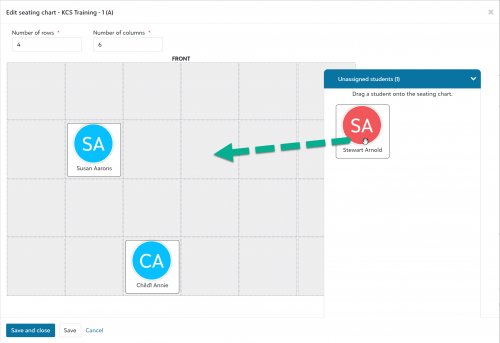
The top of the grid corresponds with the front of your classroom. Find student names under Unassigned students and drag them into place on the grid. Select Save and close when you are finished.
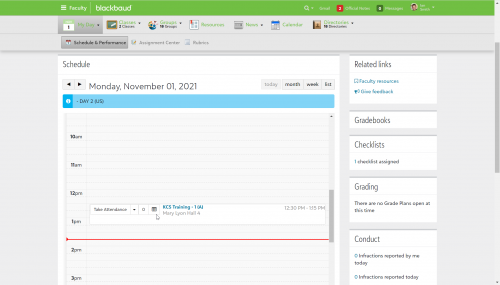
Now that you have created a seating chart for a class, you can use it to take attendance. Go to My Day and select Schedule & Performance. Find the class under Schedule. You will notice a new chart icon next to the name of the class. Select it to open the seating chart and take attendance for that class period. (Note: If you have not created a seating chart for a class, the chart icon will not appear.)
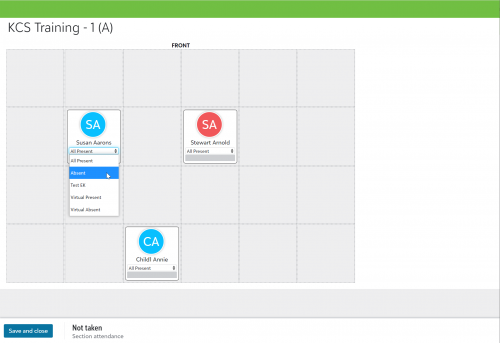
Use the drop-down menu beneath each student’s name to select an attendance code. By default, all students are marked Present. If a student has not been placed on the seating chart, they will automatically be marked Present.
If you select something other than Present, you can enter an attendance comment in the blank space below. This comment will be visible to you and school administrators.
When you have finished taking attendance for the class, select Save and close. You’re all set!
For future reference, you can always check the help topic Seating Charts for a refresher on how to use this feature. Let us know what you think in the comments.
To get started, log in as a teacher and make sure you are in Faculty view. Go to Classes and select a class. Select View seating chart and a pop-out window will open.
If you haven’t created a seating chart for a class yet, you will see the option Create seating chart. Select it, then enter a Number of rows and Number of columns. The grid dimensions will update automatically when you click outside the number entry fields.

The top of the grid corresponds with the front of your classroom. Find student names under Unassigned students and drag them into place on the grid. Select Save and close when you are finished.
Now that you have created a seating chart for a class, you can use it to take attendance. Go to My Day and select Schedule & Performance. Find the class under Schedule. You will notice a new chart icon next to the name of the class. Select it to open the seating chart and take attendance for that class period. (Note: If you have not created a seating chart for a class, the chart icon will not appear.)

Use the drop-down menu beneath each student’s name to select an attendance code. By default, all students are marked Present. If a student has not been placed on the seating chart, they will automatically be marked Present.
If you select something other than Present, you can enter an attendance comment in the blank space below. This comment will be visible to you and school administrators.

When you have finished taking attendance for the class, select Save and close. You’re all set!
For future reference, you can always check the help topic Seating Charts for a refresher on how to use this feature. Let us know what you think in the comments.
0
Categories
- All Categories
- 7 Blackbaud Agents for Good™
- Raiser's Edge NXT test
- 6 Blackbaud Community Help
- 213 bbcon®
- 1.4K Blackbaud Altru®
- 406 Blackbaud Award Management™ and Blackbaud Stewardship Management™
- 1.2K Blackbaud CRM™ and Blackbaud Internet Solutions™
- 16 donorCentrics®
- 361 Blackbaud eTapestry®
- 2.6K Blackbaud Financial Edge NXT®
- 667 Blackbaud Grantmaking™
- 588 Blackbaud Education Management Solutions for Higher Education
- 3.3K Blackbaud Education Management Solutions for K-12 Schools
- 949 Blackbaud Luminate Online® and Blackbaud TeamRaiser®
- 85 JustGiving® from Blackbaud®
- 6.8K Blackbaud Raiser's Edge NXT®
- 3.8K SKY Developer
- 251 ResearchPoint™
- 121 Blackbaud Tuition Management™
- 165 Organizational Best Practices
- 244 Member Lounge (Just for Fun)
- 38 Blackbaud Community Challenges
- 37 PowerUp Challenges
- 3 (Closed) PowerUp Challenge: Grid View Batch
- 3 (Closed) PowerUp Challenge: Chat for Blackbaud AI
- 3 (Closed) PowerUp Challenge: Data Health
- 3 (Closed) Raiser's Edge NXT PowerUp Challenge: Product Update Briefing
- 3 (Closed) Raiser's Edge NXT PowerUp Challenge: Standard Reports+
- 3 (Closed) Raiser's Edge NXT PowerUp Challenge: Email Marketing
- 3 (Closed) Raiser's Edge NXT PowerUp Challenge: Gift Management
- 4 (Closed) Raiser's Edge NXT PowerUp Challenge: Event Management
- 3 (Closed) Raiser's Edge NXT PowerUp Challenge: Home Page
- 4 (Closed) Raiser's Edge NXT PowerUp Challenge: Standard Reports
- 4 (Closed) Raiser's Edge NXT PowerUp Challenge: Query
- 810 Community News
- 3K Jobs Board
- 57 Blackbaud SKY® Reporting Announcements
- 47 Blackbaud CRM Higher Ed Product Advisory Group (HE PAG)
- 19 Blackbaud CRM Product Advisory Group (BBCRM PAG)